

Connect an agent
To connect a client, copy your instance’s MCP address from Your profile. It ends in /mcp. Use the public HTTPS address you normally use to open ShipLean.
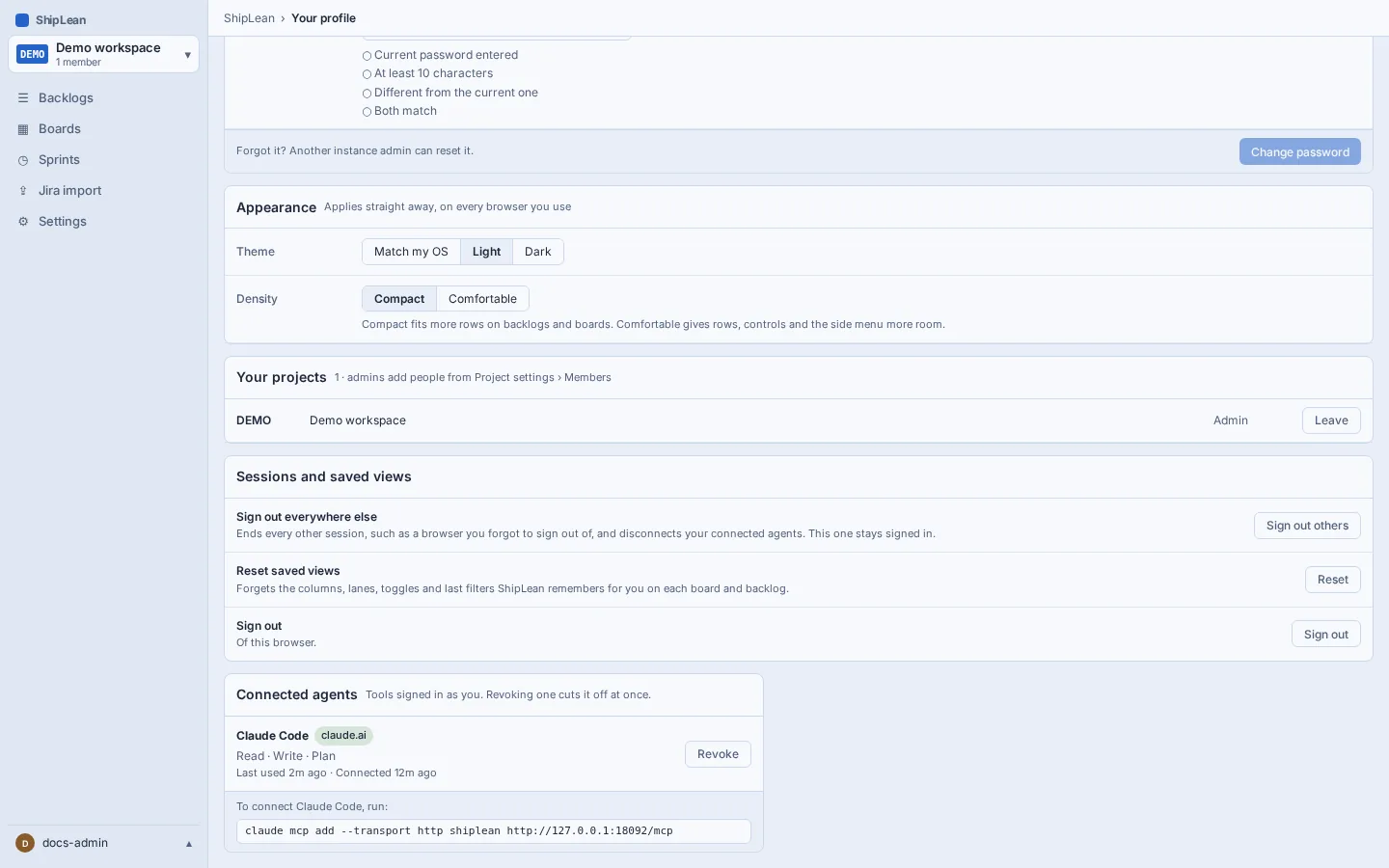
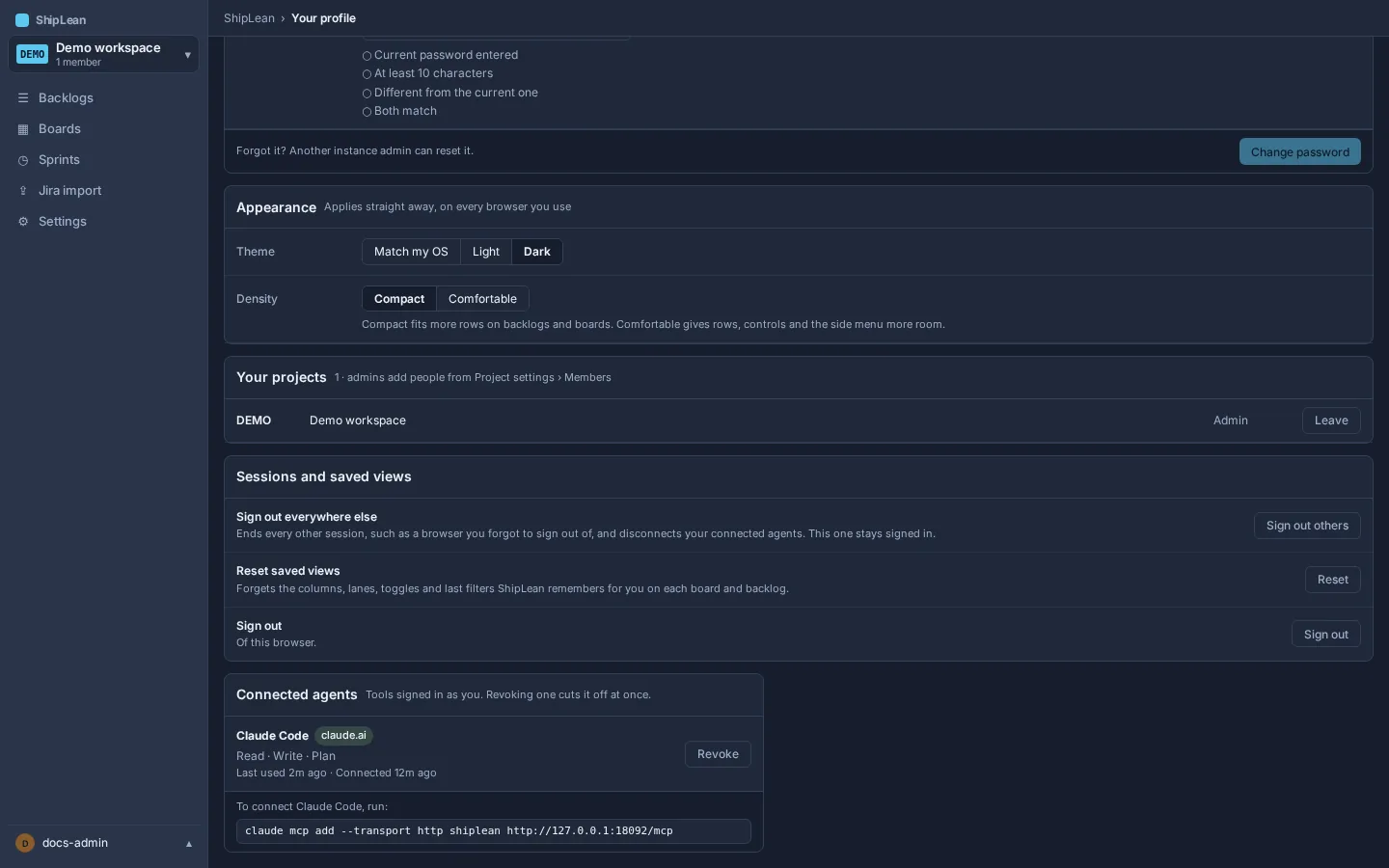
Choose the client you use. The first connection opens ShipLean in a browser, where you sign in and review the requested access.
In a terminal, run this command. Replace the address with the one shown in your profile.
claude mcp add --transport http shiplean --scope user https://shiplean.example.com/mcpTo authenticate without making an LLM request, run claude mcp login shiplean. It opens a browser for ShipLean sign-in and consent. If you cannot open a browser on this machine, run claude mcp login --no-browser shiplean. Claude Code prints an authorization URL and waits for the local callback. After consent completes, run claude mcp get shiplean to confirm the server reports Connected.
User scope makes the server available across your Claude Code projects on this machine. To share only the server address with one project, use project scope instead:
claude mcp add --transport http shiplean --scope project https://shiplean.example.com/mcpProject scope writes the server entry to .mcp.json in the project root. Review that file before you commit it. Then open Claude Code, enter /mcp, choose ShipLean, and select Authenticate. Sign in to ShipLean and allow the access listed on the consent page.
In Claude Desktop, open Customize, then Connectors. Choose Add custom connector, enter a name such as ShipLean, and paste your profile’s MCP address. Add the connector, then choose Connect and sign in to ShipLean. Review the consent request before allowing it.
Remote connectors are configured through your Claude account. Claude Desktop’s local claude_desktop_config.json is for local MCP servers, not for this remote ShipLean connection. Your ShipLean instance must be reachable from Anthropic’s cloud service.
In Claude, open Customize, then Connectors. Choose Add custom connector, enter a name such as ShipLean, and paste your profile’s MCP address. Add the connector, then choose Connect and sign in to ShipLean. Review the consent request before allowing it.
Claude connects to remote MCP servers from Anthropic’s cloud, so the instance must be reachable there. A server available only on your private network or through your local VPN will not connect from Claude on the web.
Add ShipLean to your Cursor MCP configuration. Use .cursor/mcp.json in a project, or ~/.cursor/mcp.json for use across your own projects.
{ "mcpServers": { "shiplean": { "url": "https://shiplean.example.com/mcp" } }}Replace the example URL with the MCP address from your profile. Save the file and restart Cursor. When ShipLean opens the browser consent page, check the instance name and requested scopes before allowing access. Cursor uses a private-use callback URI. ShipLean displays that as an app on your computer, and it marks the client unverified because the client registers dynamically.
Review the consent request
Section titled “Review the consent request”The page shows the client name, whether its identity is verified, and the scopes it requests. A verified client uses a published client identity document. A client that registers dynamically is marked unverified. Check that the displayed ShipLean host is yours, then choose Allow or Deny.
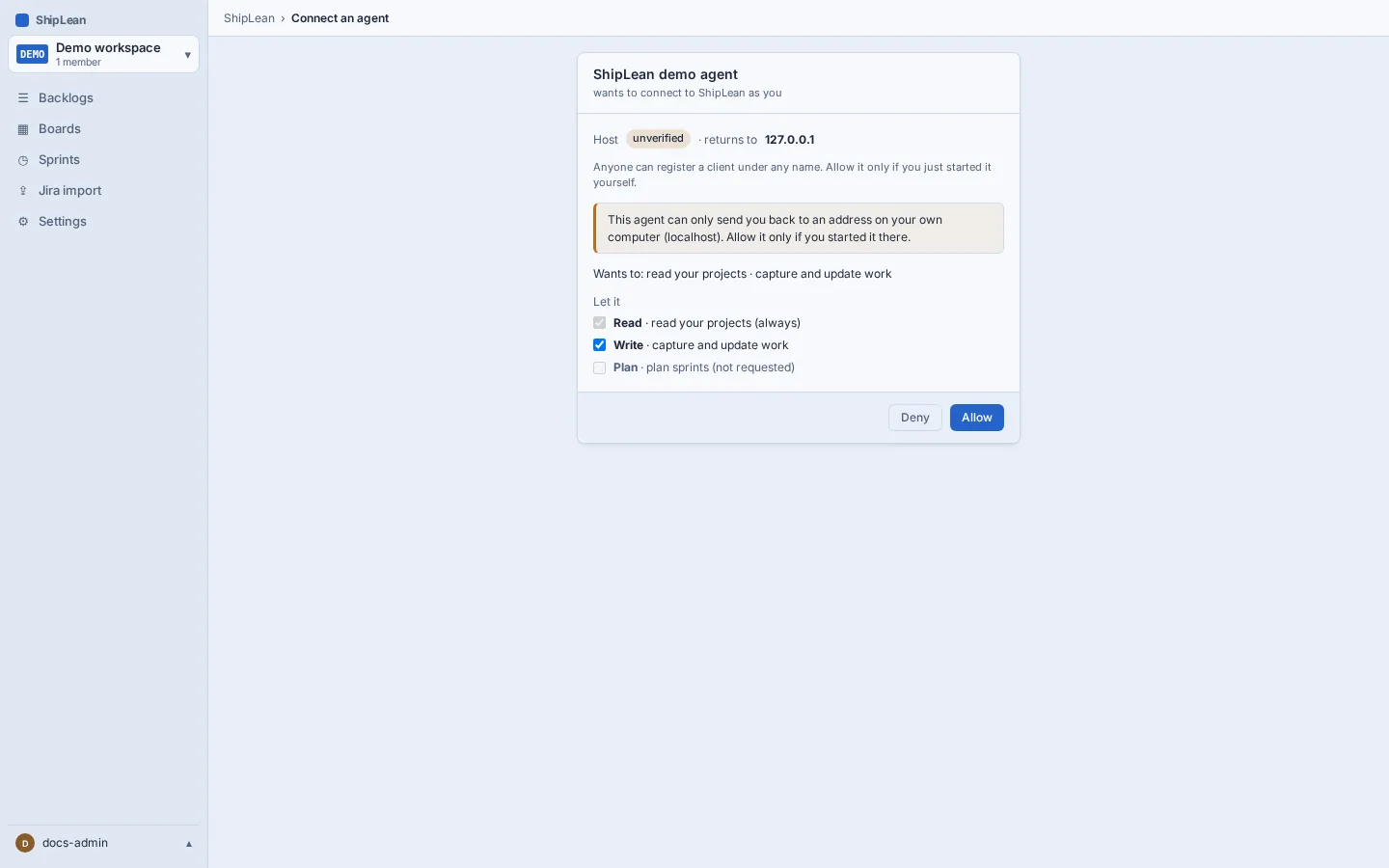
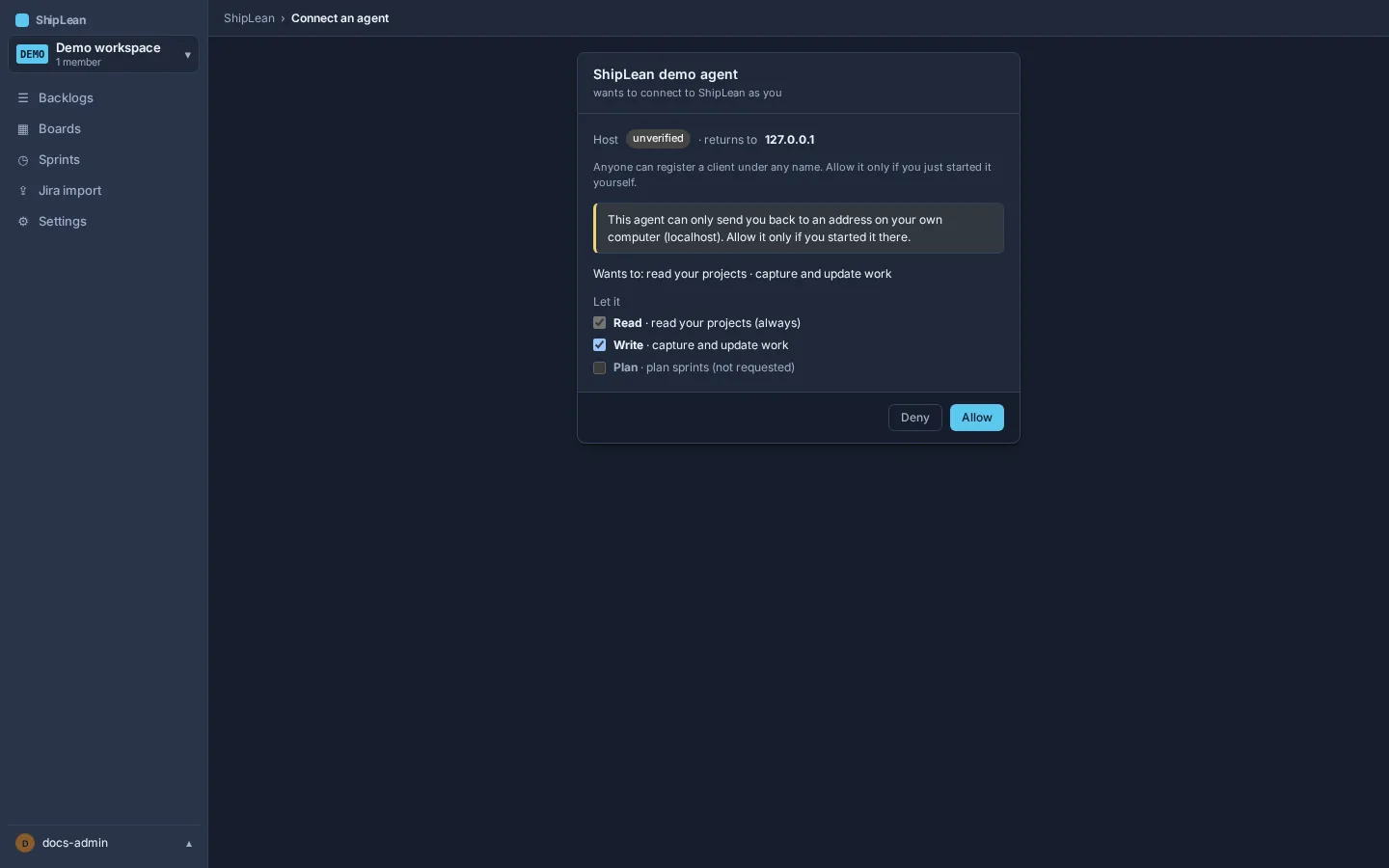
If you deny a request, no connection is granted. To disconnect a client later, open Your profile, go to Connected agents, and revoke it.
Troubleshoot a connection
Section titled “Troubleshoot a connection”The client says “Needs authentication”
Section titled “The client says “Needs authentication””This is expected on the first request. Open the client’s MCP settings and choose Authenticate or Connect. Sign in to the ShipLean account whose project access the agent should use, then review and allow the consent request.
The client gets a 401 after a password change
Section titled “The client gets a 401 after a password change”A password change invalidates the person’s existing agent tokens. In Connected agents on your profile, revoke the old connection if it is still listed. Then authenticate again from the client.
The client gets a 401 after the instance address changed
Section titled “The client gets a 401 after the instance address changed”Agent tokens are bound to the MCP address. If an administrator changes the instance base URL, update the client to use the new address from your profile, and authenticate again.
A browser request gets an Origin error
Section titled “A browser request gets an Origin error”ShipLean accepts browser requests only when the request’s origin matches the configured instance base URL, including scheme, host, and port. Ask your administrator to check that the configured base URL matches the public address you use. Browser clients are refused while the base URL is blank, because ShipLean cannot verify their origin. Non-browser clients that do not send an Origin header are unaffected.