

Navigating ShipLean
Use the side menu to open project areas and your account. The project picker switches the project while keeping you on the same screen when that screen exists in the other project.
Project screens use /p/:key/..., where the key is the project key. The profile is at /profile.
Overview
Section titled “Overview”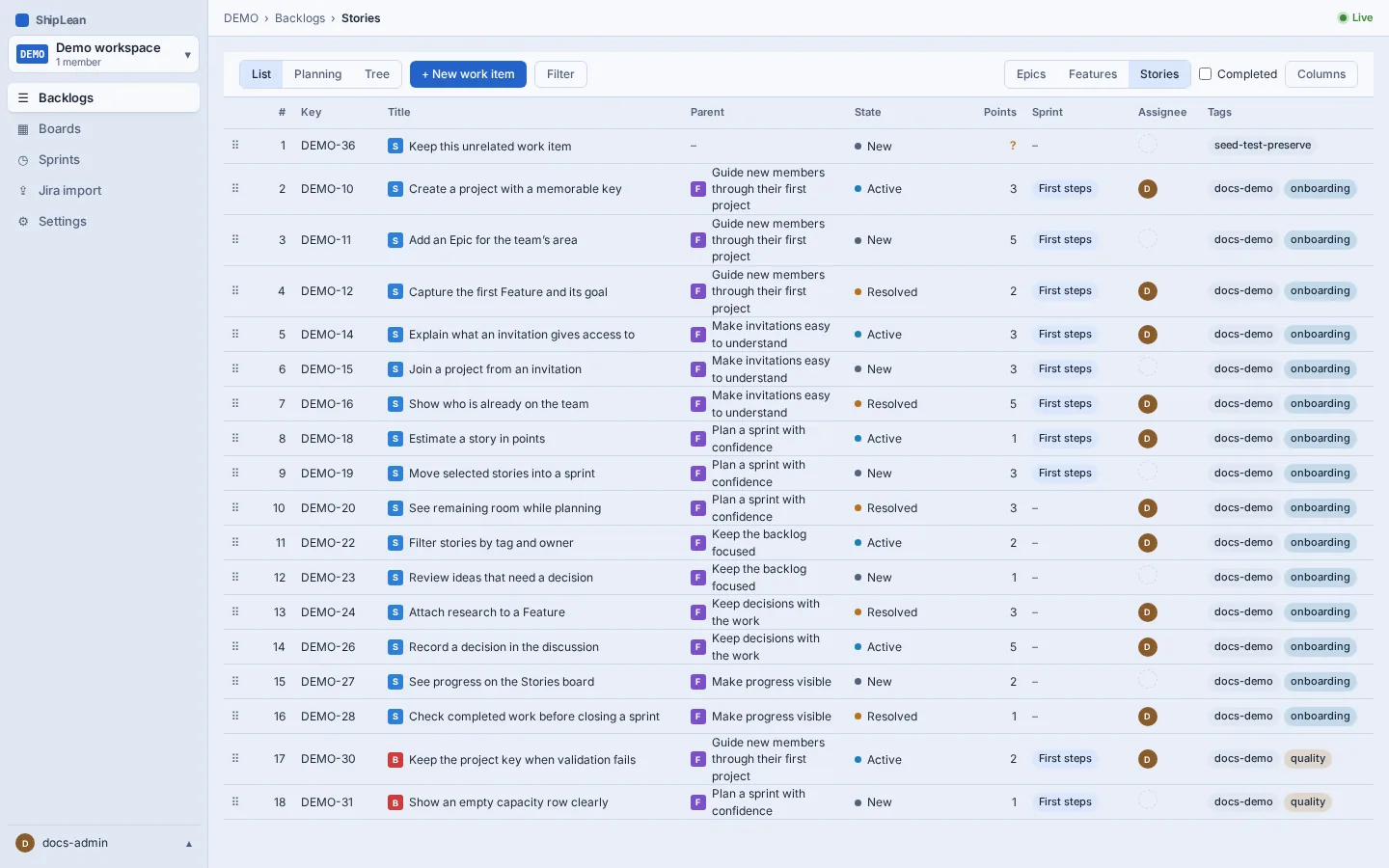
Switch projects
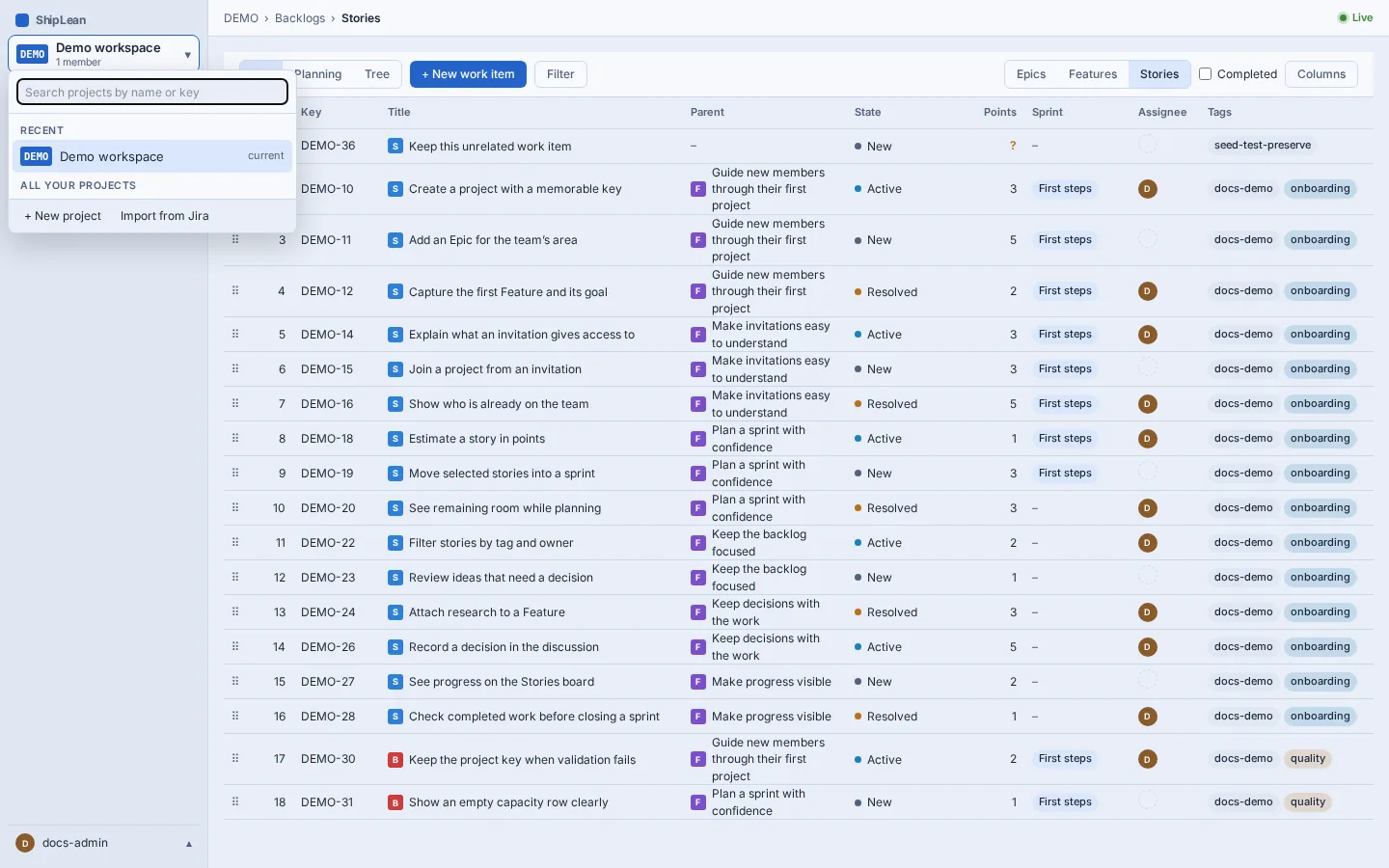
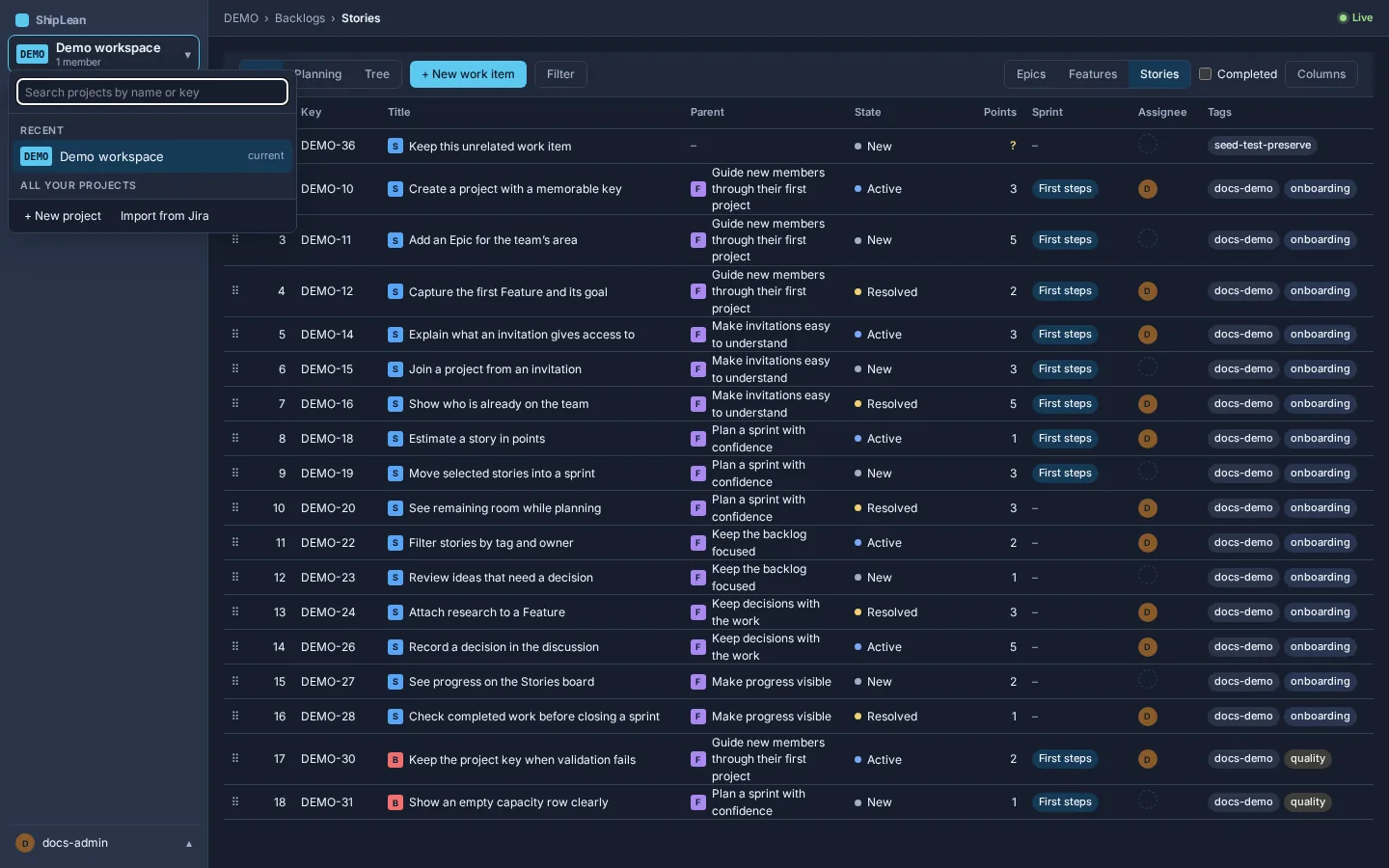
Section titled “Switch projects”- Select the project button above the side menu links.
- Search by project name or key, or choose a project from Recent or All your projects.
- Select a result. ShipLean opens the corresponding screen in that project. If there is no matching screen, it opens the Stories backlog.
Press Ctrl+P on Windows or Linux, or ⌘P on macOS. You can also select the search button beside the ShipLean mark. Either action opens Quick search. On narrow screens under 900px, use the search icon in the top strip after the project button. Pressing the shortcut while Quick search is open selects the input text. It does nothing while another modal dialog is open. Quick search closes the project picker when opened.
Type to search work items, sprints, and projects. Results from the open project come first in each group. Use ↑ and ↓ to move through results, Enter to open the selected result, and Esc to close Quick search and return focus to its opener. With an empty search, Quick search shows the five most recently opened items saved in this browser, followed by actions. If a search fails, choose Retry. Previous results remain visible while a new search runs.
Selecting a work item opens its item modal where supported. It opens the full page on backlog or install-level screens, or when the item belongs to another project. A sprint opens its taskboard, and a project opens its backlog. Quick search actions can open the current project’s Backlogs, Boards, or Sprints, switch the theme, or start a new Epic, Feature, Story, or Bug. New-item actions open the matching backlog with its create control active and the type selected. Tasks are created from their parent item.
Use the side menu and breadcrumbs
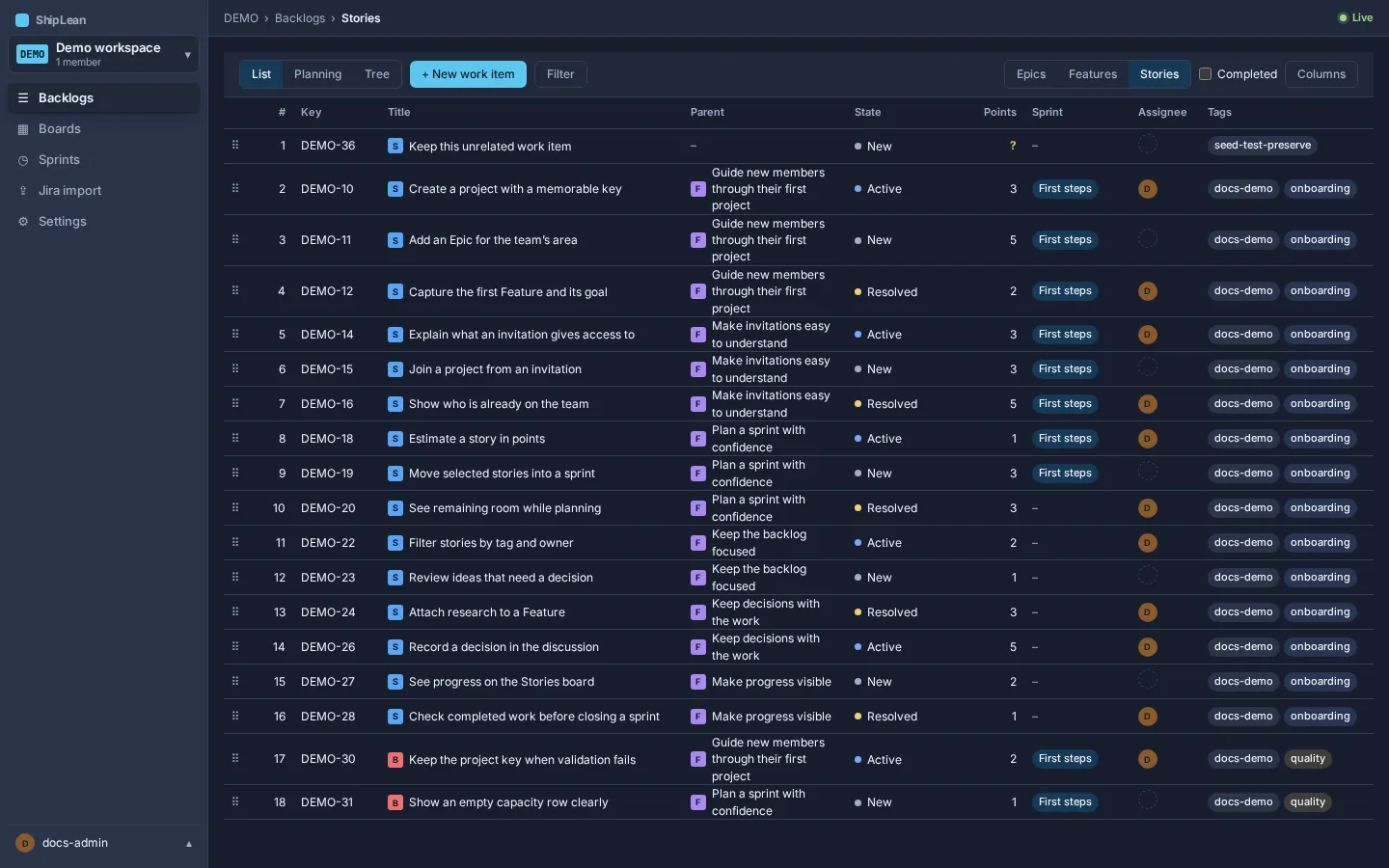
Section titled “Use the side menu and breadcrumbs”Select Backlogs, Boards, Sprints, Jira import, or Settings to move through the current project’s screens. The available project links appear when you have a project selected. Breadcrumbs show the current project or ShipLean, then the screen you are viewing.
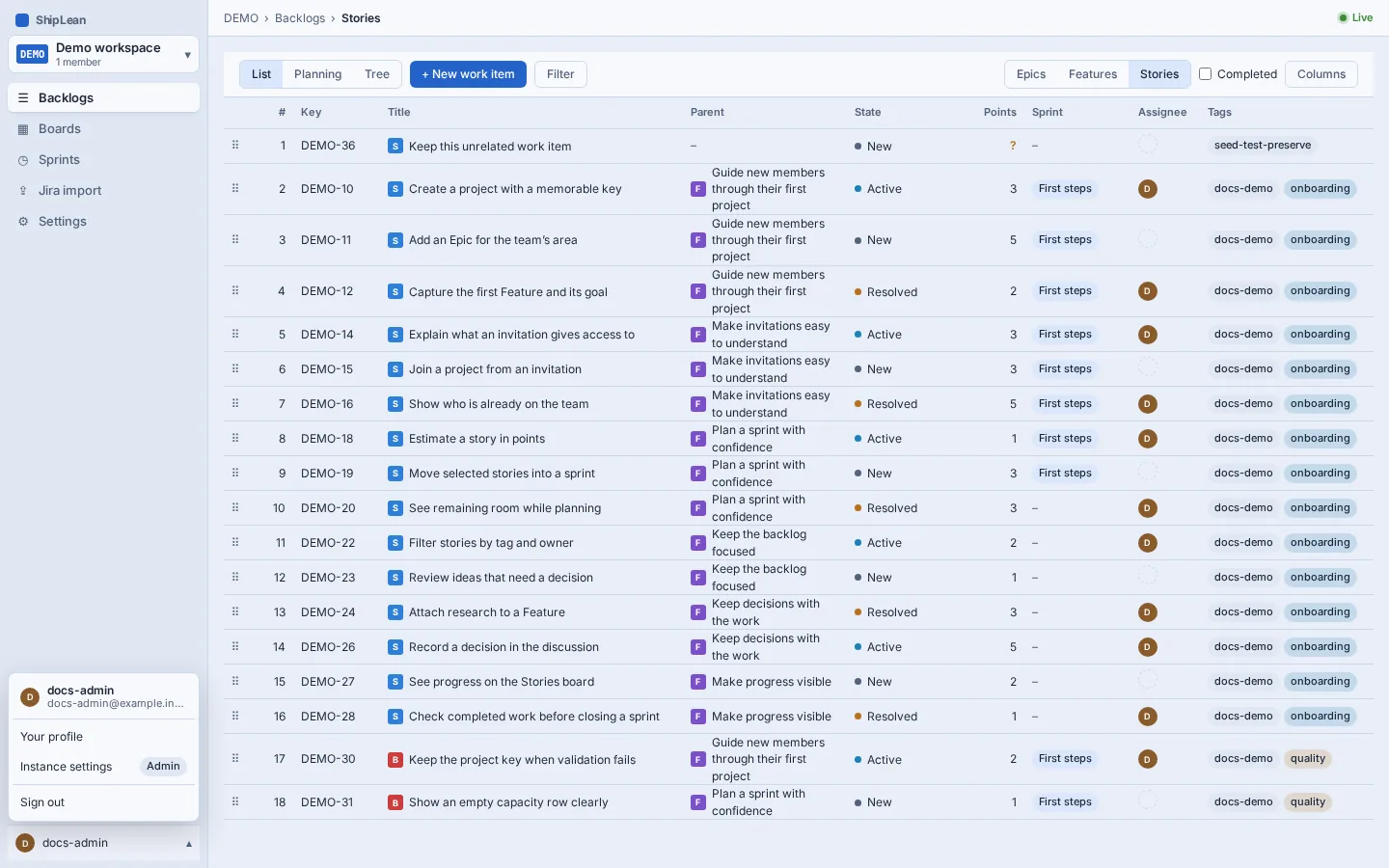
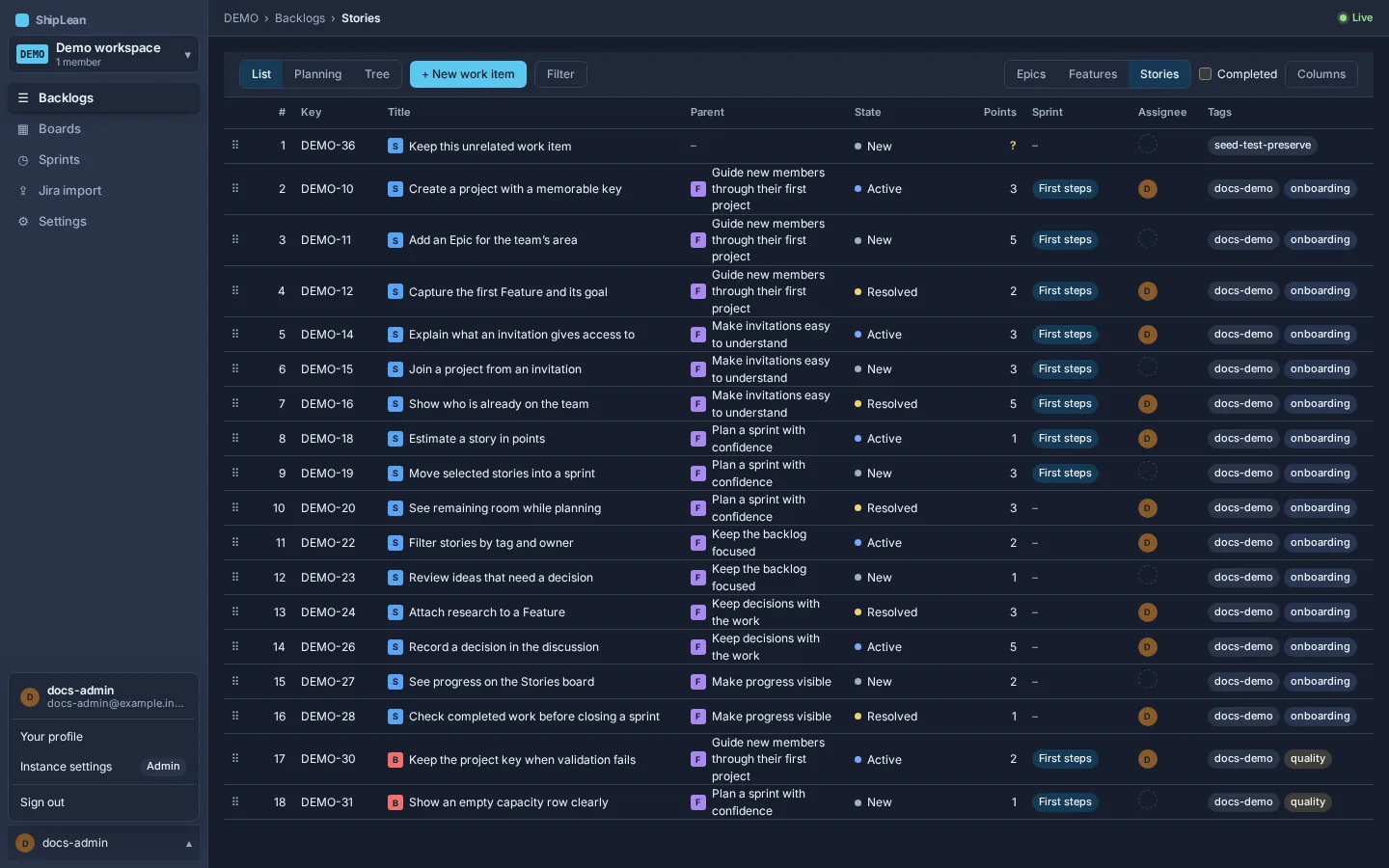
Select your account at the bottom of the menu to open Your profile and sign out. Instance admins also see Instance settings here.
Options and presence
Section titled “Options and presence”Use your profile’s Appearance section to choose a theme and density. Your appearance setting is saved to your account. On project screens, the top bar can show who else is on the same screen. This indicator does not appear on install-level pages such as your profile.
The top bar also shows breadcrumbs for the current location. On narrower screens, the side menu becomes a strip across the top.
Keyboard shortcuts
Section titled “Keyboard shortcuts”- Ctrl+P on Windows or Linux, or ⌘P on macOS: opens Quick search. When Quick search is already open, selects its search text.
- ↑ and ↓: move through Quick search results. Enter opens the selected result, and Esc closes it.