

Your first project in 10 minutes
This walkthrough takes you from a blank workspace to a small sprint plan. You need permission to create projects. Use your team’s real names, or follow the example.
Create the project
Section titled “Create the project”- Open New project from the project switcher.
- Enter a name and a unique key of two to four letters, such as
ACME. Work item keys use this prefix, for exampleACME-1. - Choose whether to copy settings from an existing project, add member email addresses, and choose working days. You can leave the optional choices at their defaults.
- Select Create project.
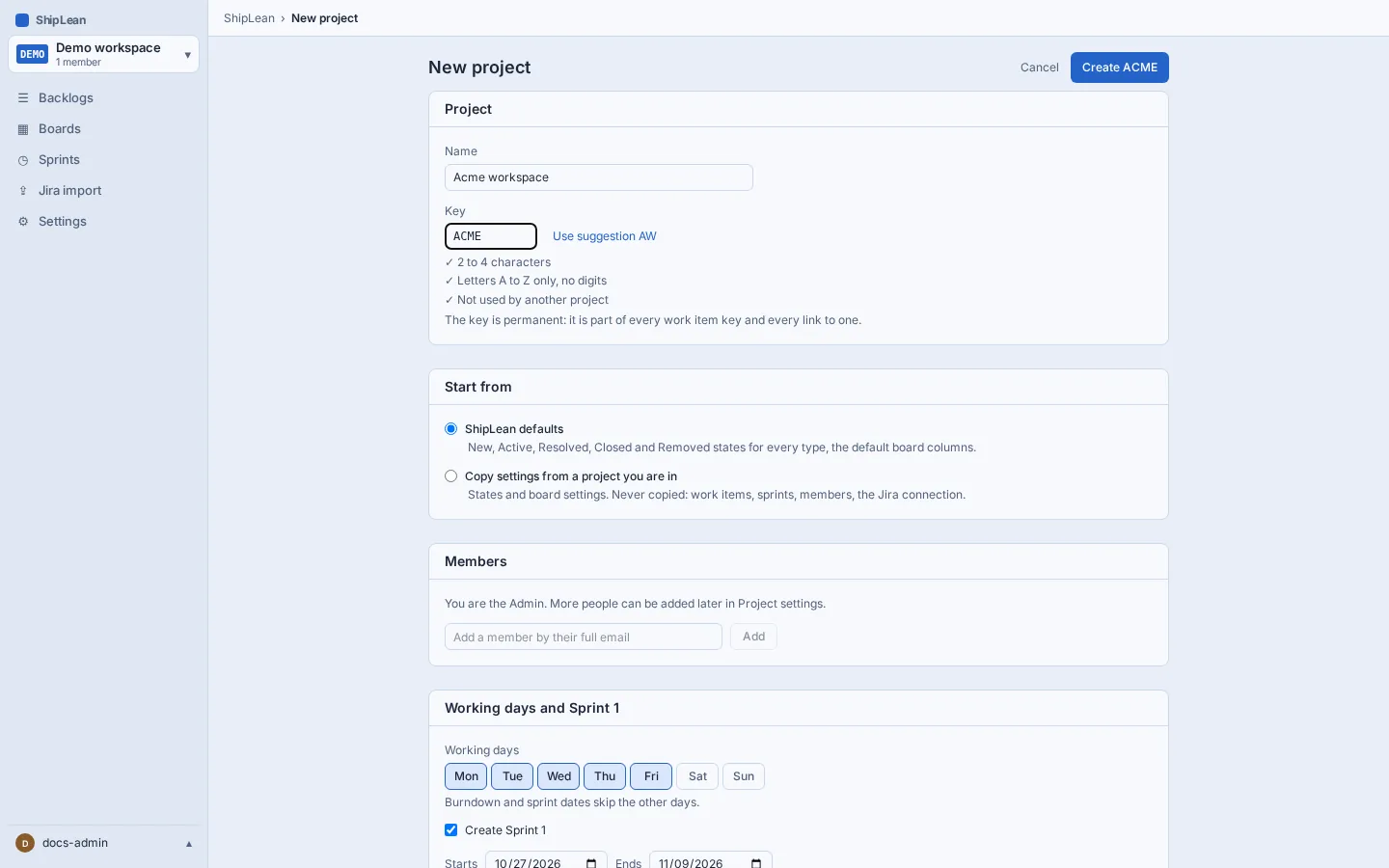
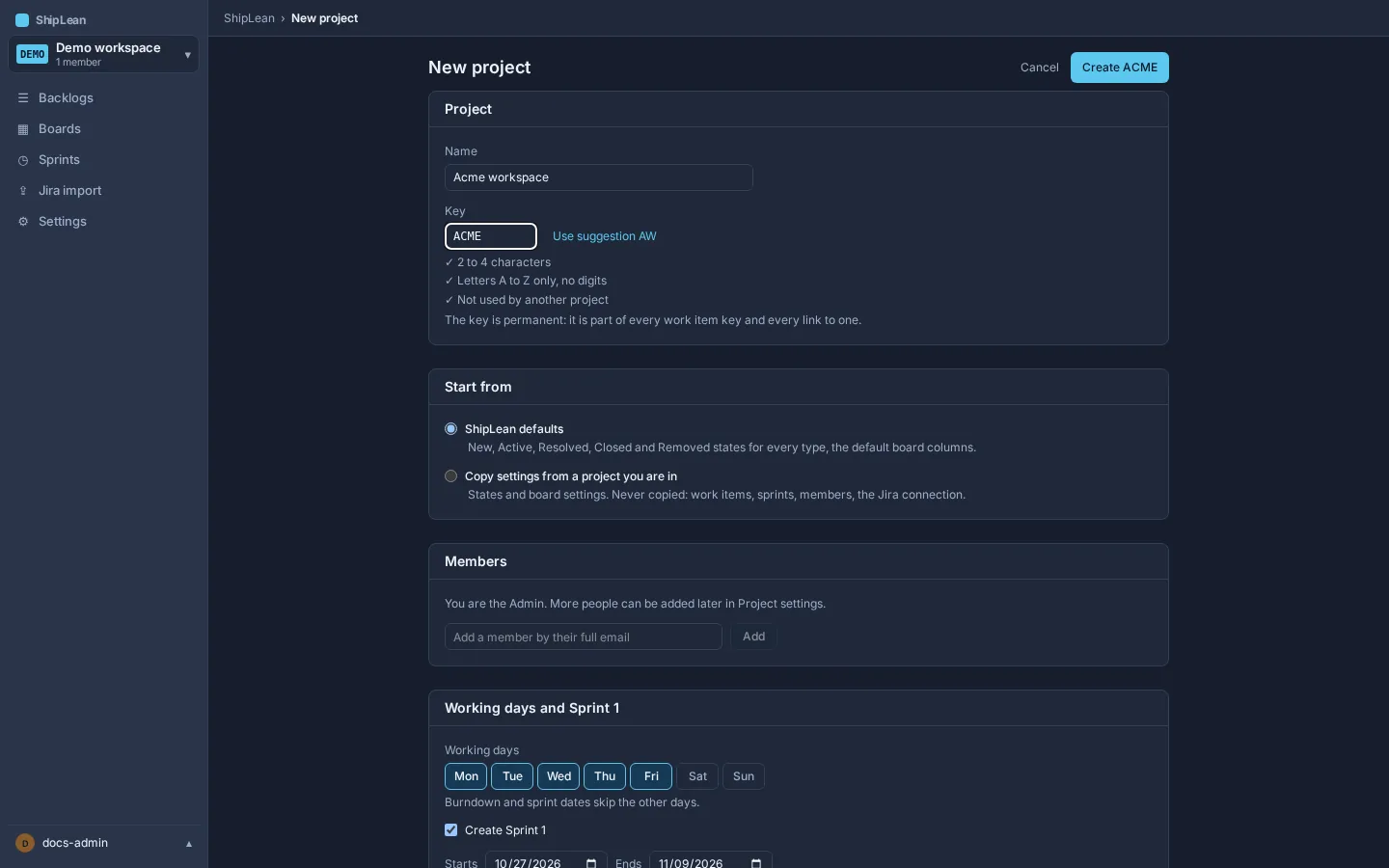
See New project for the fields and project settings.
Add an Epic and two Features
Section titled “Add an Epic and two Features”- Open Backlogs, then Epics, and add an Epic for a broad area, for example Onboarding.
- Open Backlogs, then Features. Add two Features under that Epic, for example Invite teammates and Explain project access. Each Feature can have a goal that describes the outcome.
- Use the item’s parent field to choose the Epic. Features can also contain Features when you need another level.
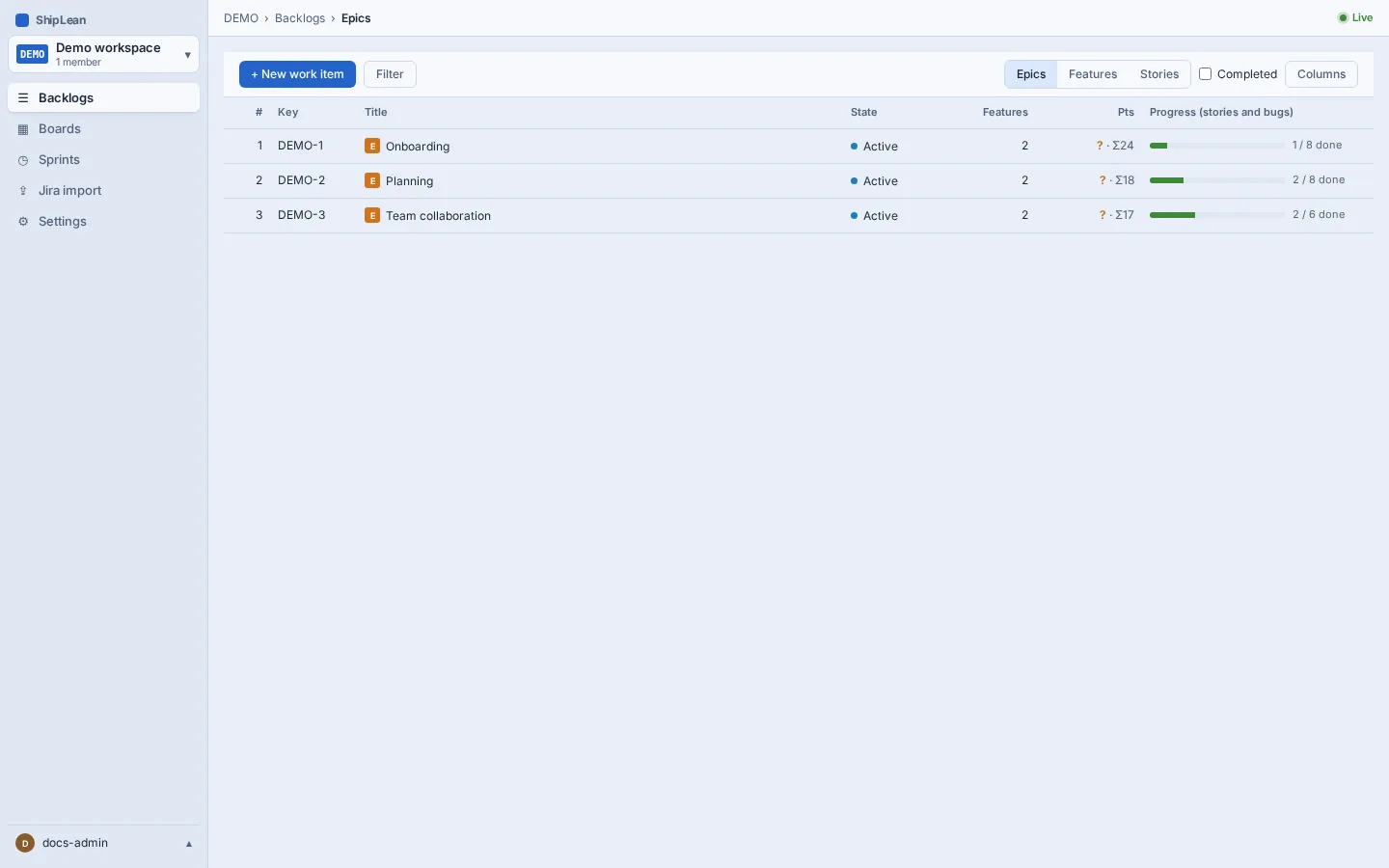
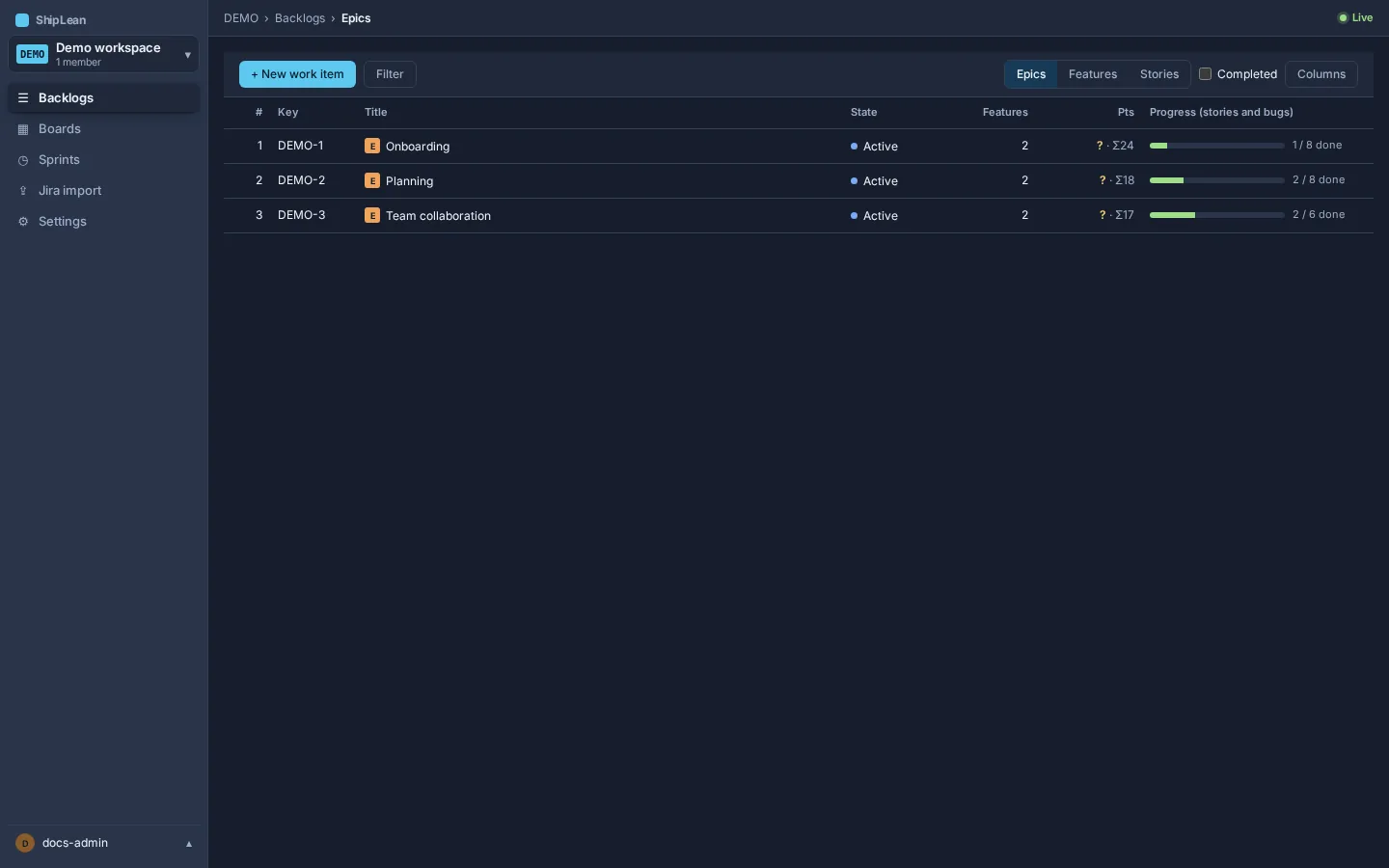
See Work items for creating and editing items.
Add Stories and estimates
Section titled “Add Stories and estimates”- Open Backlogs, then Stories. Add a few small Stories under either Feature.
- Describe the result each Story delivers. Add a story-point estimate if your team estimates work in points.
- Keep the items in the default starting state until work begins. The default states are New, Active, Resolved, Closed, and Removed. States are grouped into workflow categories. The default states do not include blocked or parked. To record that work is blocked or parked, use a status line or a tag.
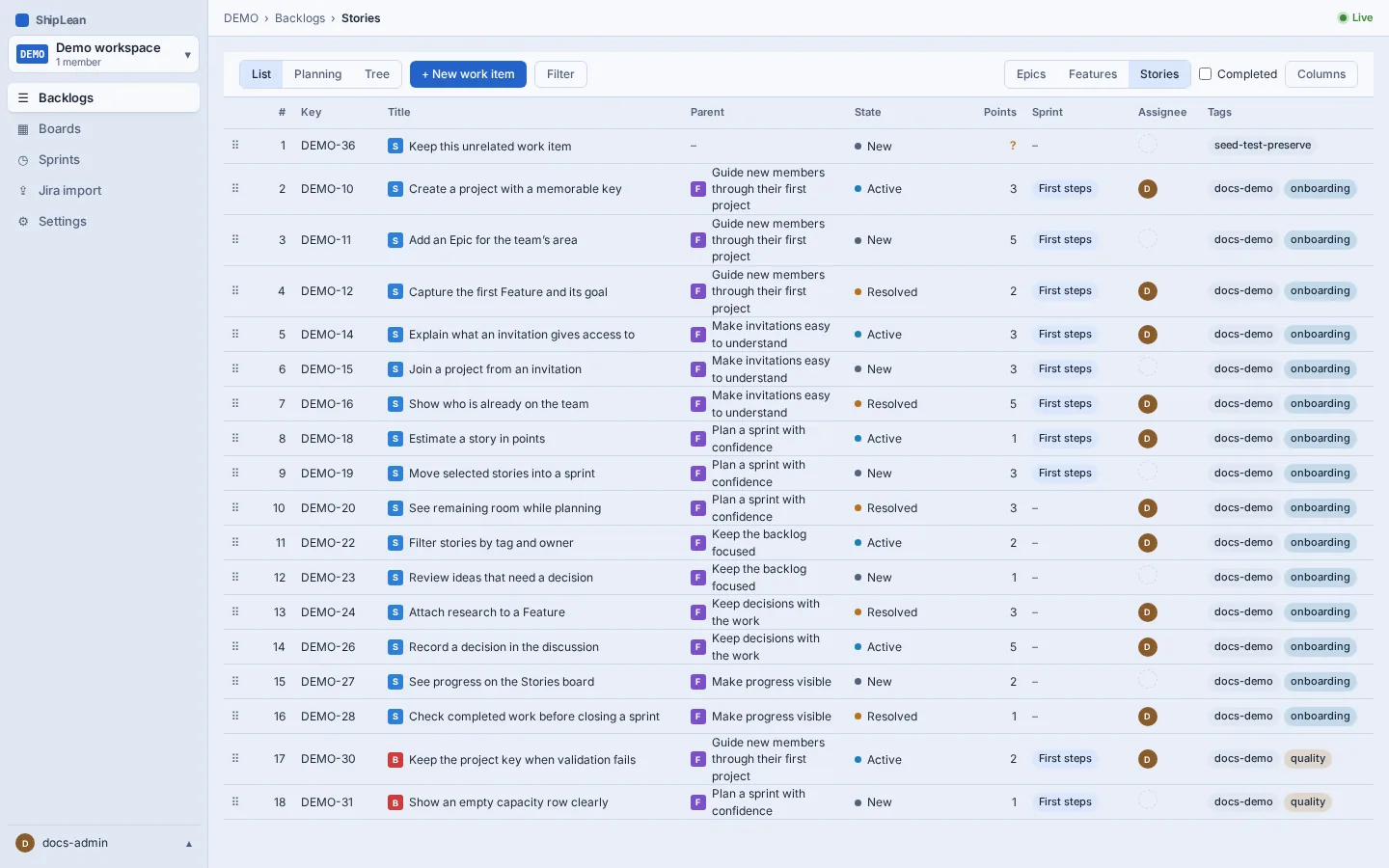
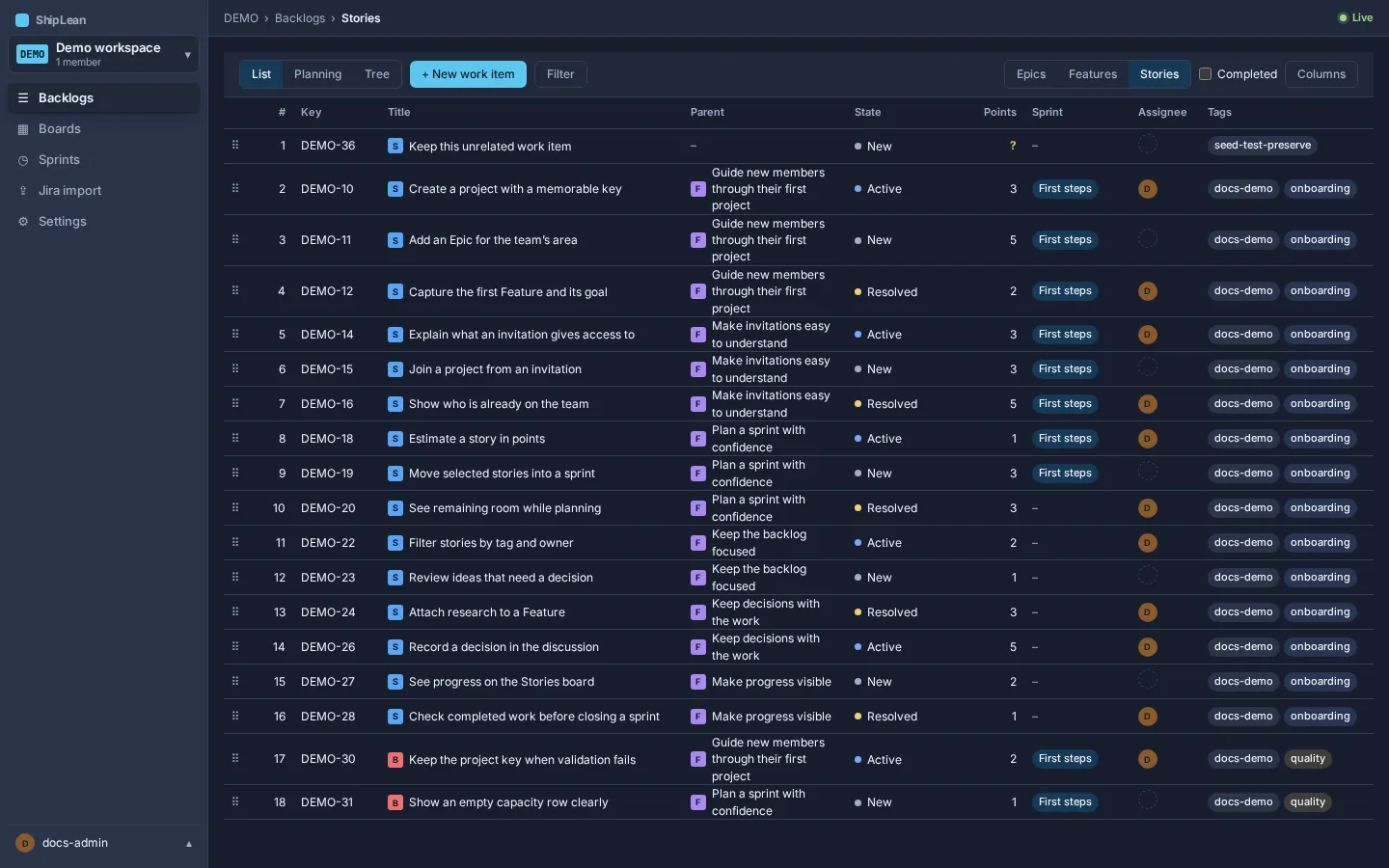
See Stories backlog for ranking and filtering.
Review the board
Section titled “Review the board”Open Boards, then Stories. The board columns show the states configured for Stories and Bugs. Move a card when its state changes. Open Settings if your team needs different columns or WIP limits.
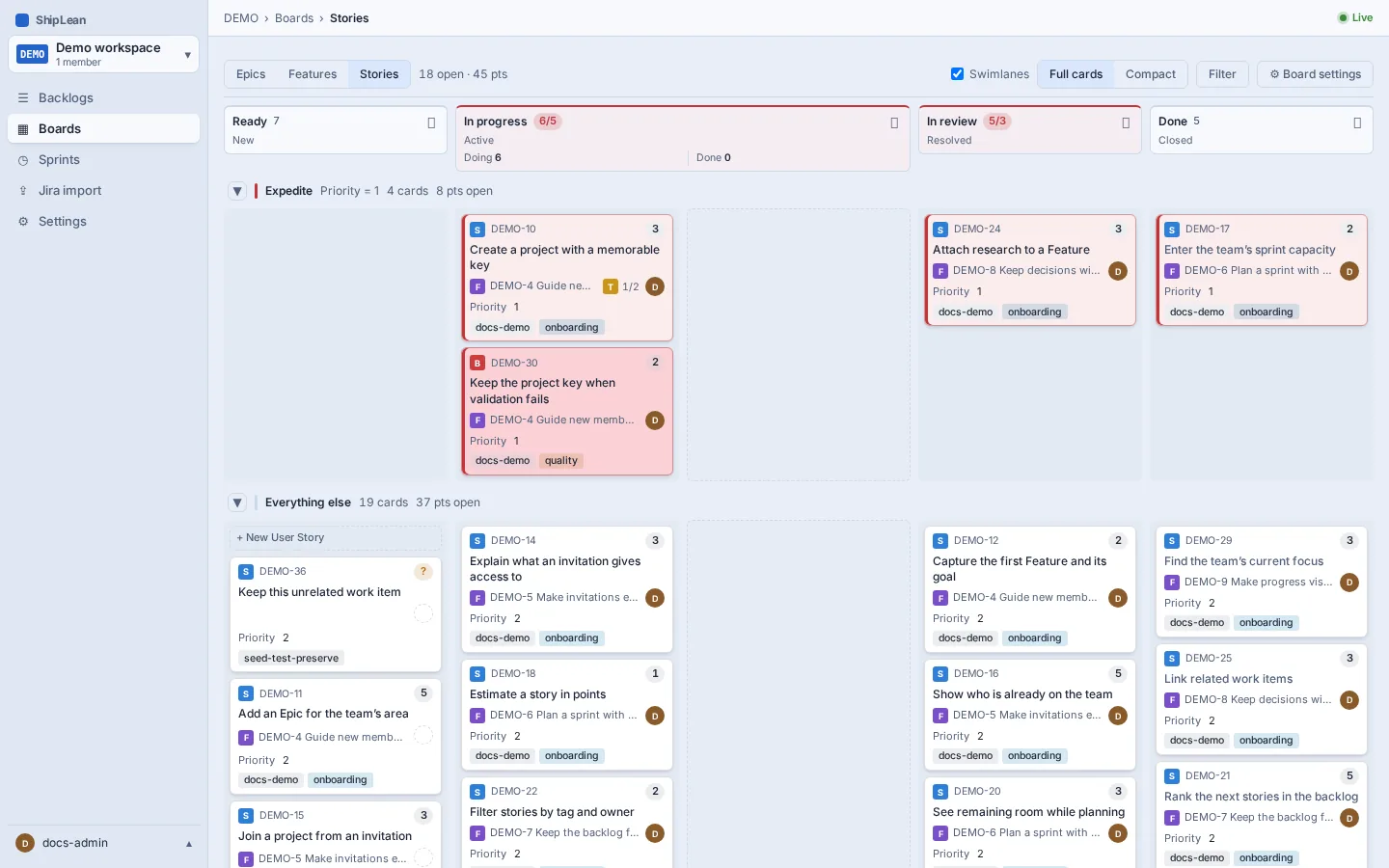
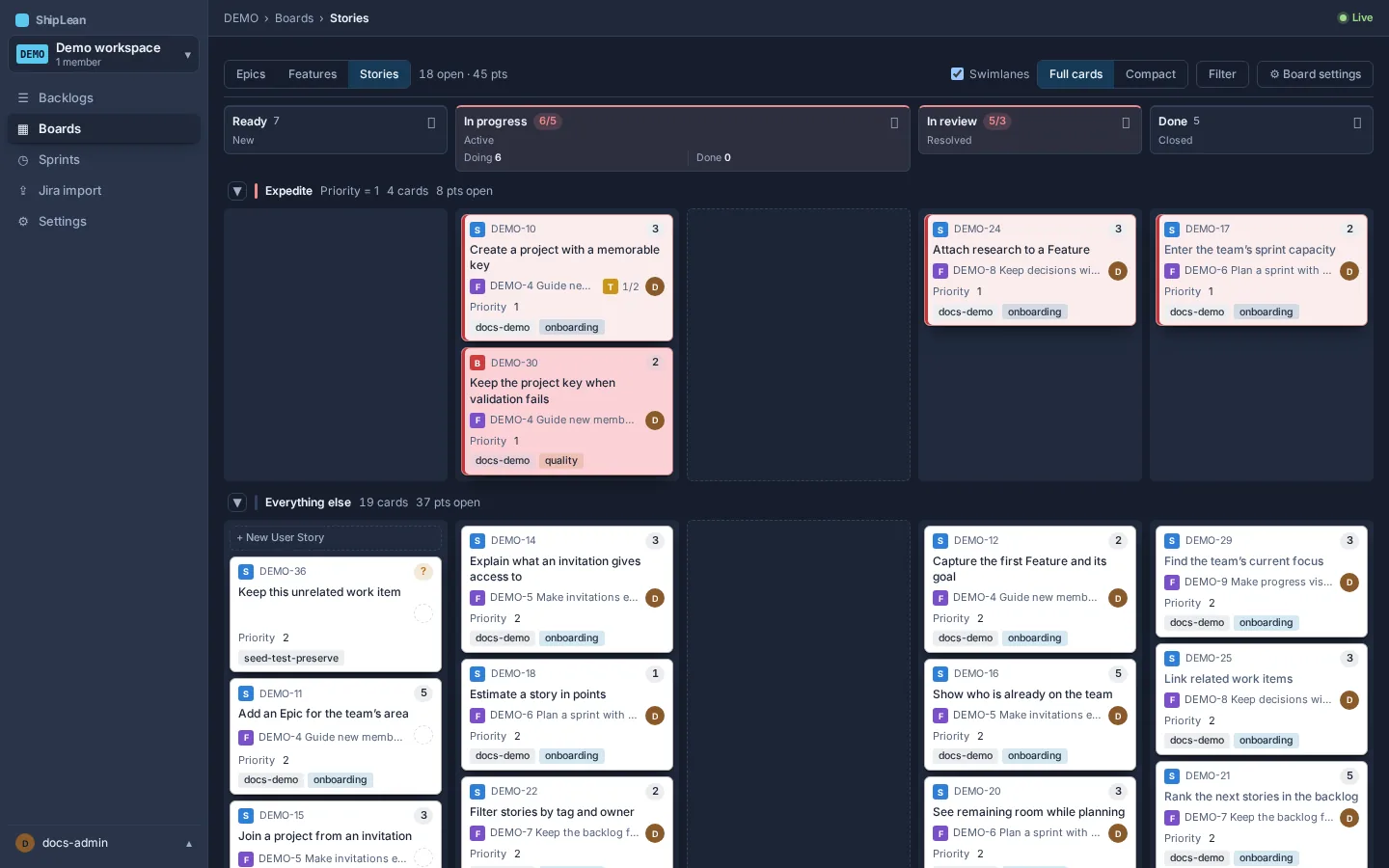
See Boards and Board settings for column mappings.
Create a sprint and plan work
Section titled “Create a sprint and plan work”- Open Sprints and create a sprint with a name, start date and end date. Add a goal if useful.
- If your team uses capacity, open the sprint’s Capacity page and enter each person’s available points.
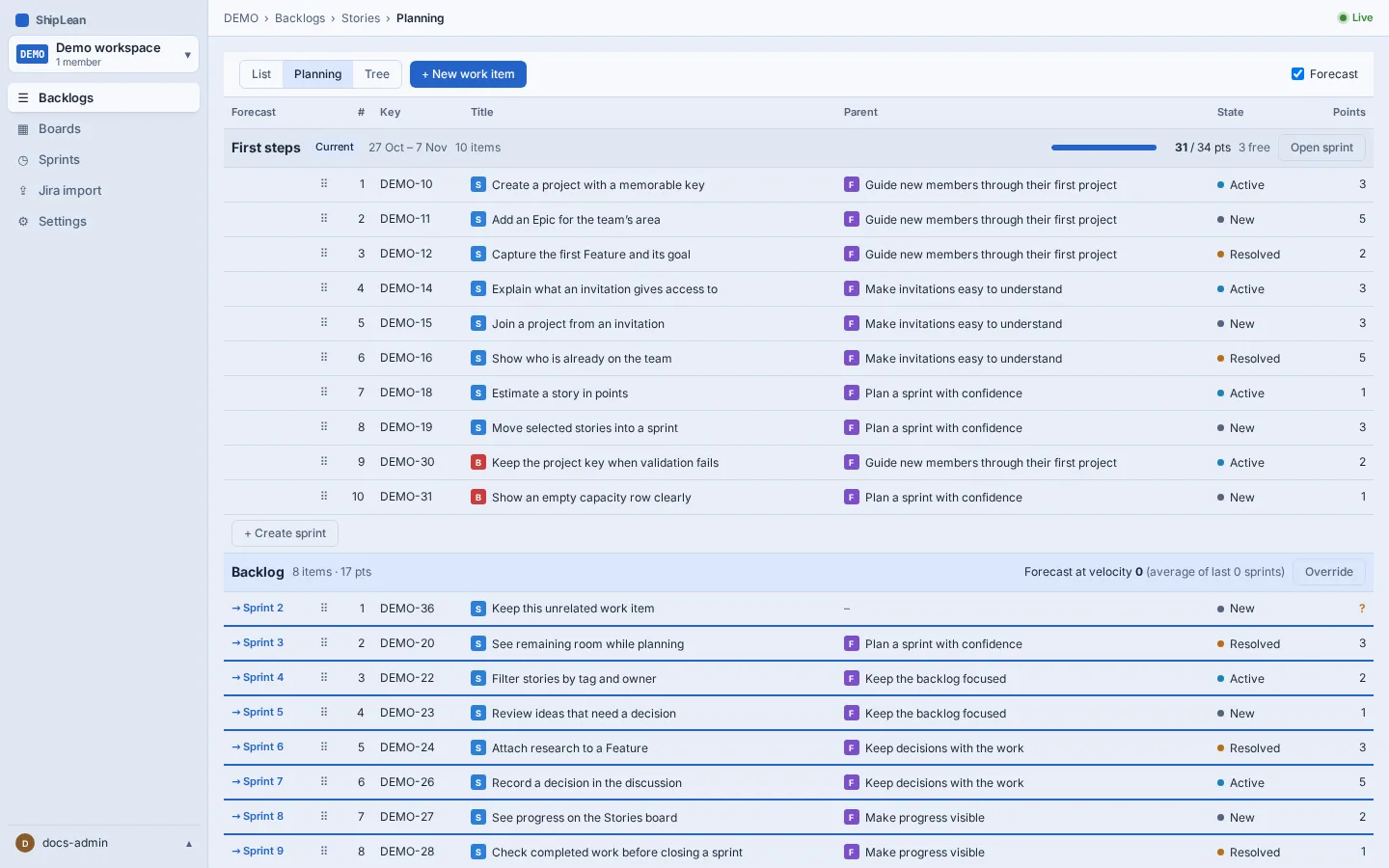
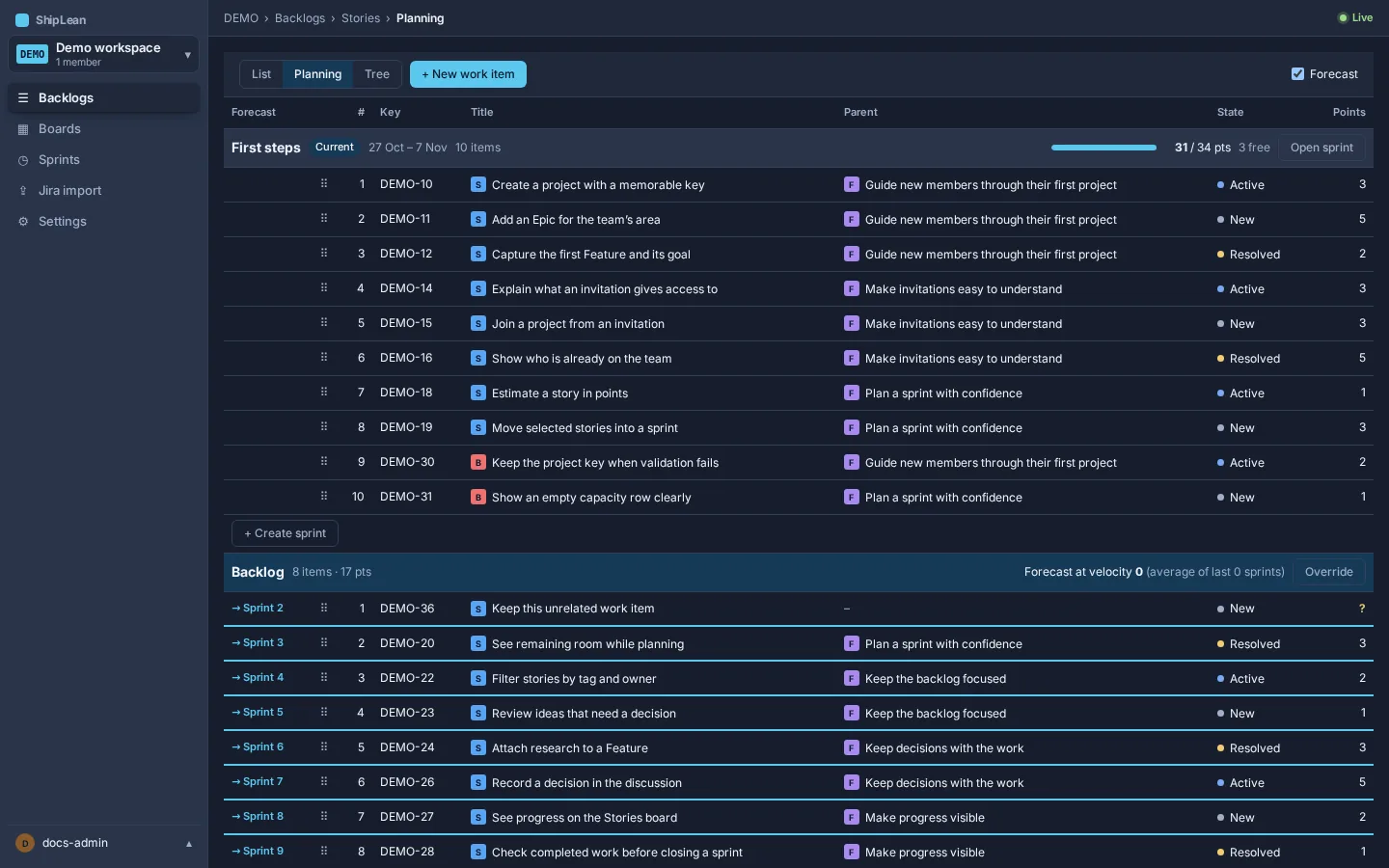
- Open Backlogs, then Stories, and choose Planning. Move a few Stories into the sprint section. Compare the committed points with the forecast before you finish.
Continue with Sprint planning and capacity or Run a Scrum sprint.