

Jira import
Import one Jira project into a ShipLean project. ShipLean reads from Jira and does not write back. Only a project admin can import.
The address is /p/:key/import, where :key is the ShipLean project key. The instance-level import route is /import.
Overview
Section titled “Overview”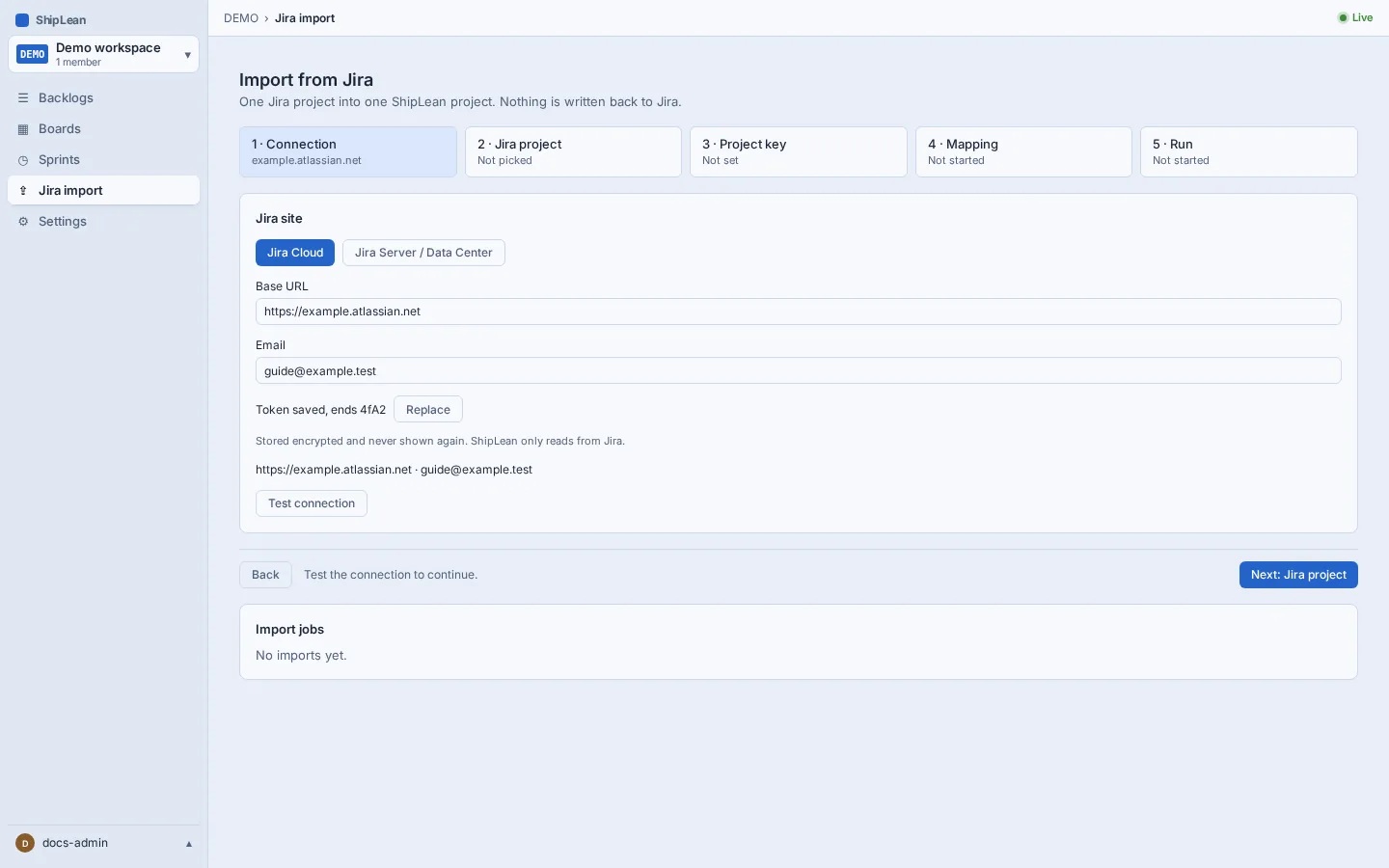
1. Connect to Jira
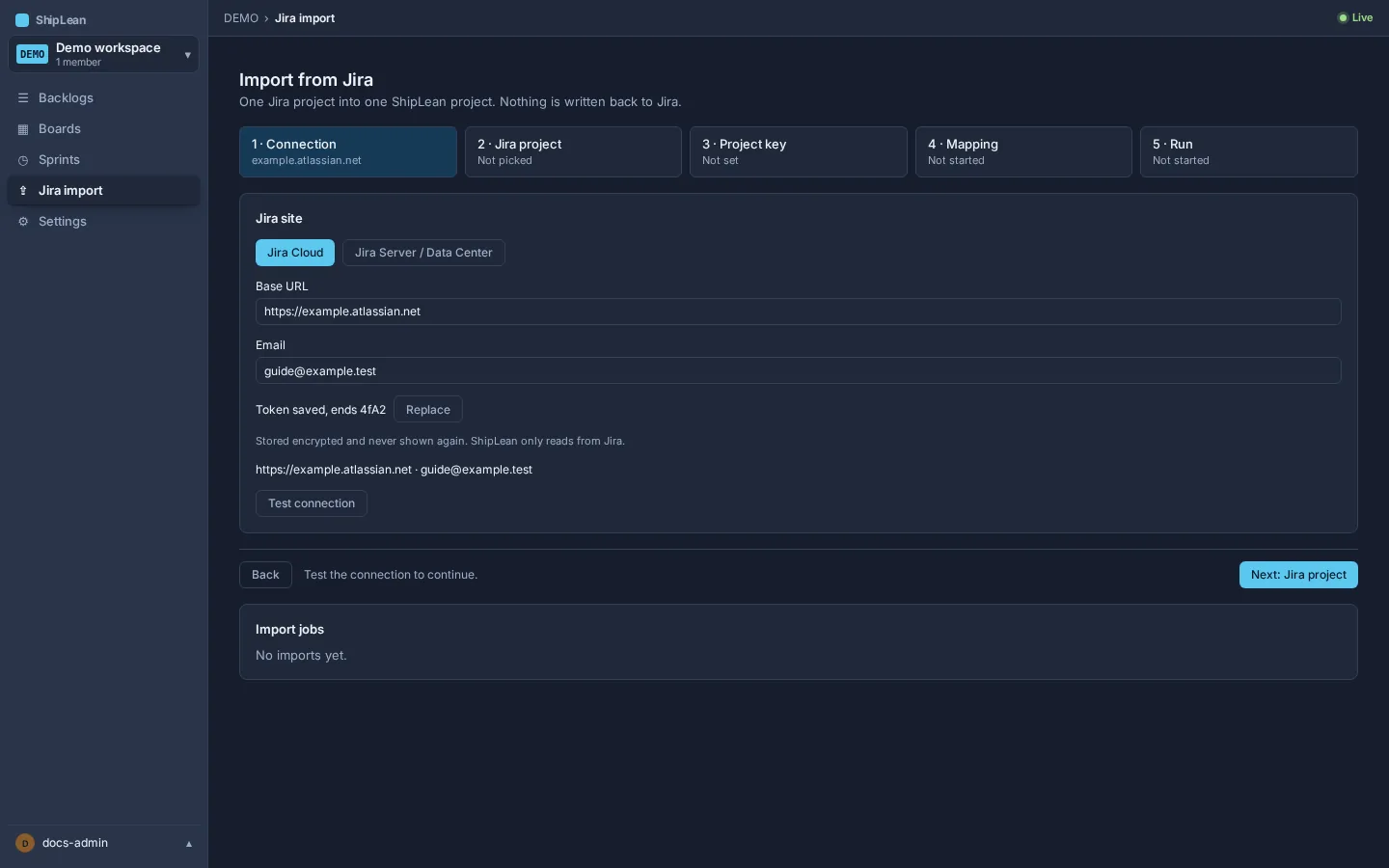
Section titled “1. Connect to Jira”Choose Jira Cloud or Jira Server/Data Center. Enter the Jira base URL and credentials, then save and test the connection. For Jira Cloud, enter your email and API token. For Jira Server or Data Center, enter a personal access token. ShipLean stores the token encrypted and does not show it again.
2. Choose a Jira project
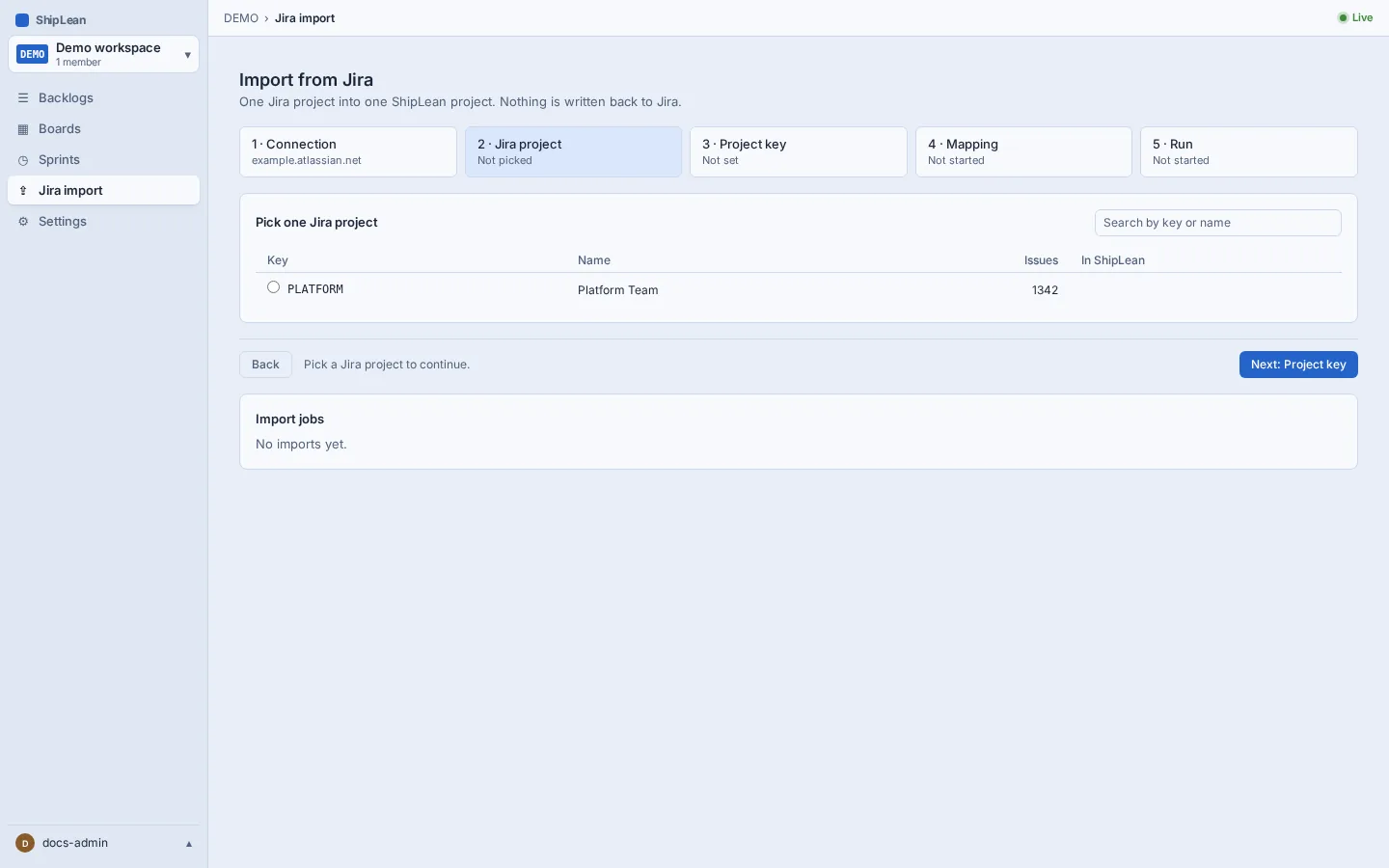
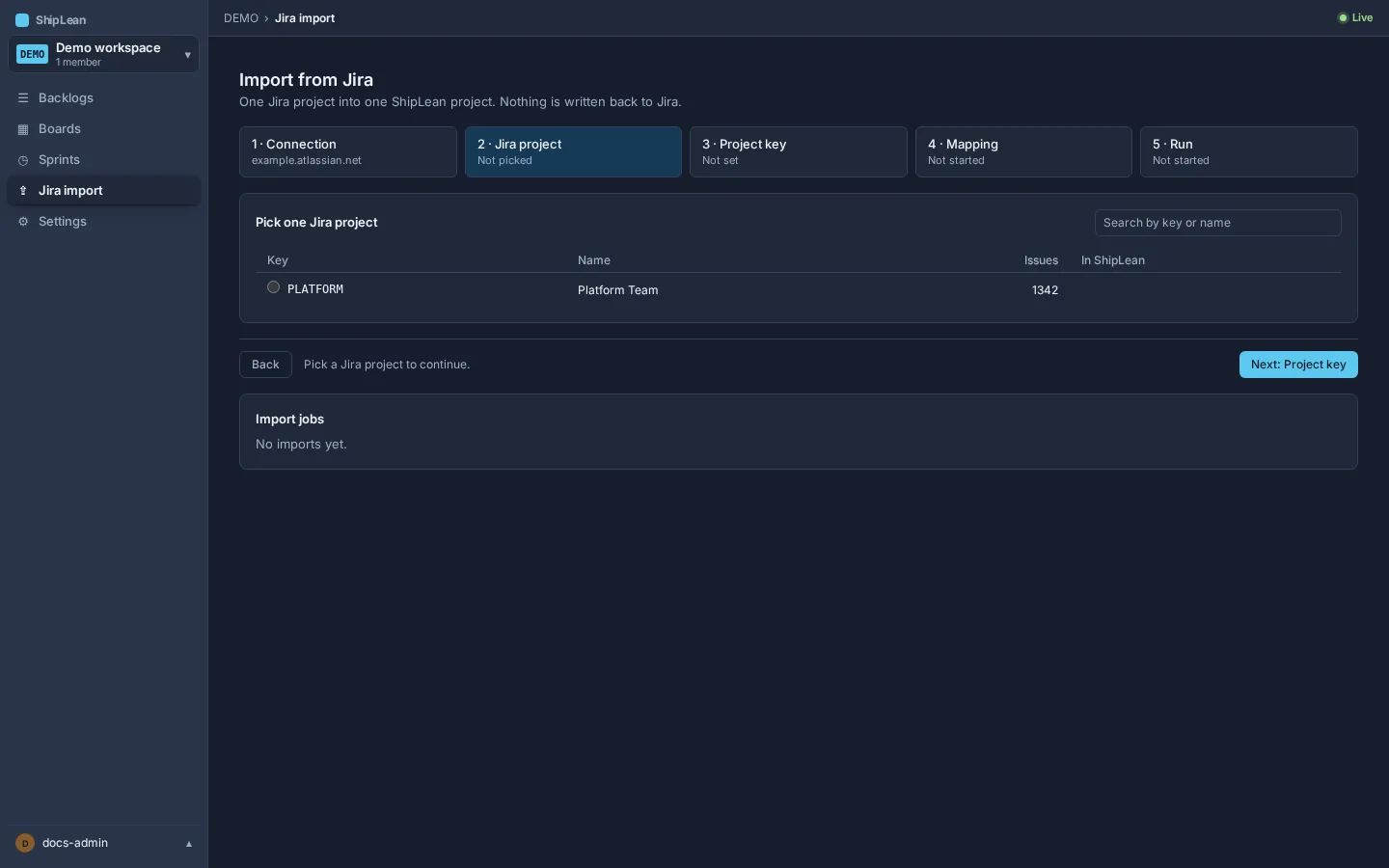
Section titled “2. Choose a Jira project”After the connection test succeeds, select one Jira project from the list. You can search by project key or name.
3. Check the ShipLean target
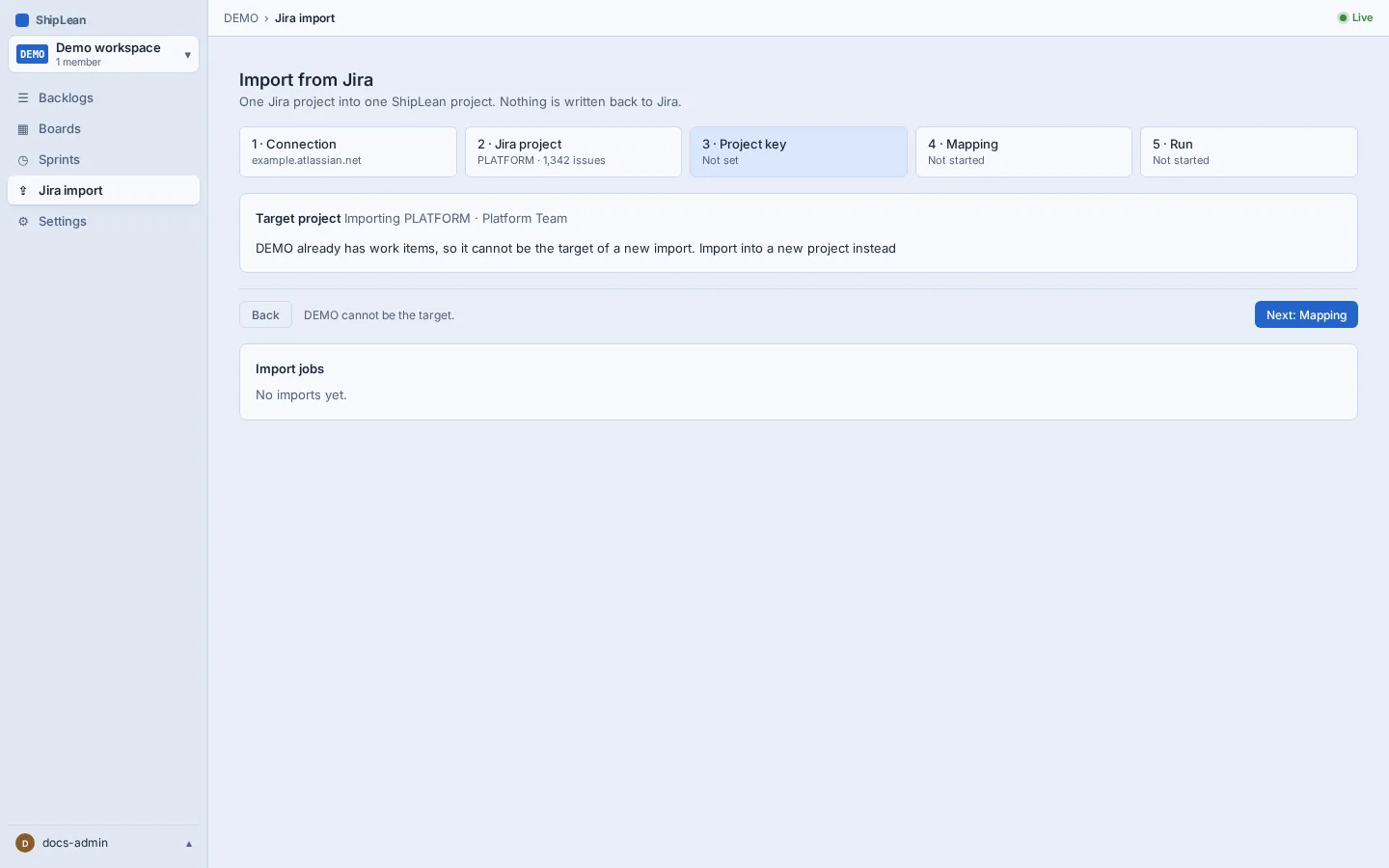
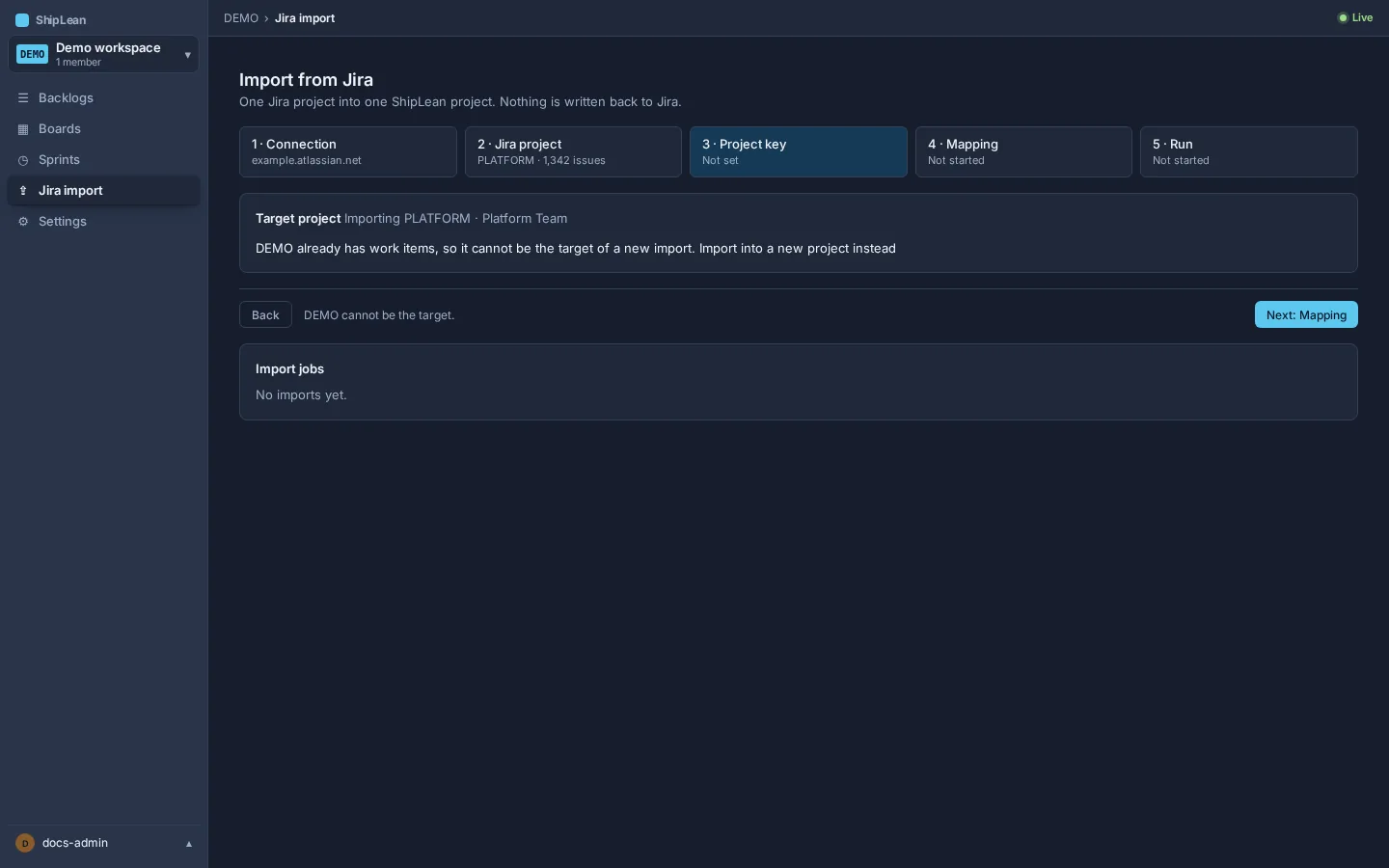
Section titled “3. Check the ShipLean target”Review where the selected Jira project will be imported. A new import can use an empty ShipLean project. If the target already has work items, ShipLean asks you to choose a new project instead. When the project was imported before, use its existing ShipLean project for a re-run. ShipLean keeps the imported item numbers with the ShipLean project key.
4. Review the mapping
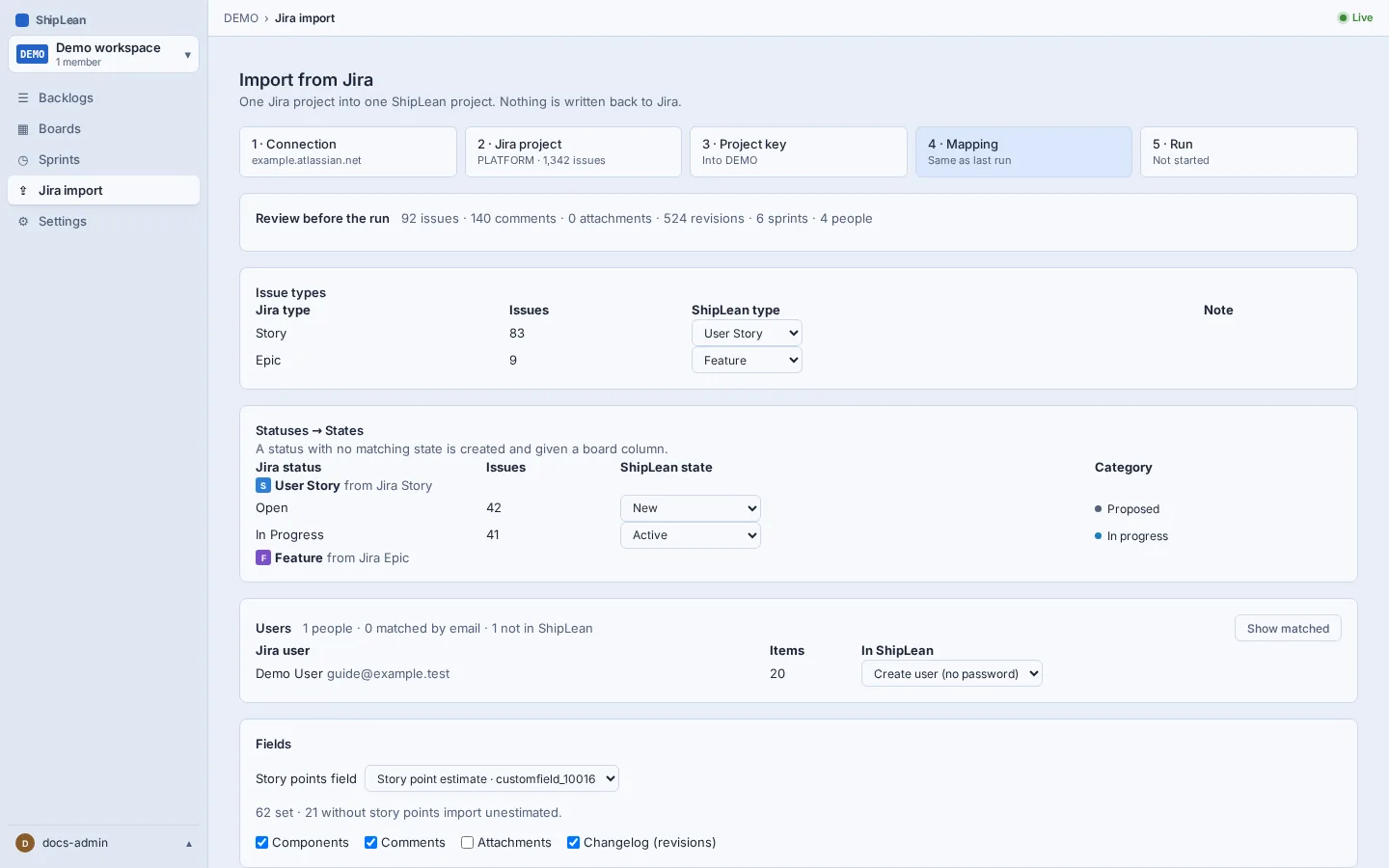
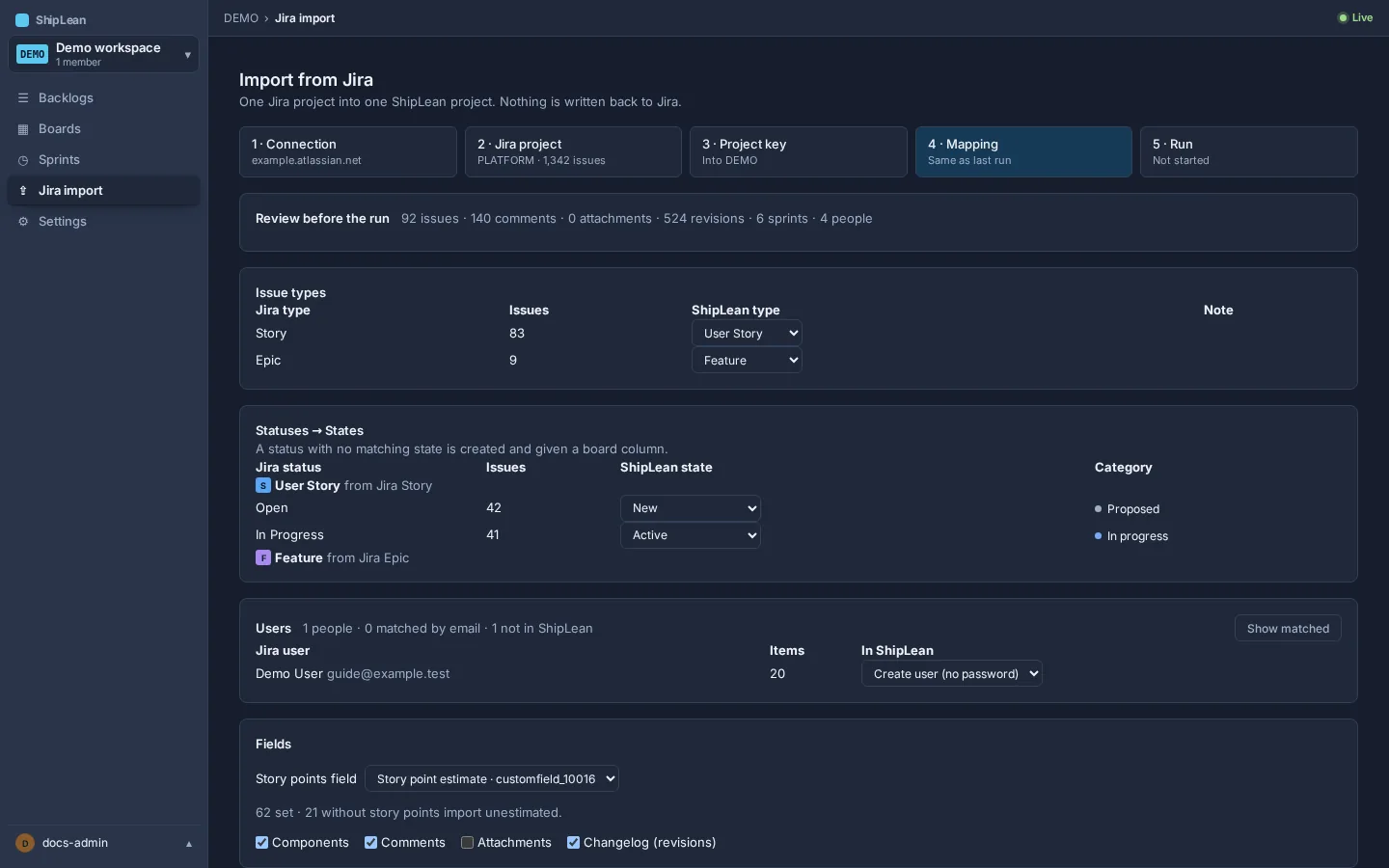
Section titled “4. Review the mapping”Check how Jira issue types map to ShipLean work items, how Jira statuses map to ShipLean states, and how Jira users map to ShipLean users. Jira Epics become ShipLean Features. Choose a story-points field if Jira provides one. Then choose whether to include components, comments, attachments, and changelog. Resolve any warnings before continuing.
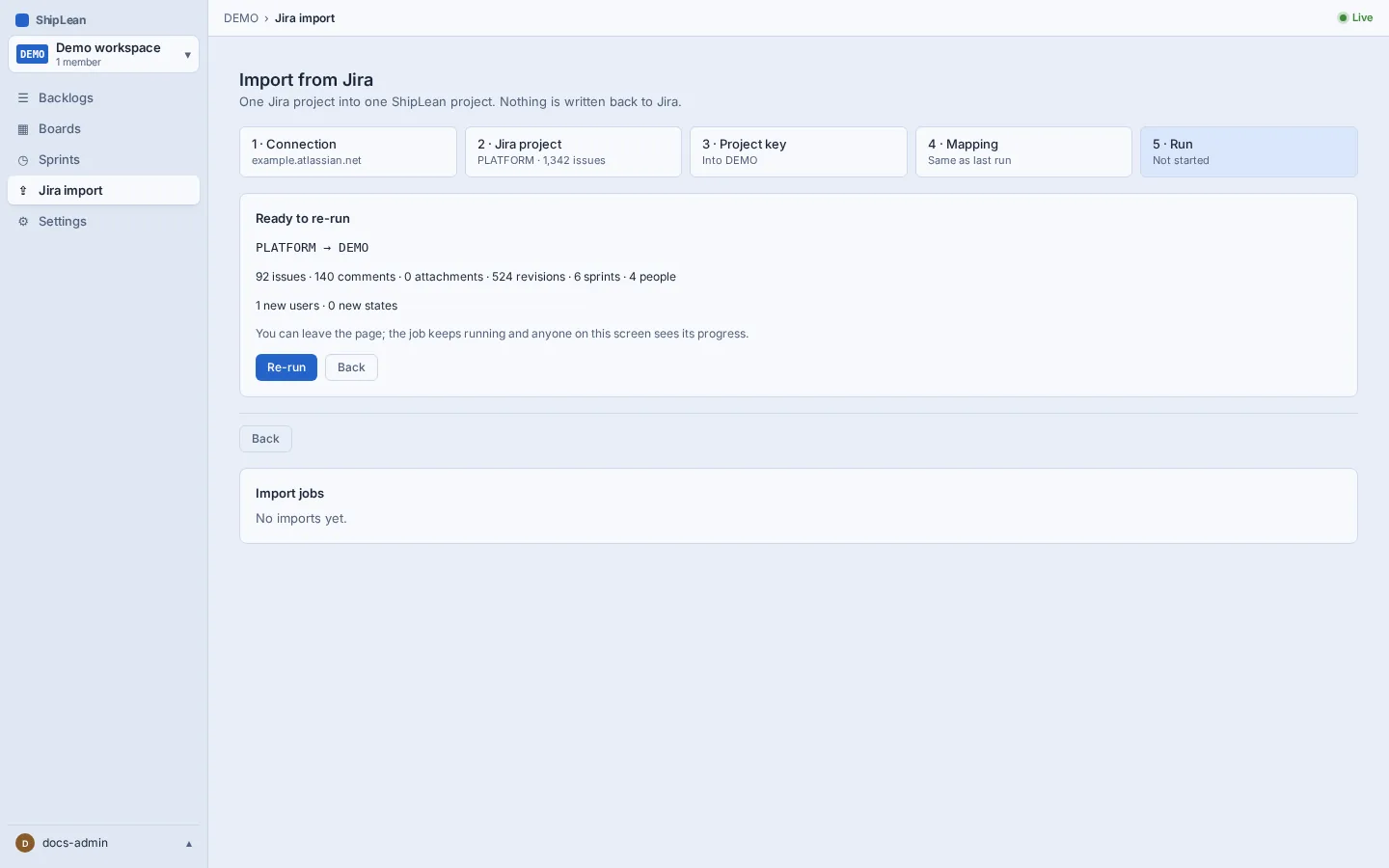
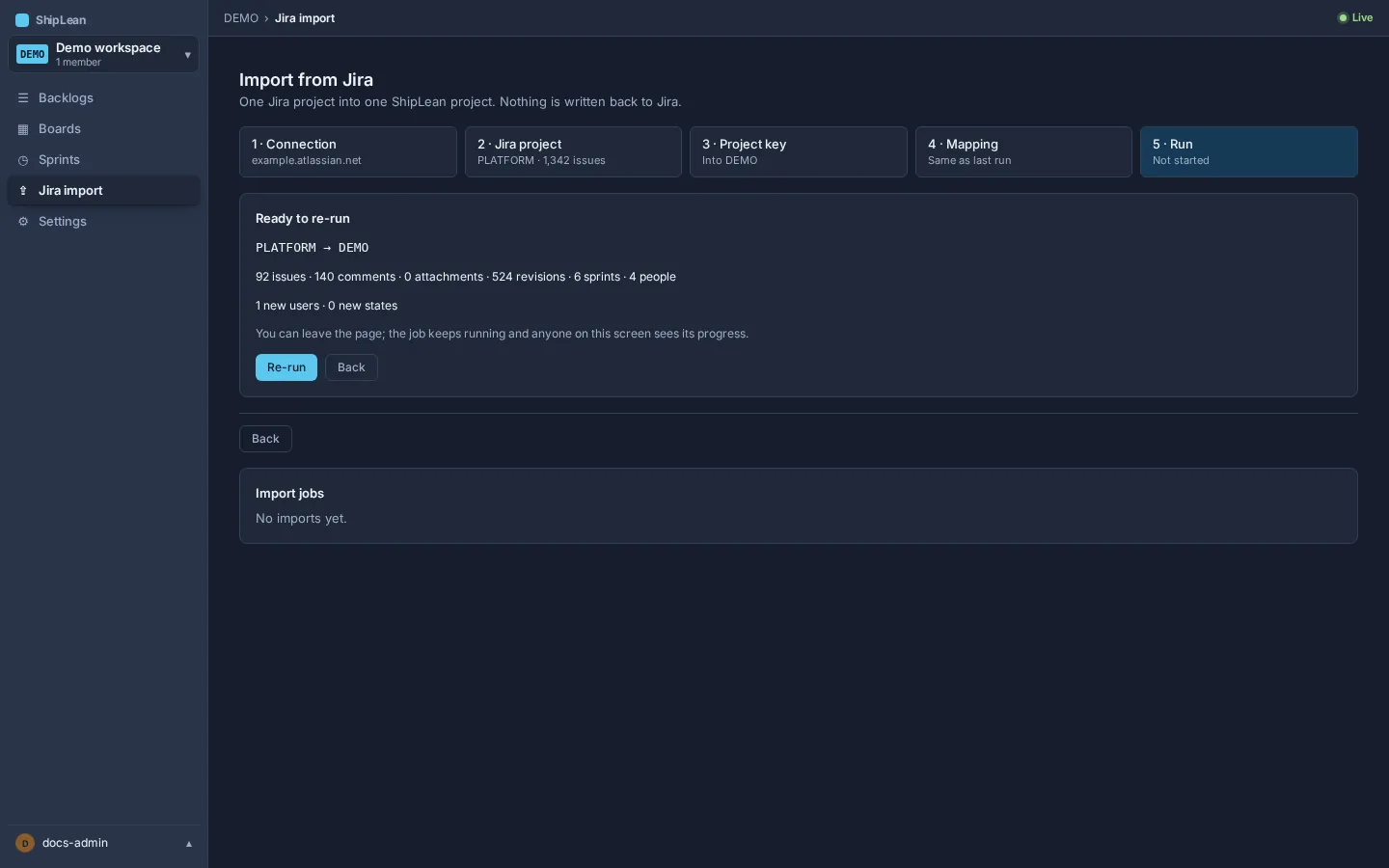
5. Start and follow the import
Section titled “5. Start and follow the import”Review the totals and select Start import for a new import, or Re-run to sync a previous import. ShipLean keeps the job running if you leave the page. Open the job to follow progress and review its log and errors. You can retry or skip individual errors, or re-run an import later. ShipLean matches previously imported items and updates them.
Options
Section titled “Options”Configure the project’s Jira connection and review its import jobs from Settings, then Integrations. If your Jira server uses a local or plain HTTP address, the instance admin must enable SHIPLEAN_JIRA_ALLOW_LOCAL_ENDPOINTS. Enable it only for a Jira service on your own network.
For the full walkthrough and rerun guidance, see Import from Jira.