

Board settings
Board settings control how one level’s board is organized and how its cards look. Open Settings on the board, choose a section, and save when you are ready. Your edits stay as a draft until you save.
The address is /p/:key/boards/:level?settings=:section, where level is stories, features, or epics.
Map columns to states
Section titled “Map columns to states”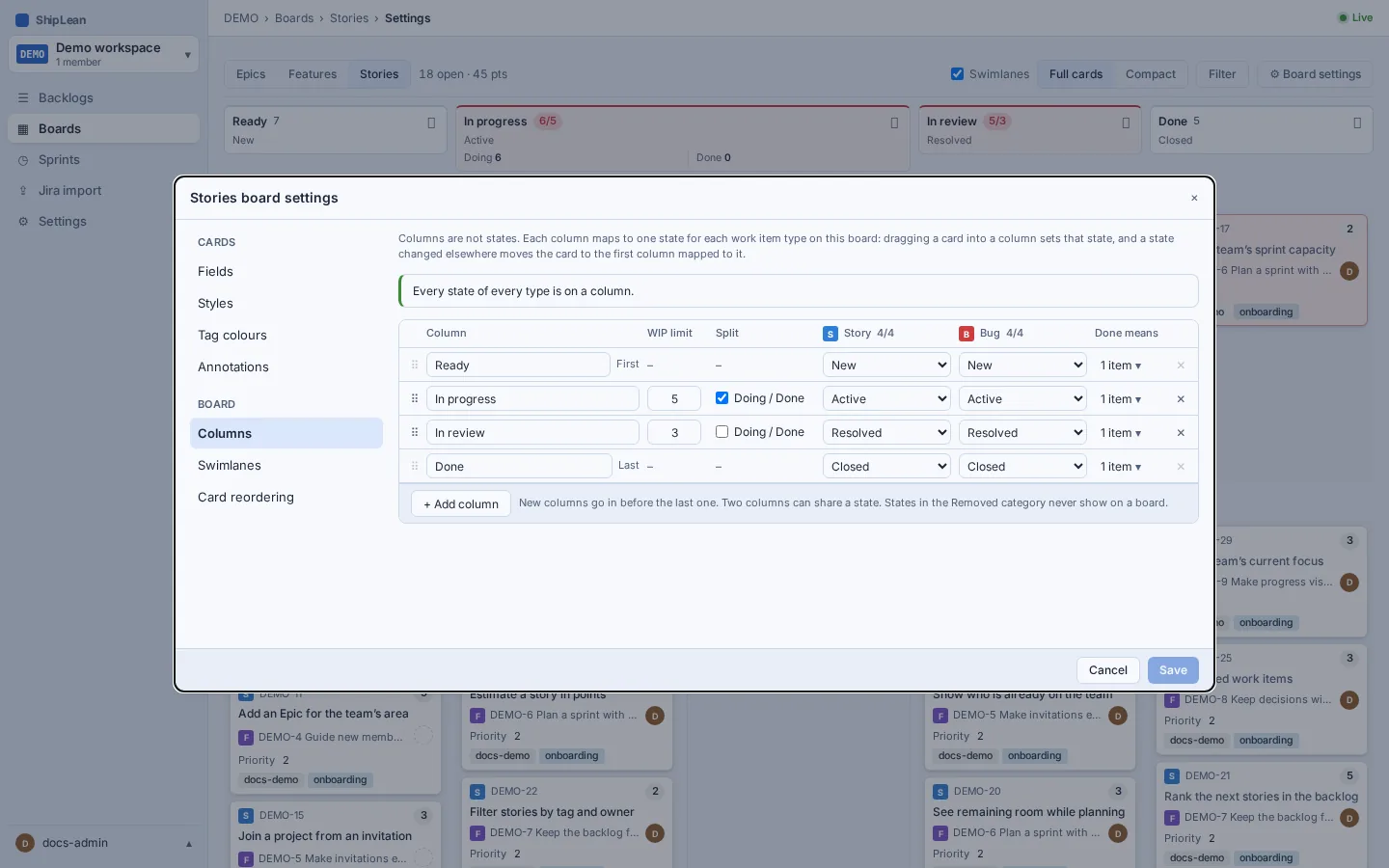
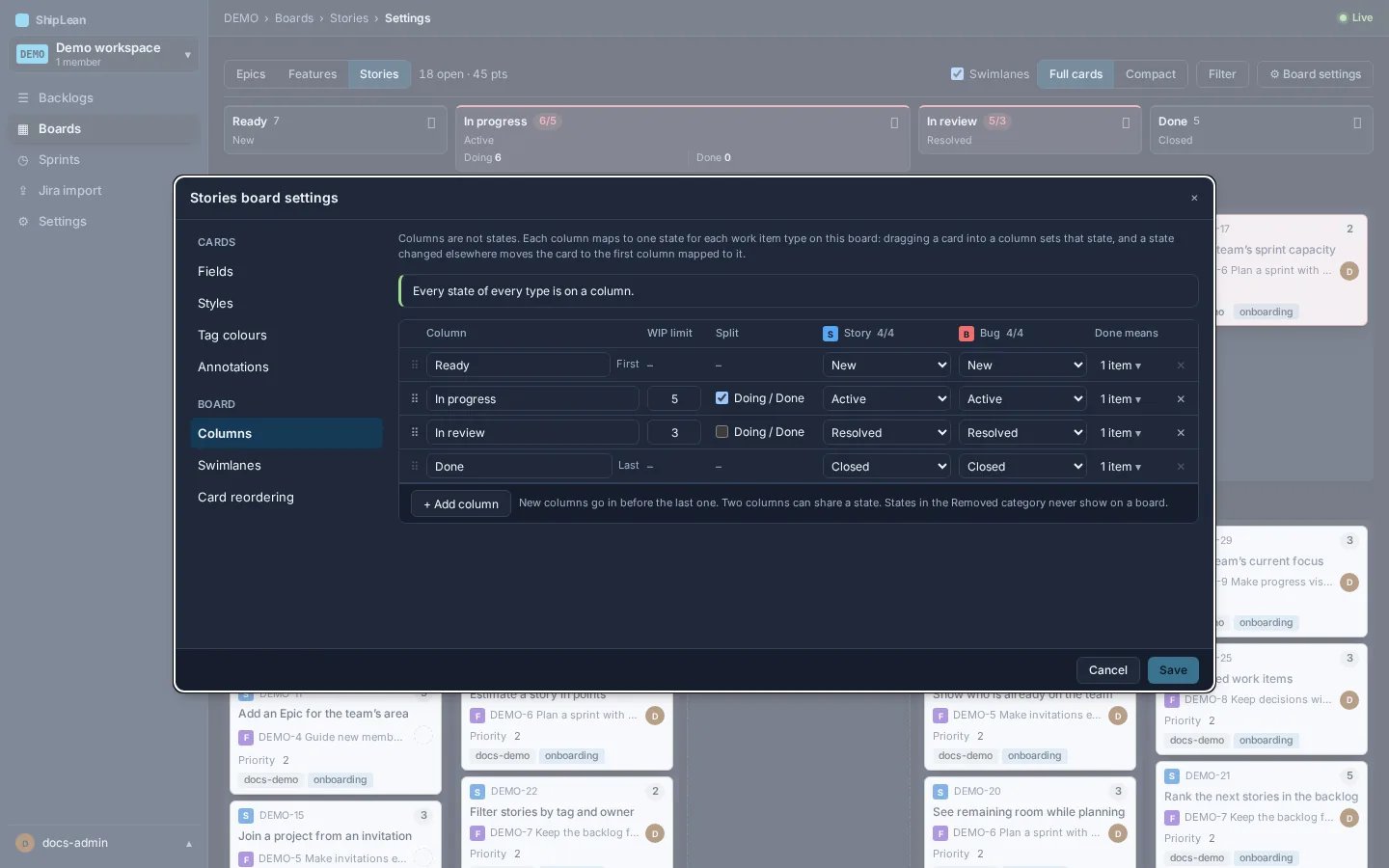
Rename columns and map each work-item type’s states to them. A column can map different states for Stories, Bugs, Features, and Epics. Make sure every state used by the board is mapped.
Set a WIP limit on a middle column. The board shows when the column’s card count is over the limit. The first and last columns cannot have a limit. Split a middle column into Doing and Done sub-columns to tell work in progress from work finished in that state.
Add a definition of done to a column so the team can see what must be true before work moves on. You can write it with Markdown. The first and last columns do not have a split option.
Choose card fields
Section titled “Choose card fields”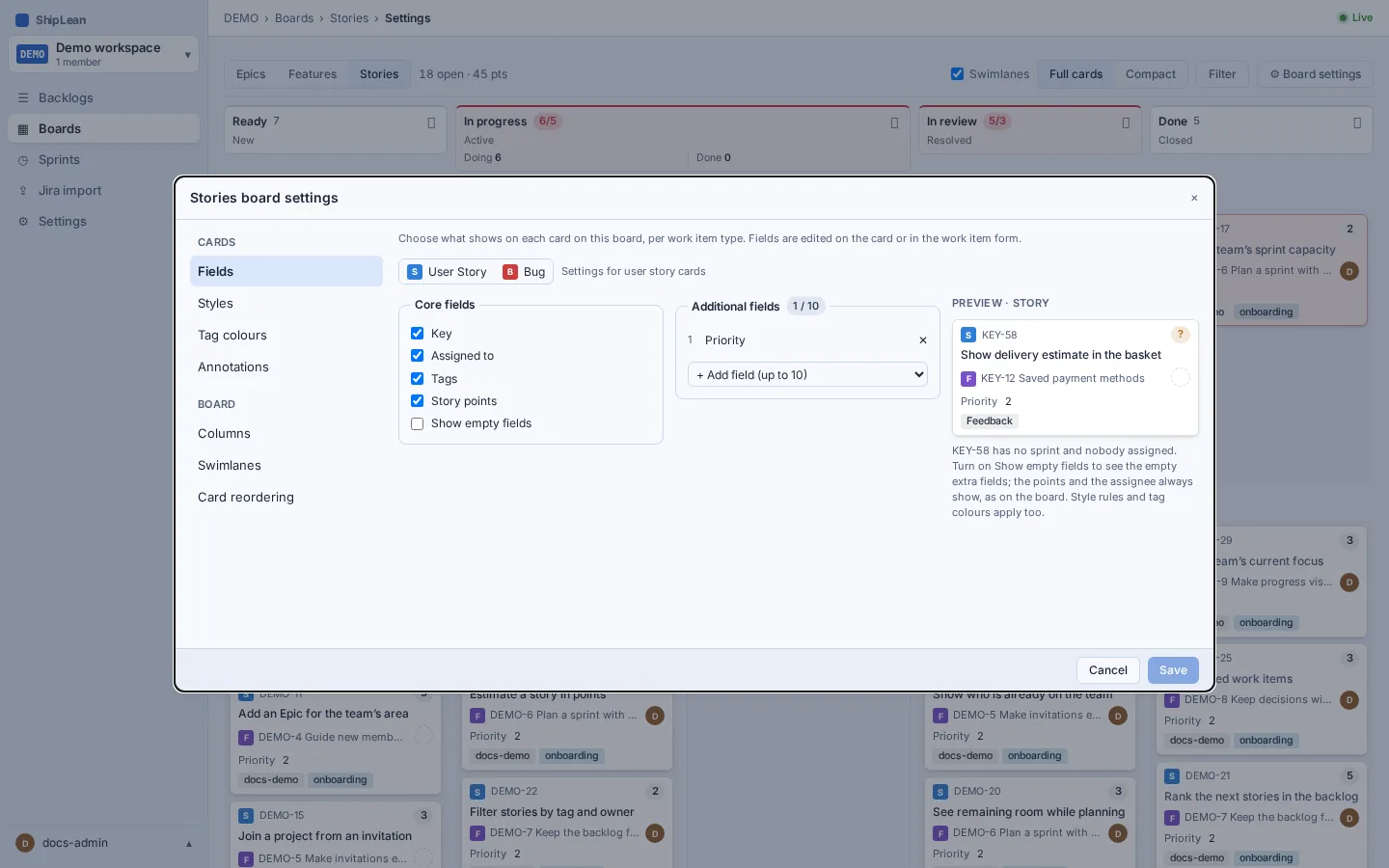
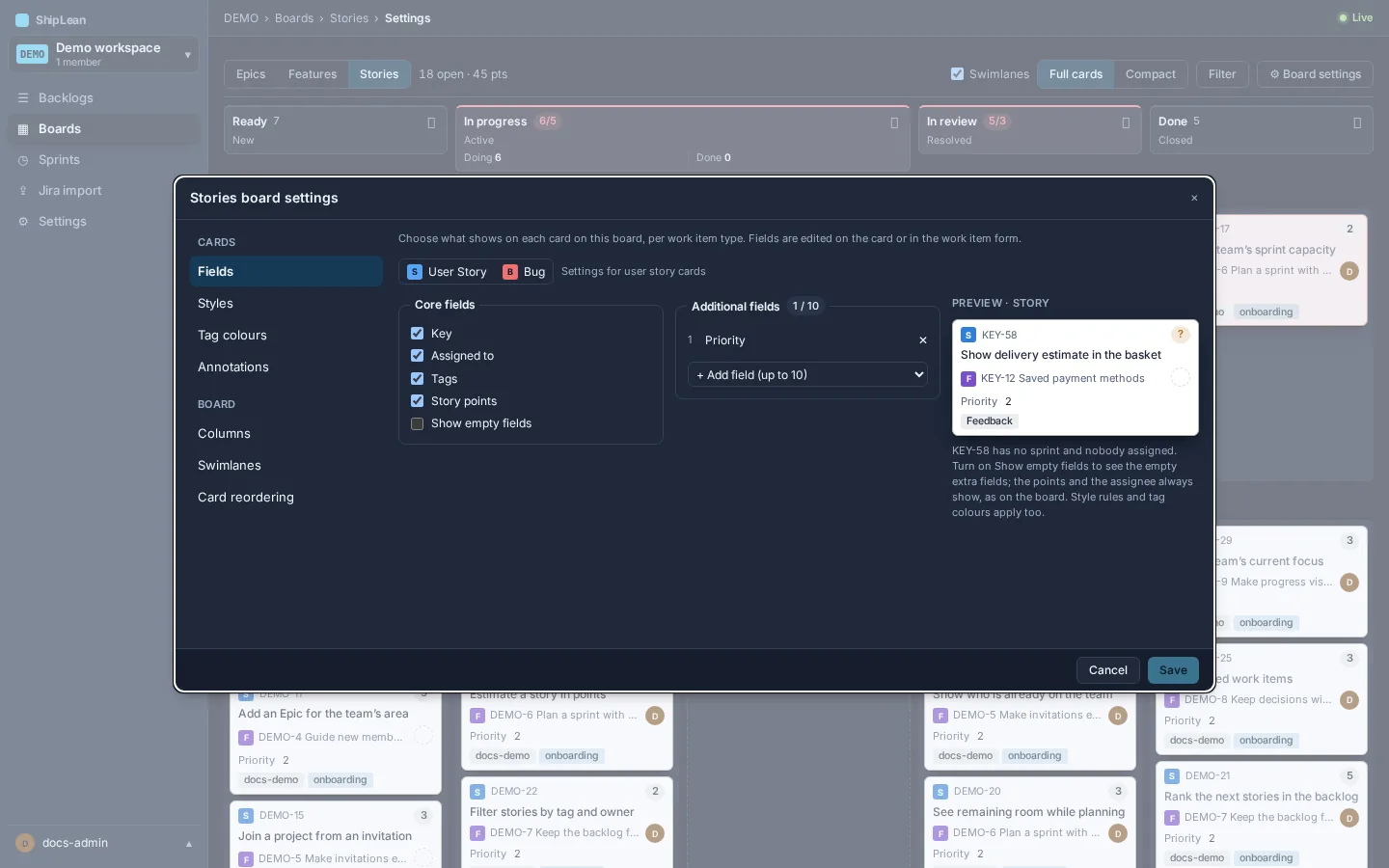
Choose whether cards show their key, assignee, tags, and story points. You can also show empty fields and add extra fields such as the parent, priority, or who changed the item. The preview shows how your choices affect a card.
Add style rules
Section titled “Add style rules”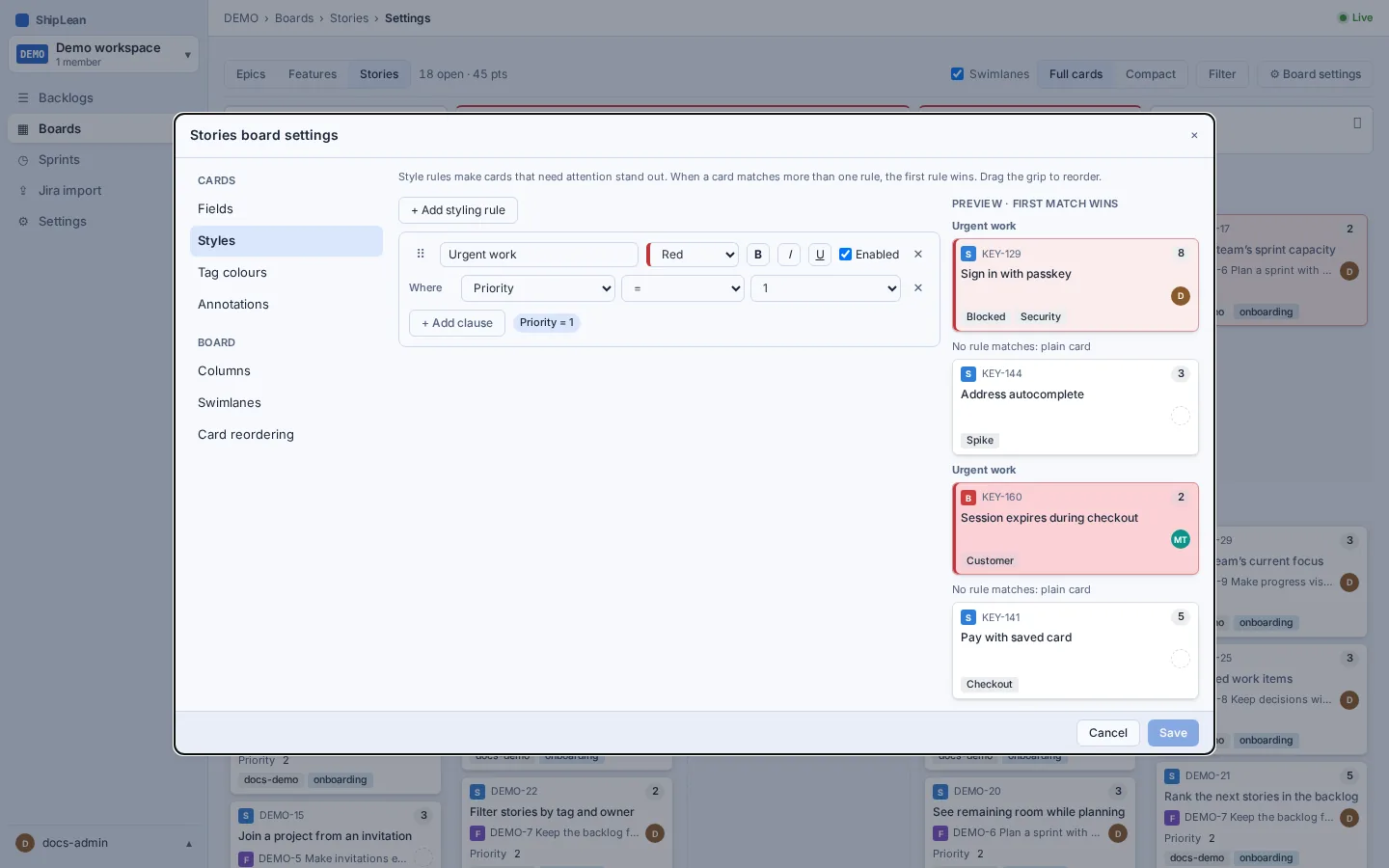
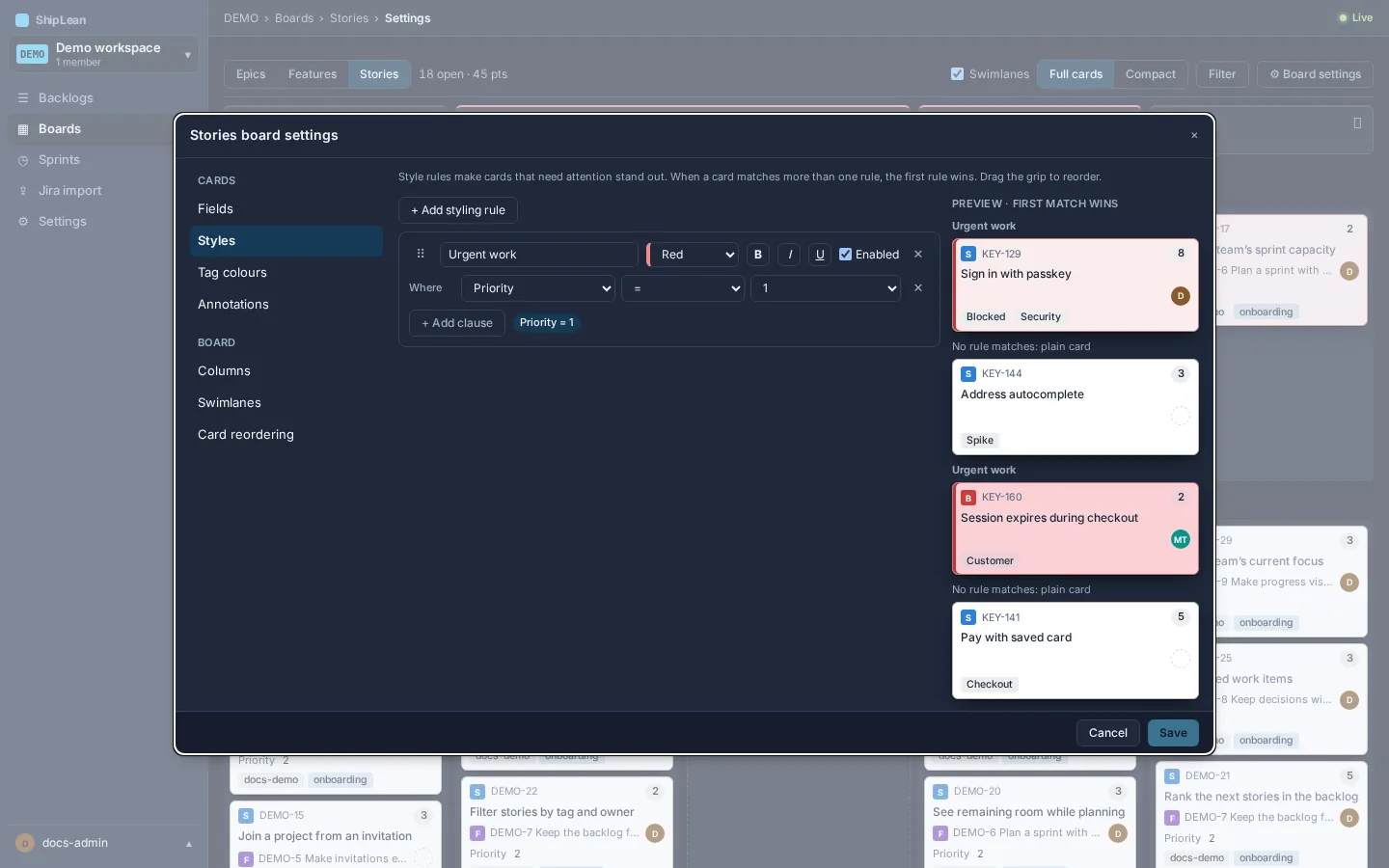
Add a rule to highlight cards that match its criteria. Choose a colour and text formatting, then set the criteria. Reorder rules to choose which one takes effect when a card matches more than one. You can disable a rule without deleting it.
Set tag colours
Section titled “Set tag colours”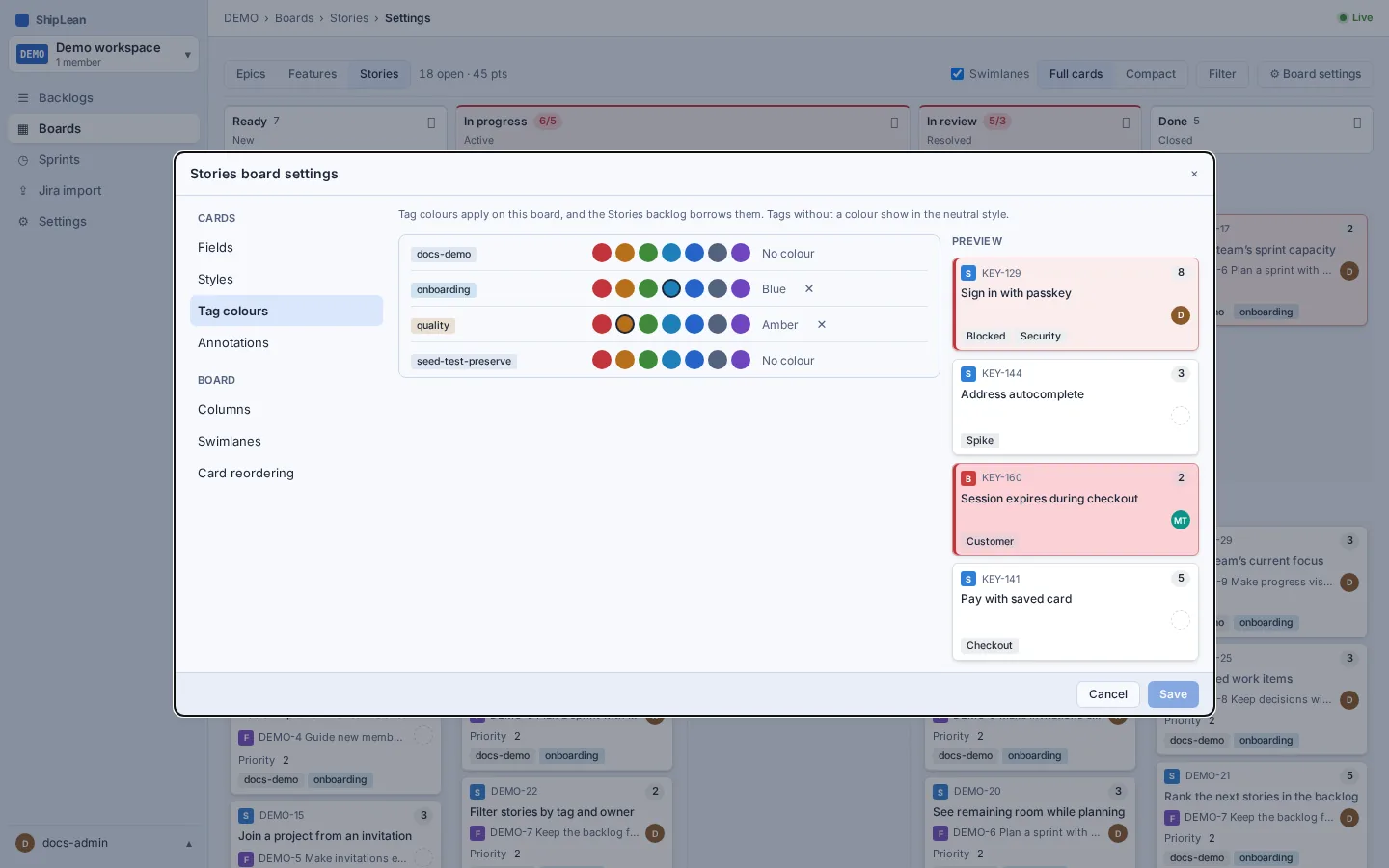
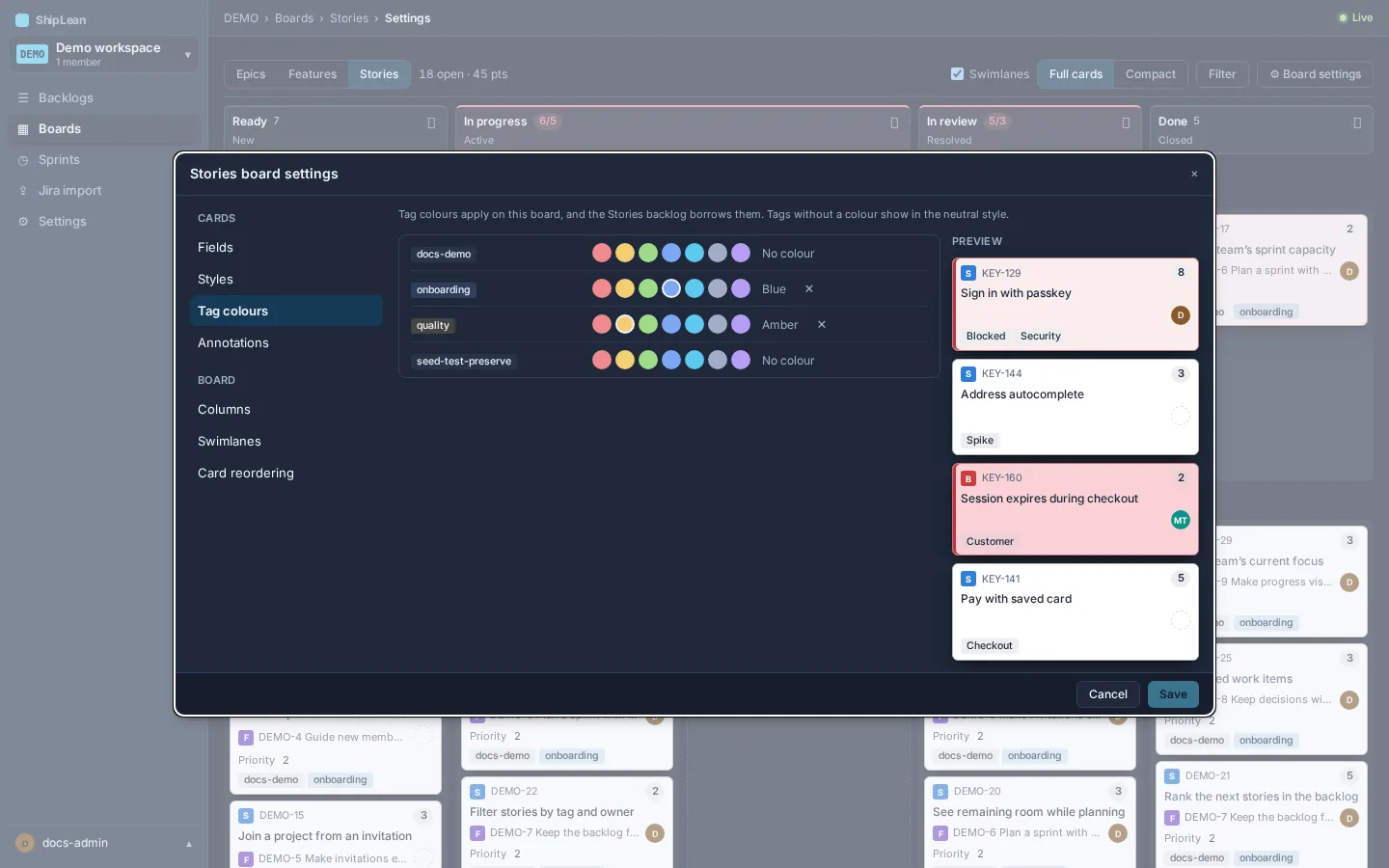
Choose a colour for each tag used in the project. The colour applies to that tag on this board and in the Stories backlog. Clear a colour to return the tag to its neutral style.
Choose roll-up annotations
Section titled “Choose roll-up annotations”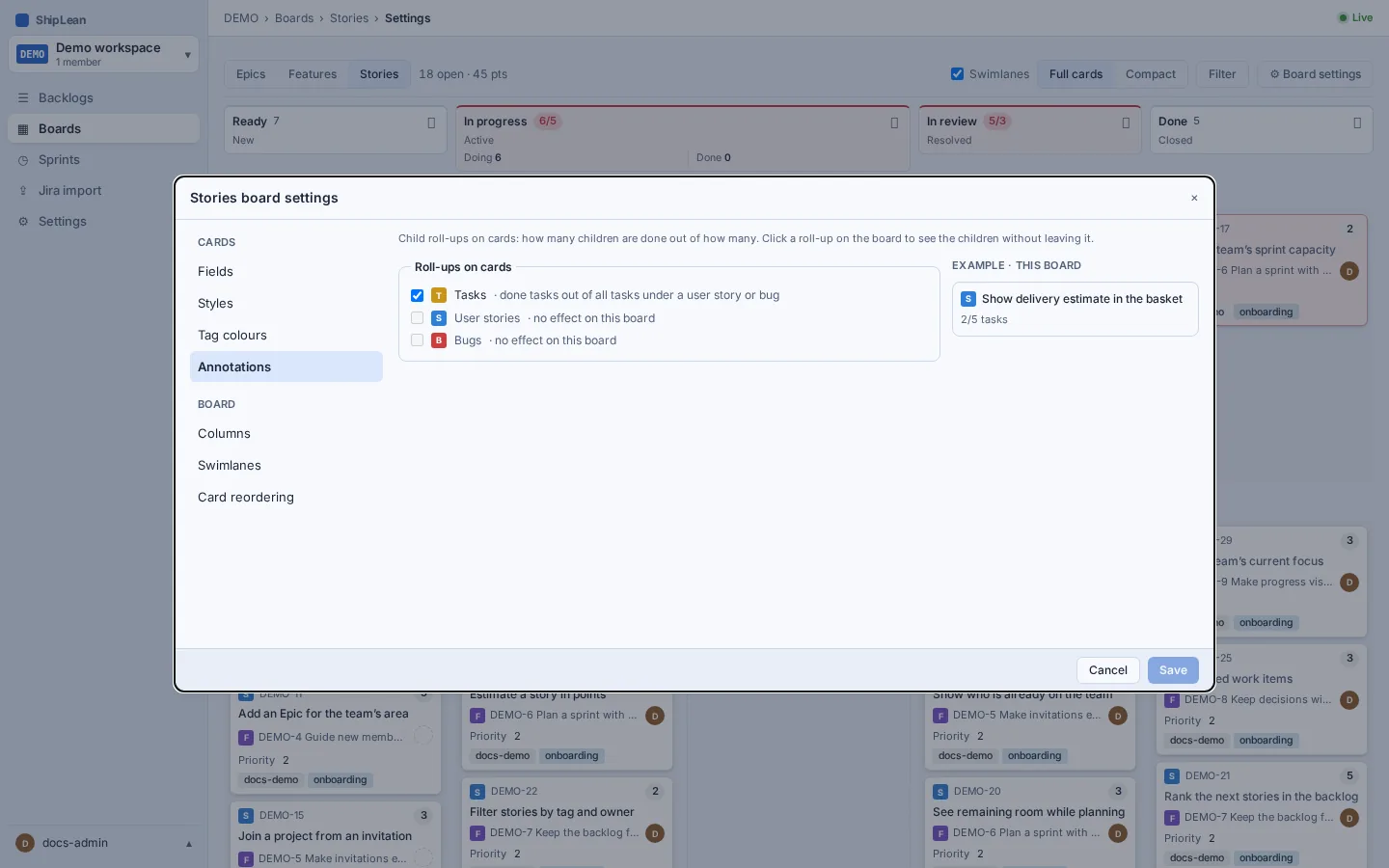
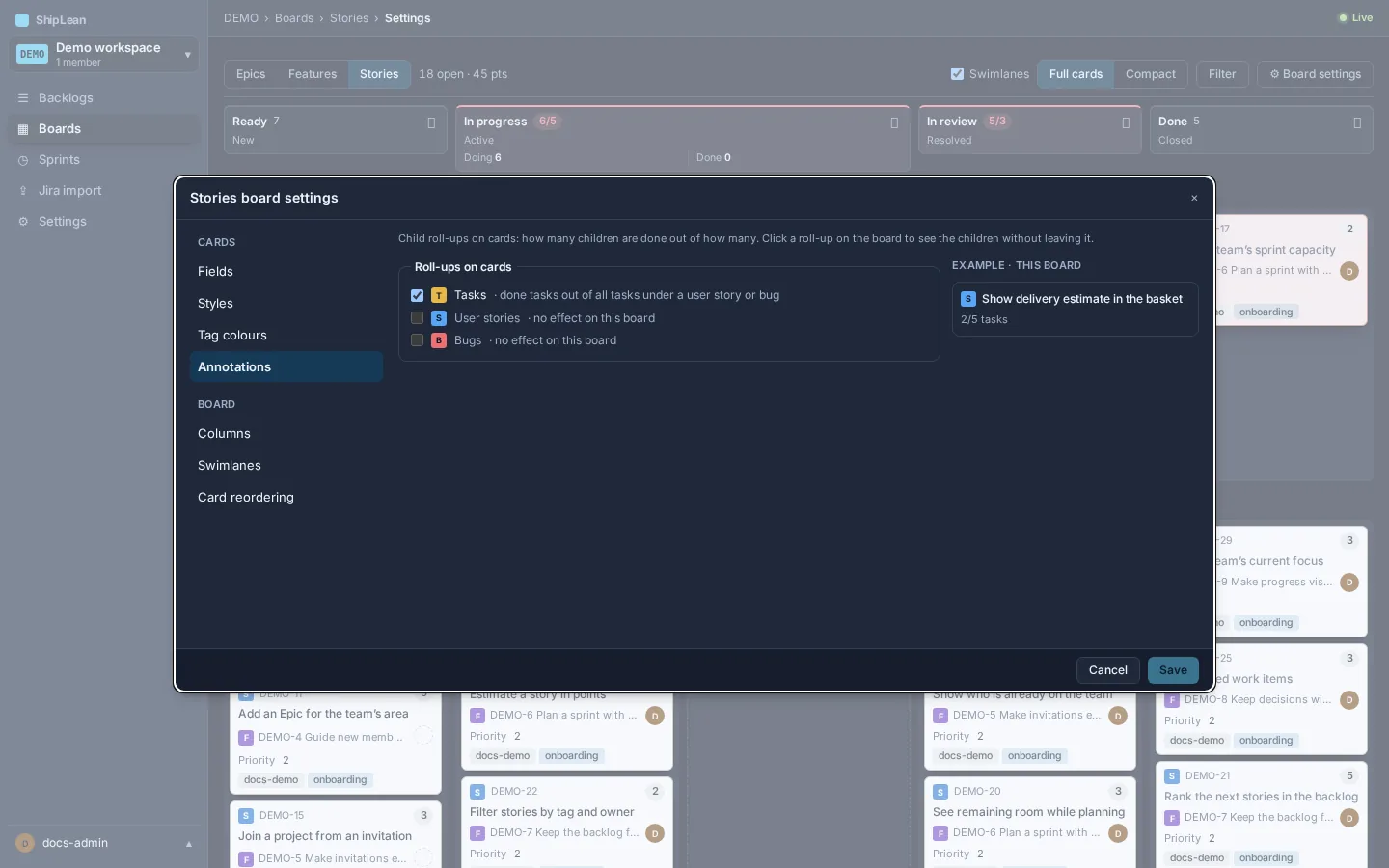
Choose which child-work counts appear as roll-ups on cards. The available counts depend on the board level and item relationships. Use the preview to see which annotations the current choices show.
Set up swimlanes
Section titled “Set up swimlanes”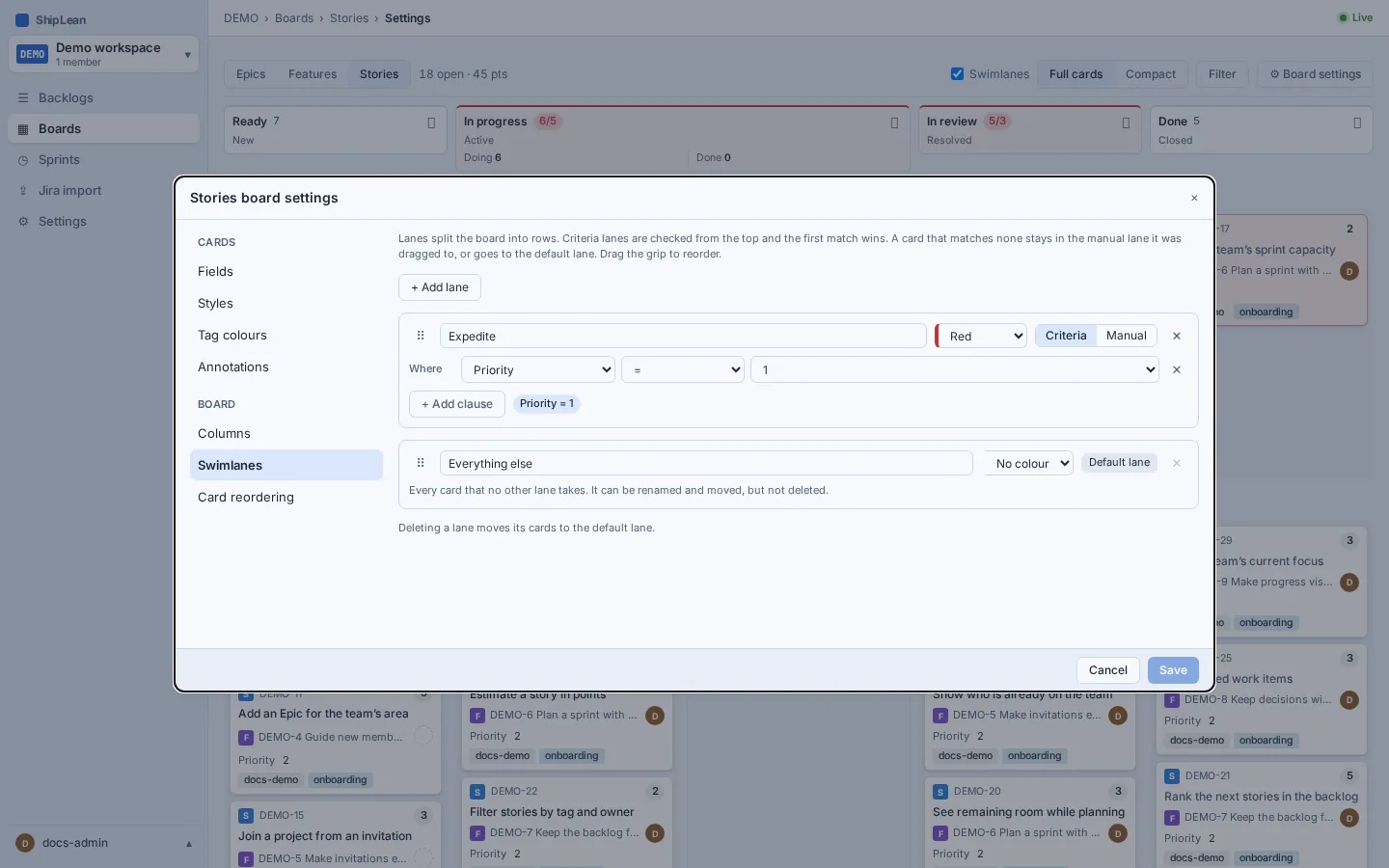
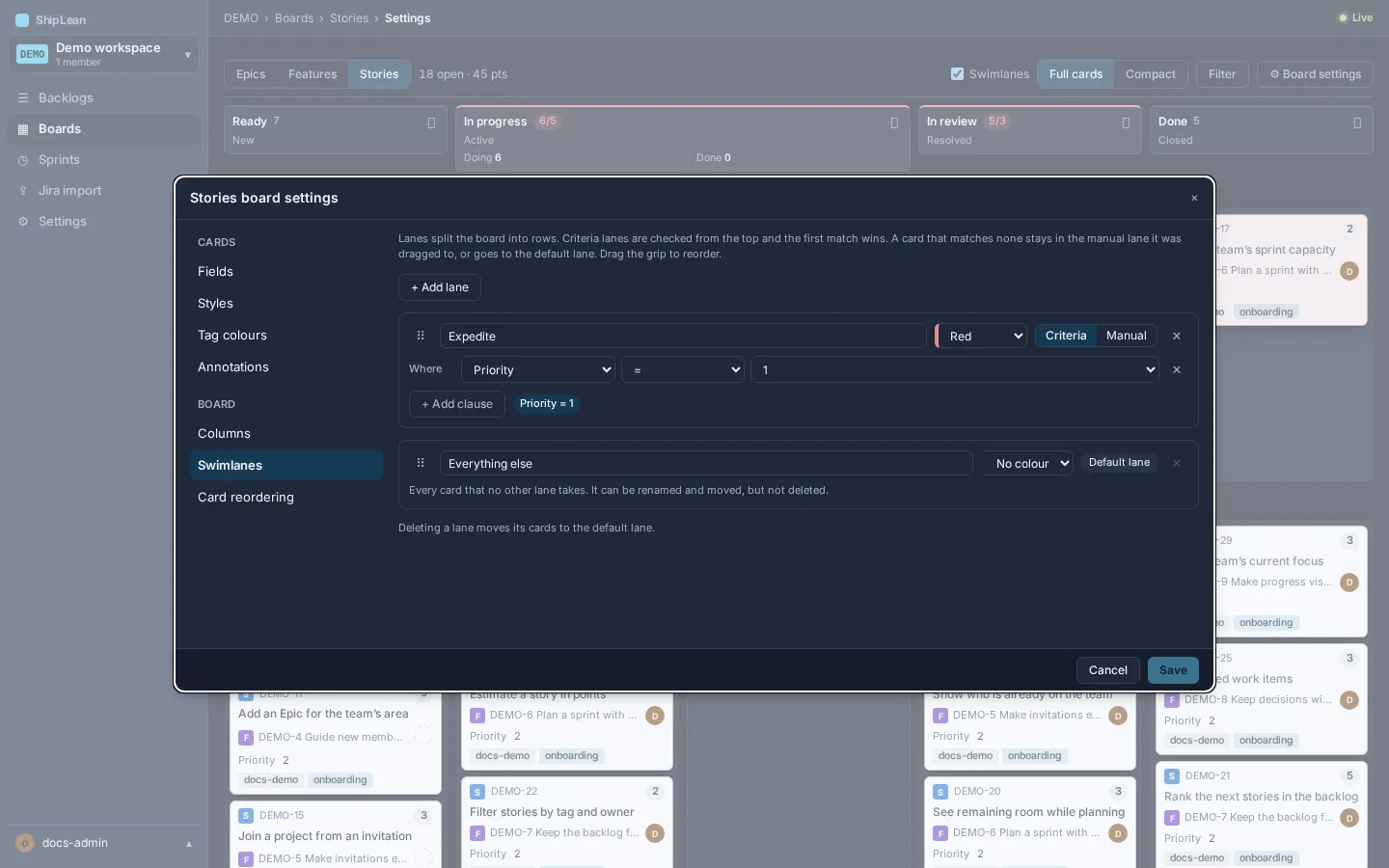
Add, rename, colour, and reorder lanes. A lane can use criteria or be manual. Criteria lanes are checked from top to bottom, and the first match wins. Work that matches no criteria stays in its manual lane if you moved it there. Otherwise, it appears in the default lane. The Features board also has a separate By Epic lane choice on the board.
Choose card reordering
Section titled “Choose card reordering”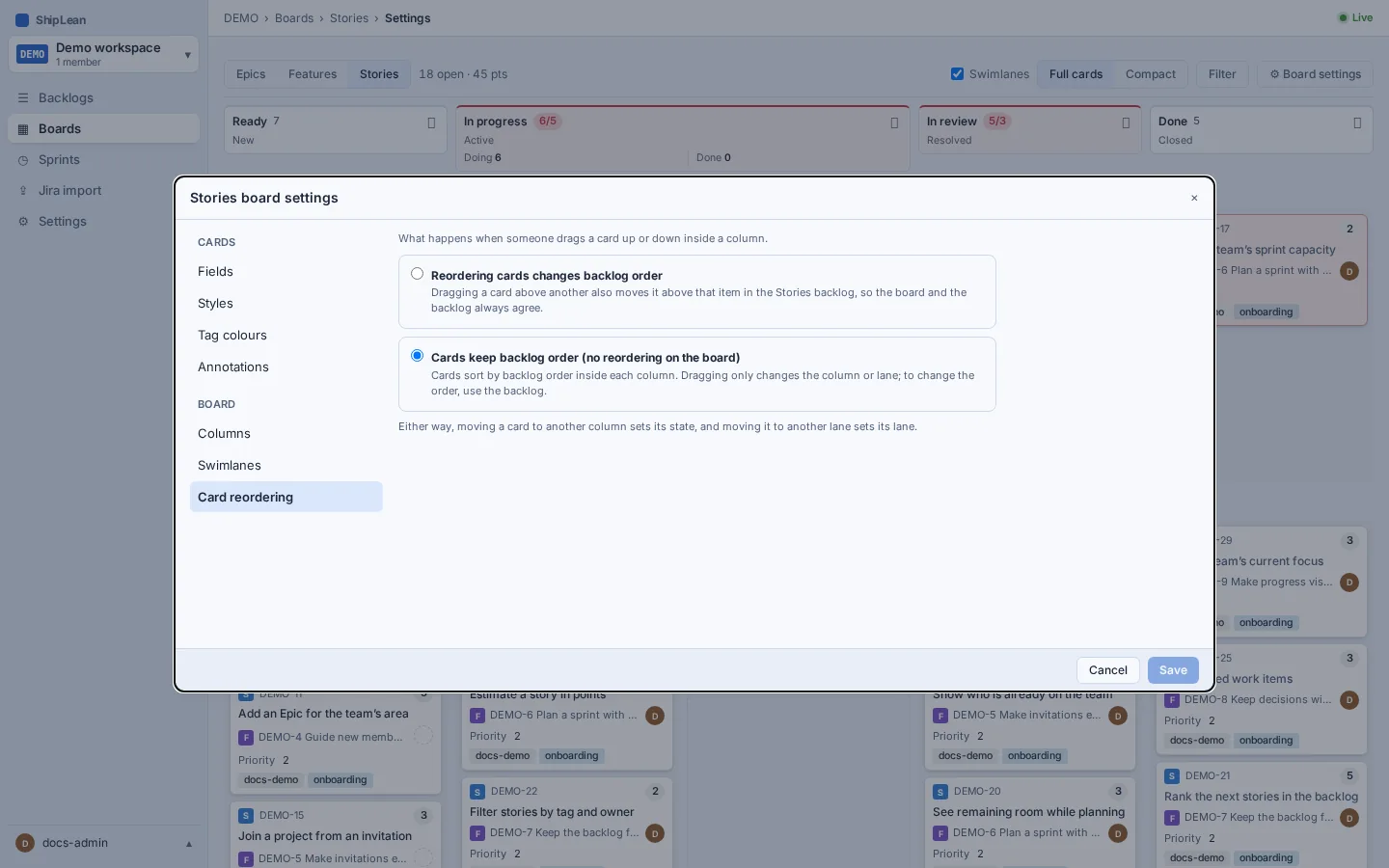
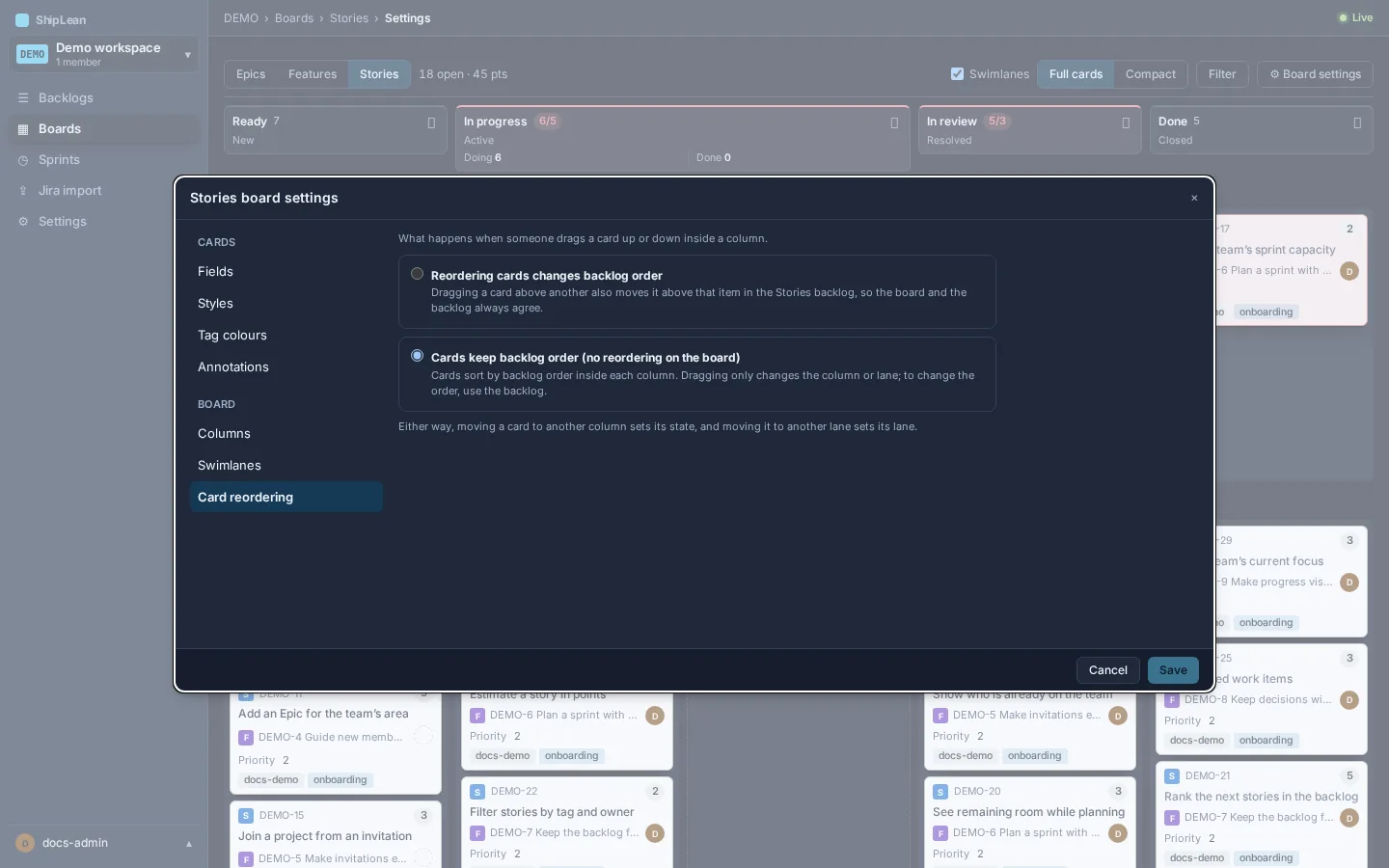
Choose one of the two options to decide whether moving a card on the board also changes its order in the Stories backlog.
Save or leave settings
Section titled “Save or leave settings”Save to apply your draft. If you close the dialog with unsaved edits, choose whether to keep editing or discard those edits. Warnings in the dialog identify settings that need attention before saving.