

Project settings
Use project settings to manage details and options shared with everyone in the project. Project admins can edit these settings. Members can view them.
The address is /p/:key/settings/:tab, where :key is the project key and :tab is general, states, members, sprints, or integrations.
Overview
Section titled “Overview”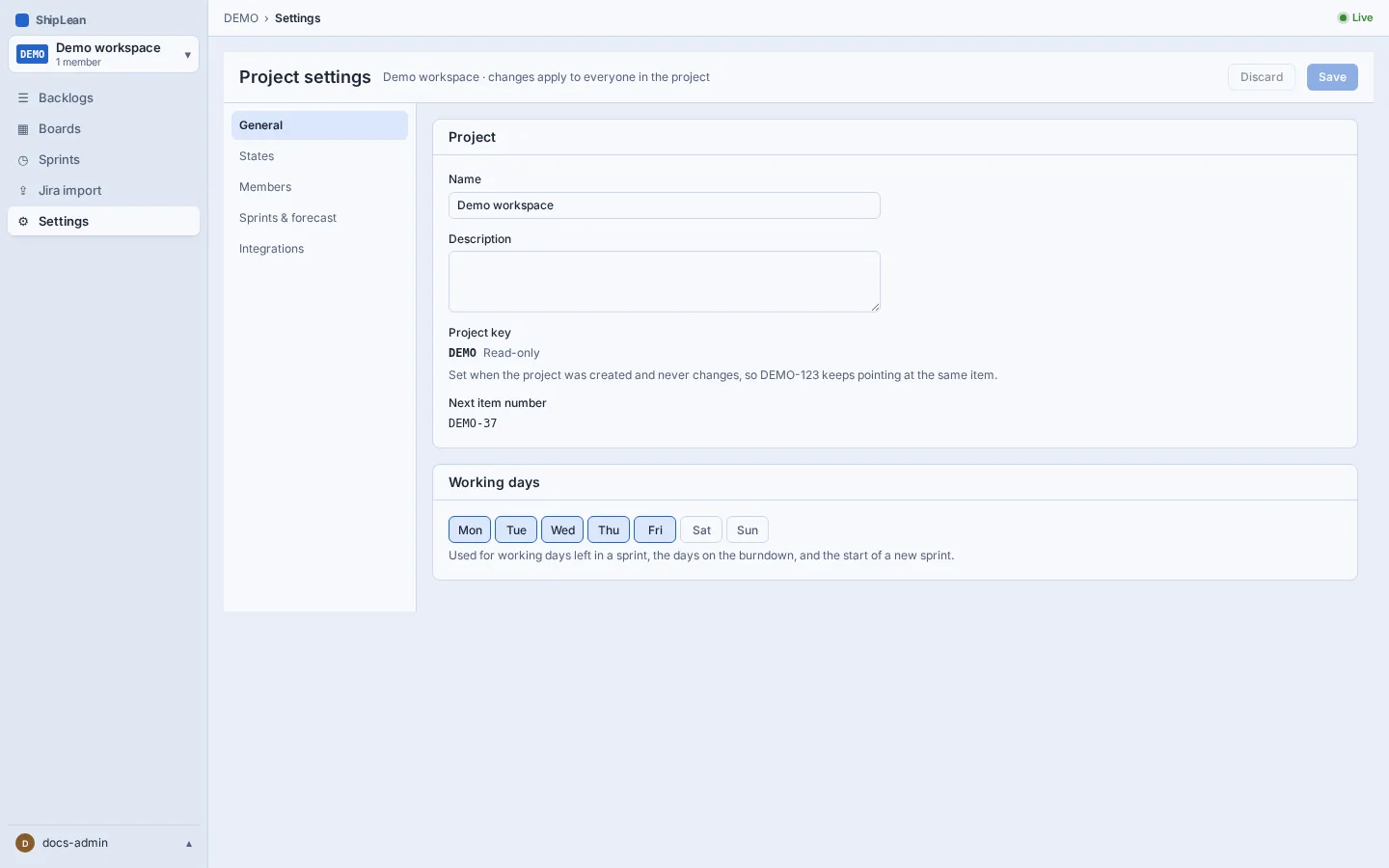
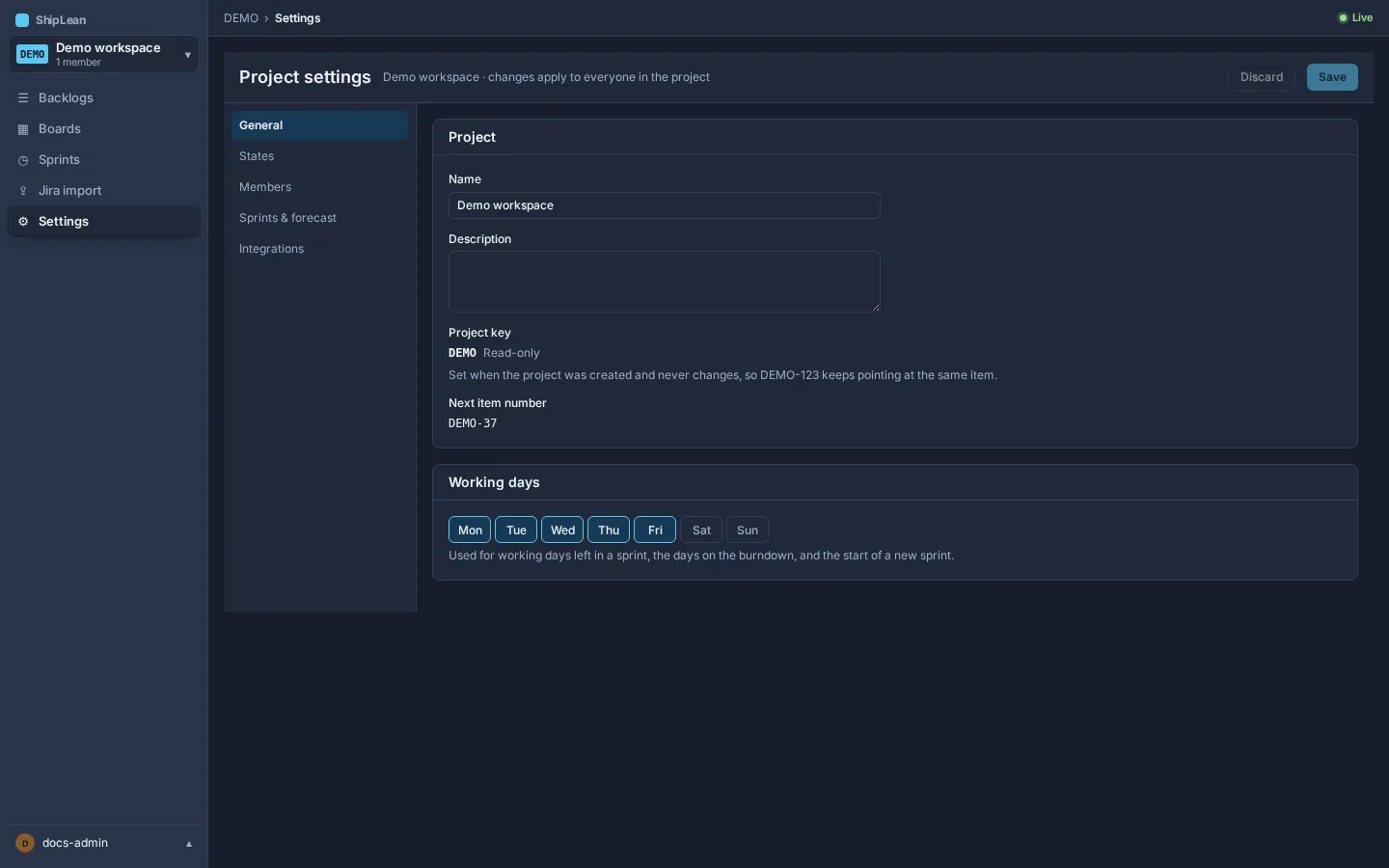
Settings tabs share one draft. Select Save to apply changes across tabs, or Discard to clear unsaved edits. Changes take effect for everyone in the project.
Edit project details and working days
Section titled “Edit project details and working days”On General, edit the project name or description and choose the working days used for sprint dates and burndown. The project key is read-only after creation. Save your changes from the settings header.
Configure states
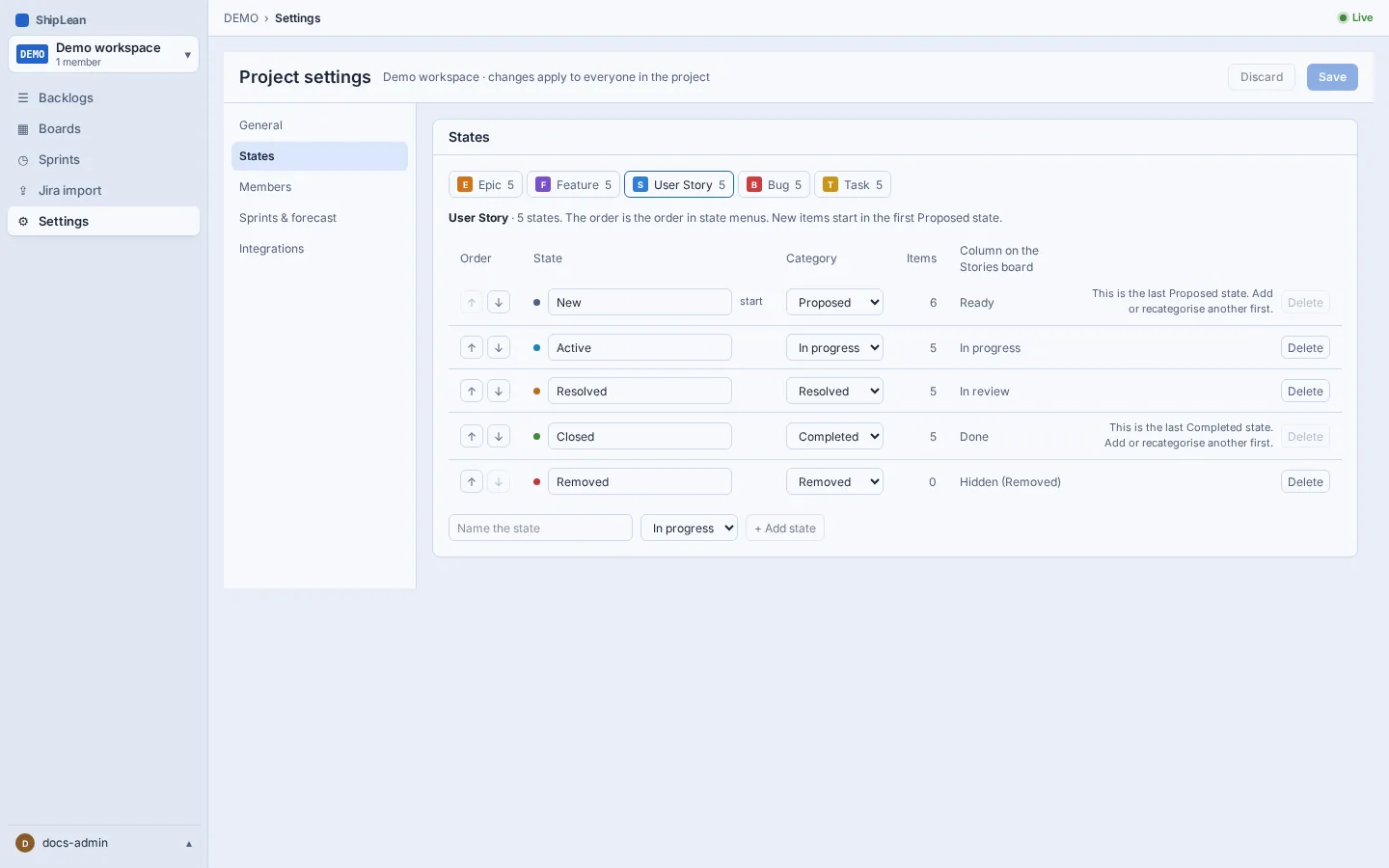
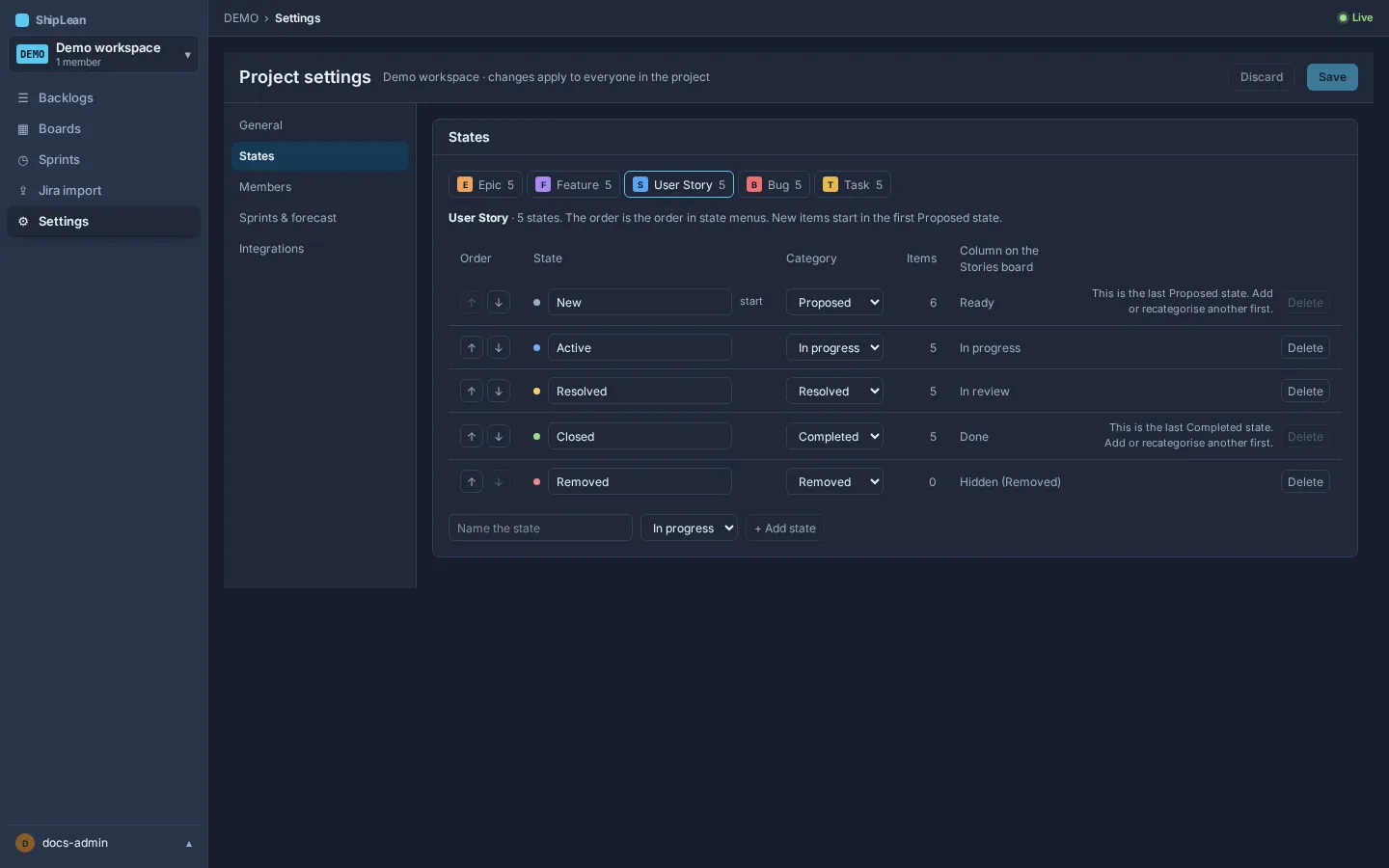
Section titled “Configure states”On States, choose a work item type and manage its states. You can add or rename a state, change its category, reorder states, or remove one where allowed. Categories group states as Proposed, In progress, Resolved, Completed, or Removed. ShipLean shows each state’s item count and checks whether a state can be removed before you save.
Manage members
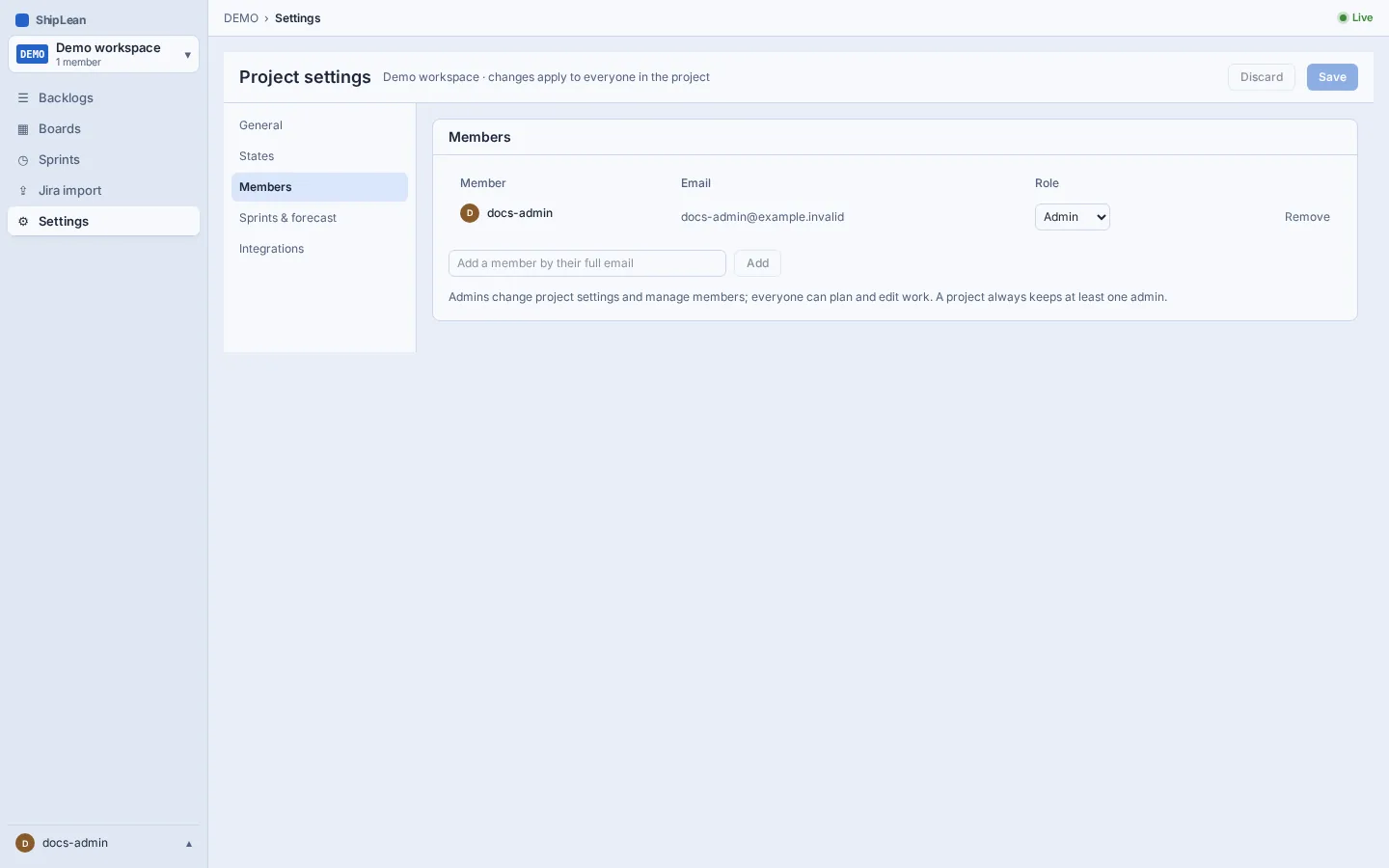
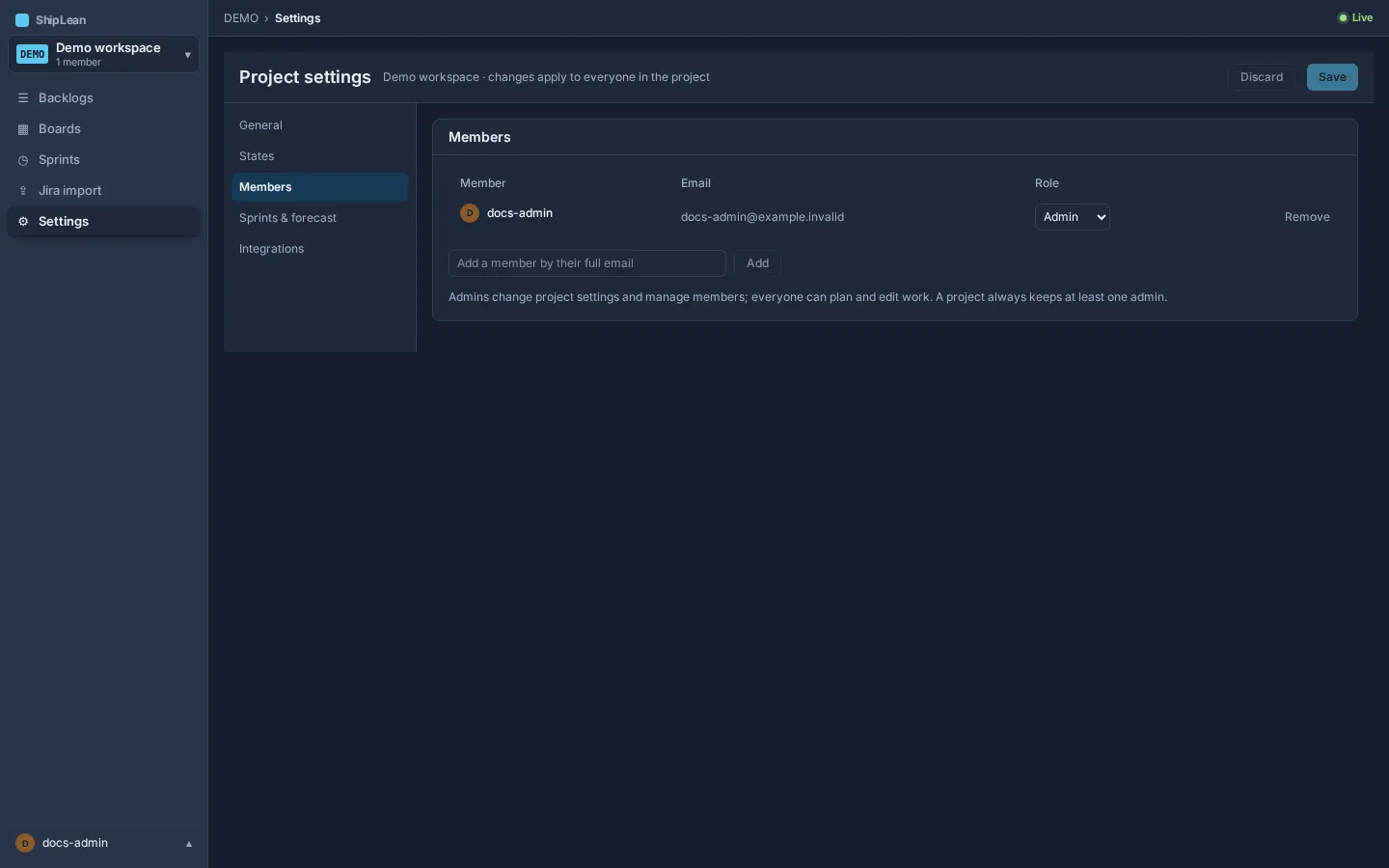
Section titled “Manage members”On Members, add people by email, change their project role, or remove their membership. Project admins manage settings and members. Other members can plan and edit work. A project must keep at least one admin.
Set sprint forecast options
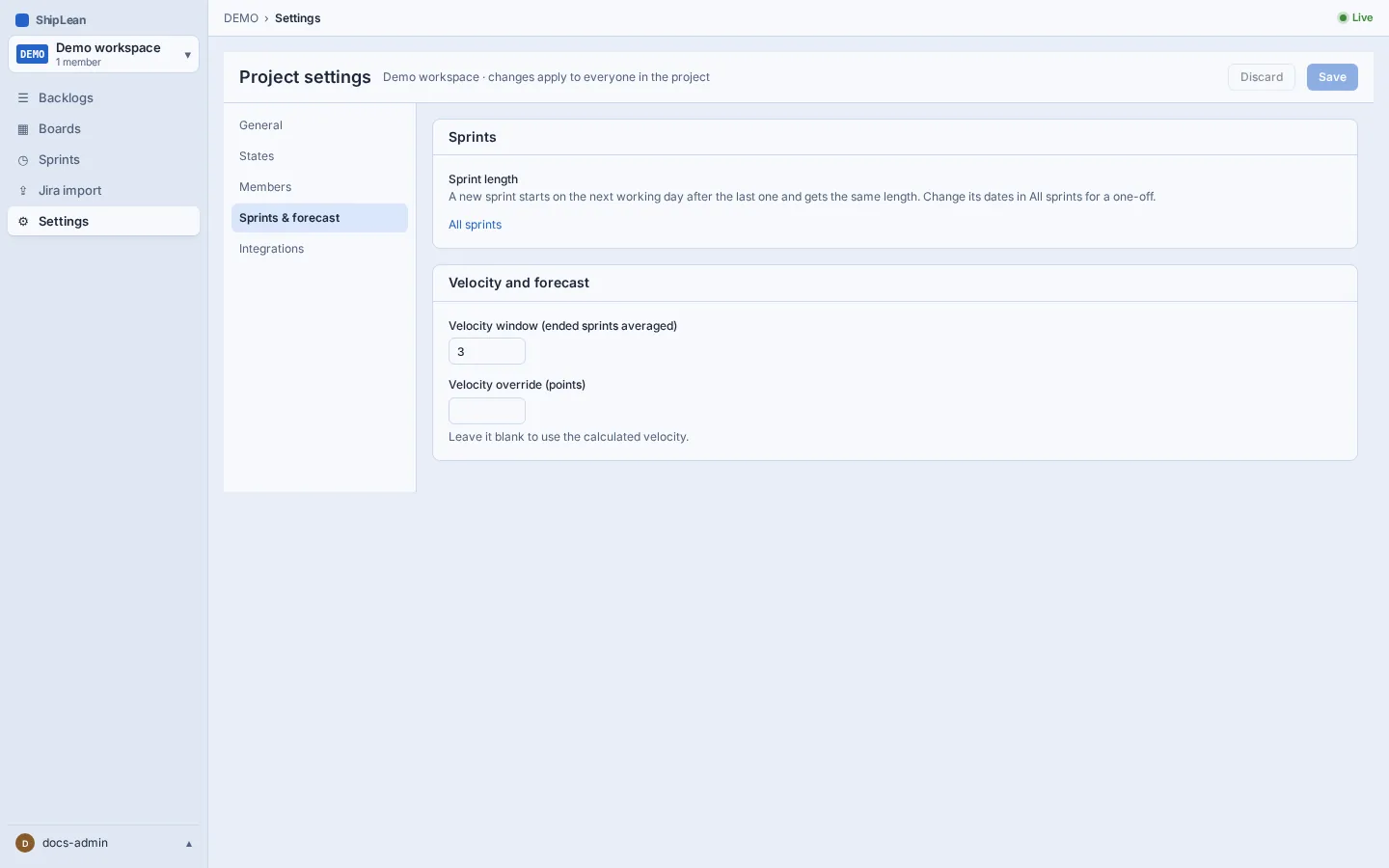
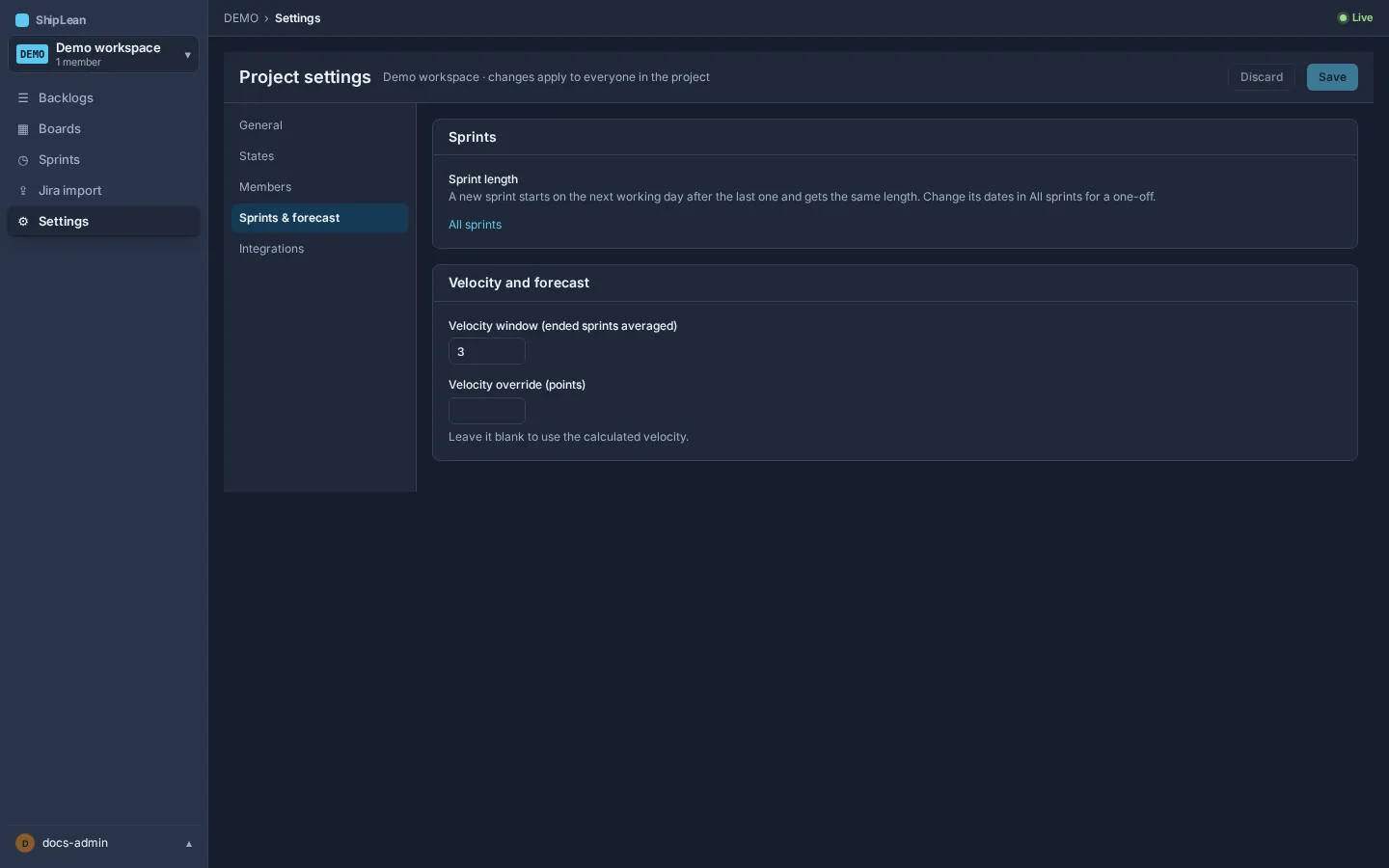
Section titled “Set sprint forecast options”On Sprints & forecast, set the velocity window, which is the number of ended sprints to average. Leave the velocity override blank to use the calculated average, or enter a value in points. This tab also links to All sprints, where you can change dates for an individual sprint.
Connect Jira
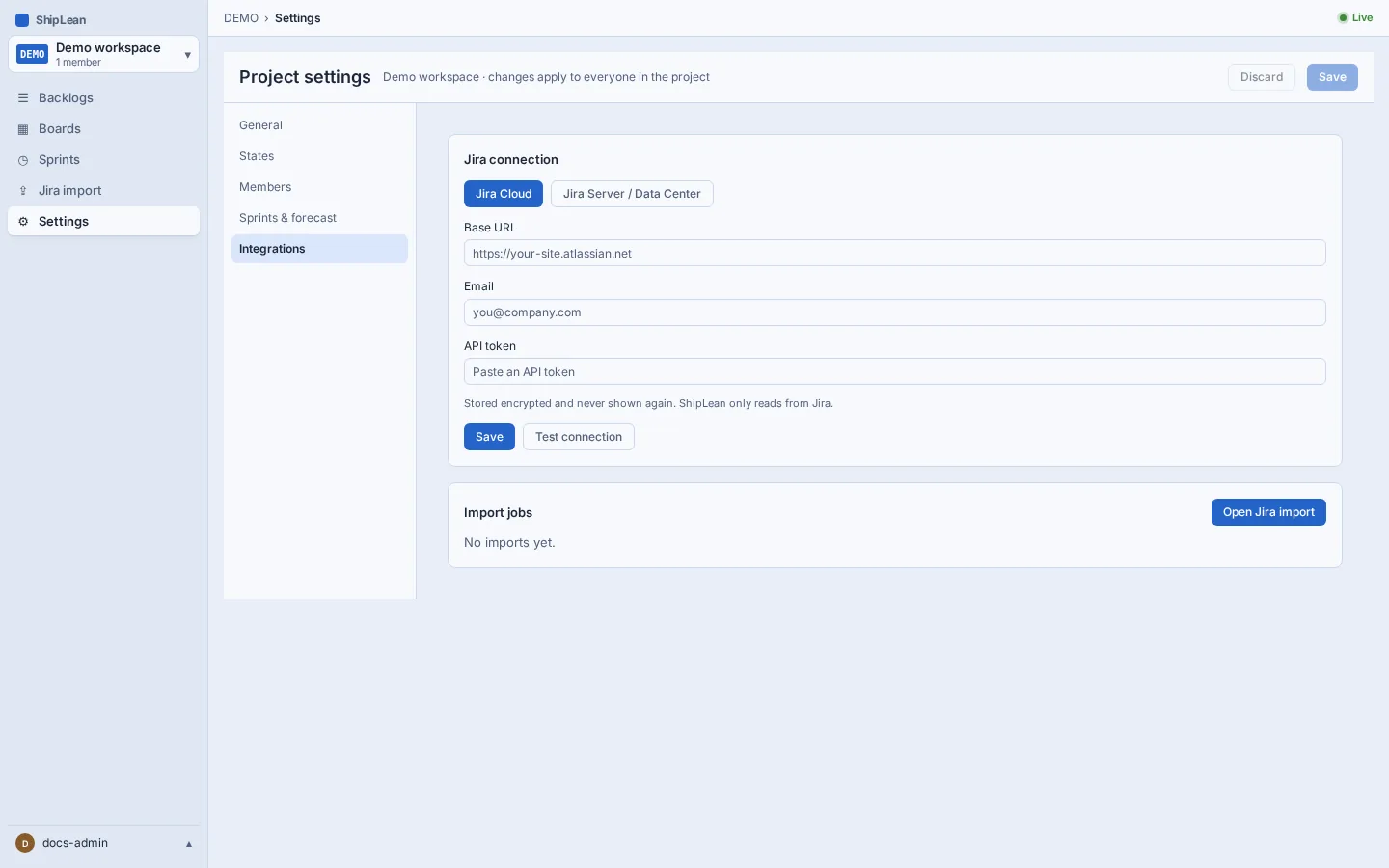
Section titled “Connect Jira”On Integrations, project admins can save a Jira Cloud or Jira Server/Data Center connection and review import jobs. The token is stored encrypted and is not shown again. The connection is read-only. ShipLean reads from Jira and does not write back.
Keyboard shortcut
Section titled “Keyboard shortcut”- Ctrl+S on Windows or Linux, or ⌘S on macOS: saves changed settings.