

Import from Jira
Import one Jira project into one ShipLean project. A project admin can run the import. ShipLean reads from Jira; it does not write back. Start from the Jira import page in an existing ShipLean project, or choose Import from Jira from the instance-level page to create a project as part of the flow.
1. Connect to Jira
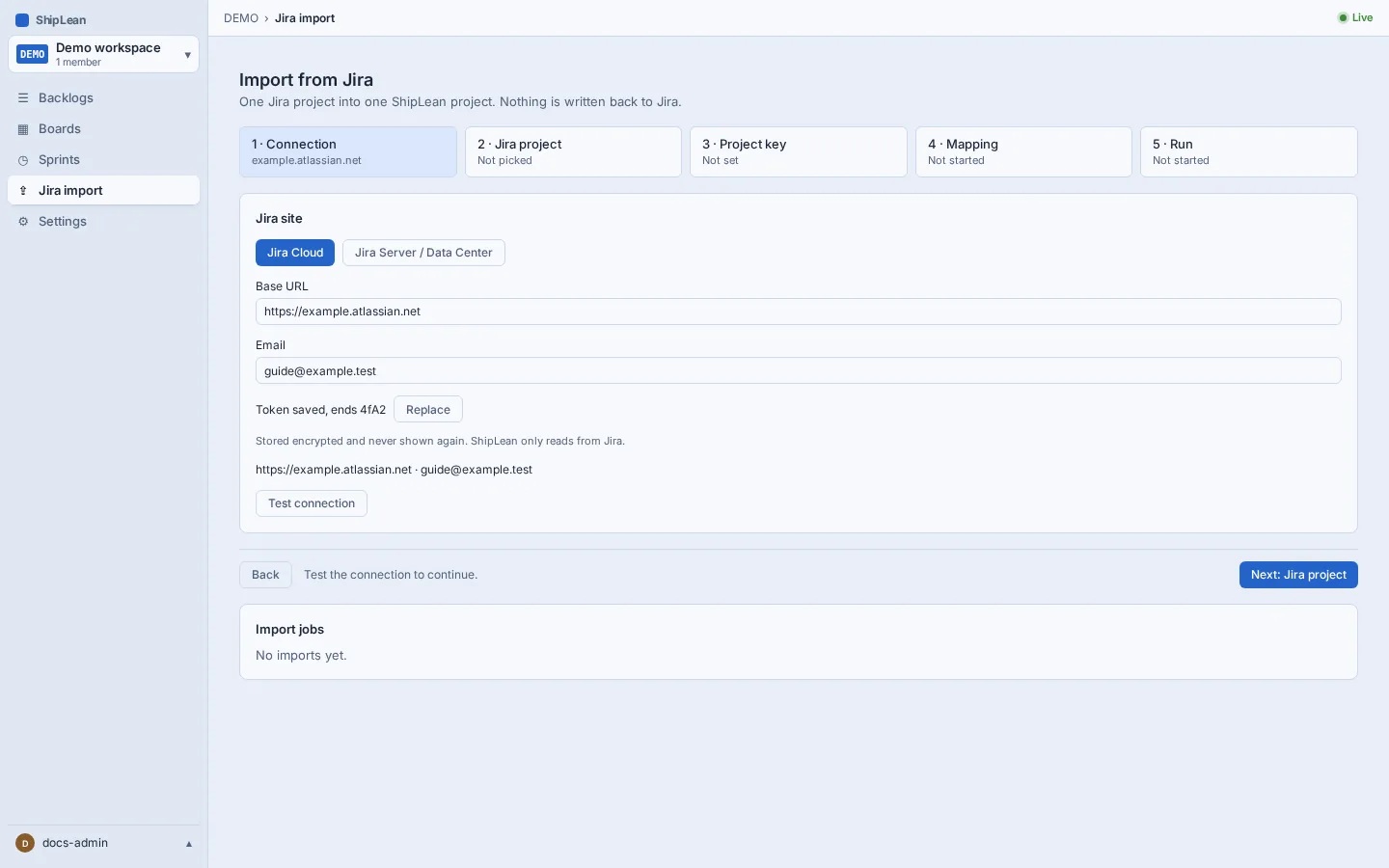
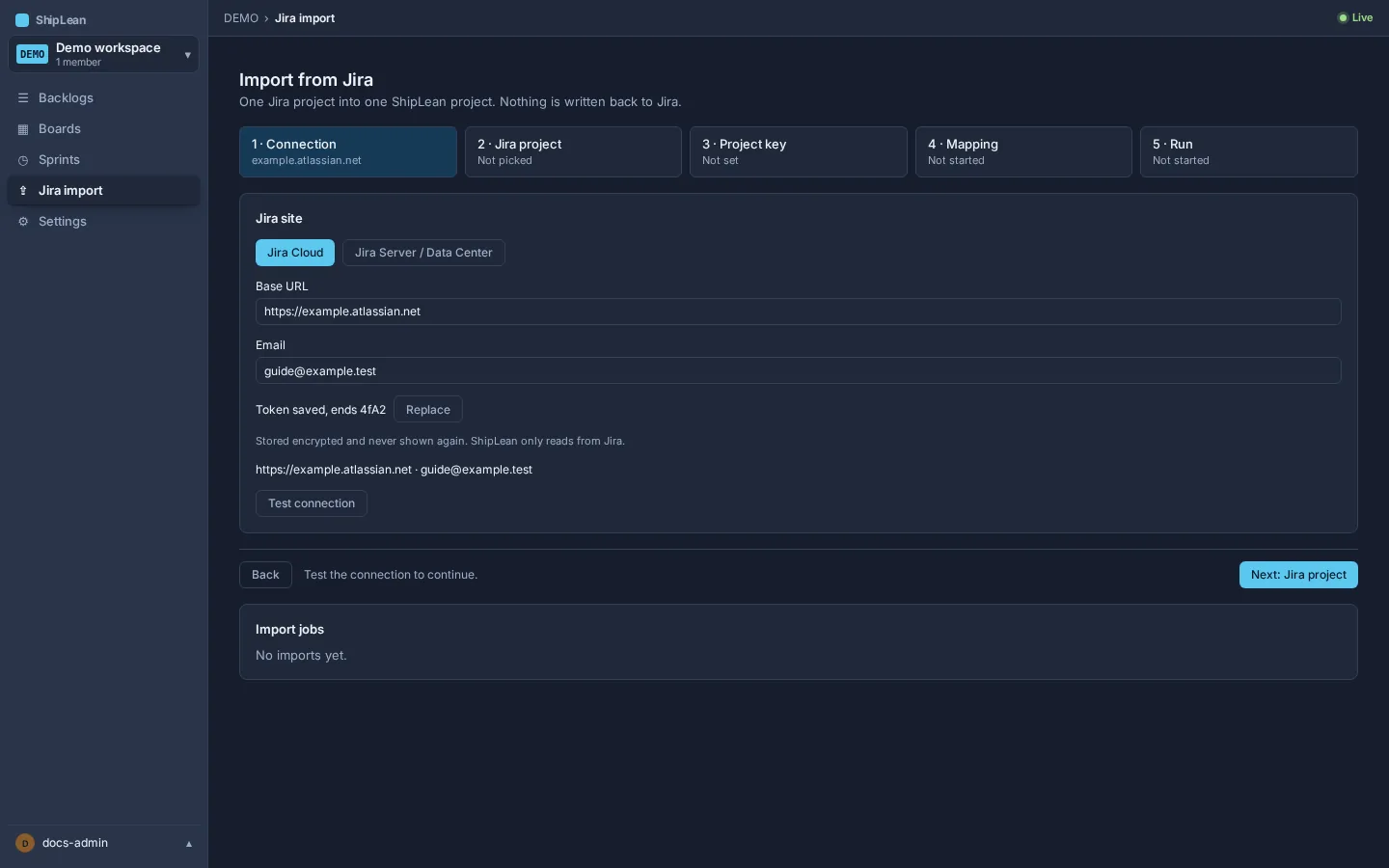
Section titled “1. Connect to Jira”Choose Jira Cloud or Jira Server/Data Center. Enter the Jira base URL and credentials, save the connection, then test it. For Cloud, provide your email and API token. For Server or Data Center, provide a personal access token. The token is stored encrypted and is not shown again.
2. Choose a Jira project
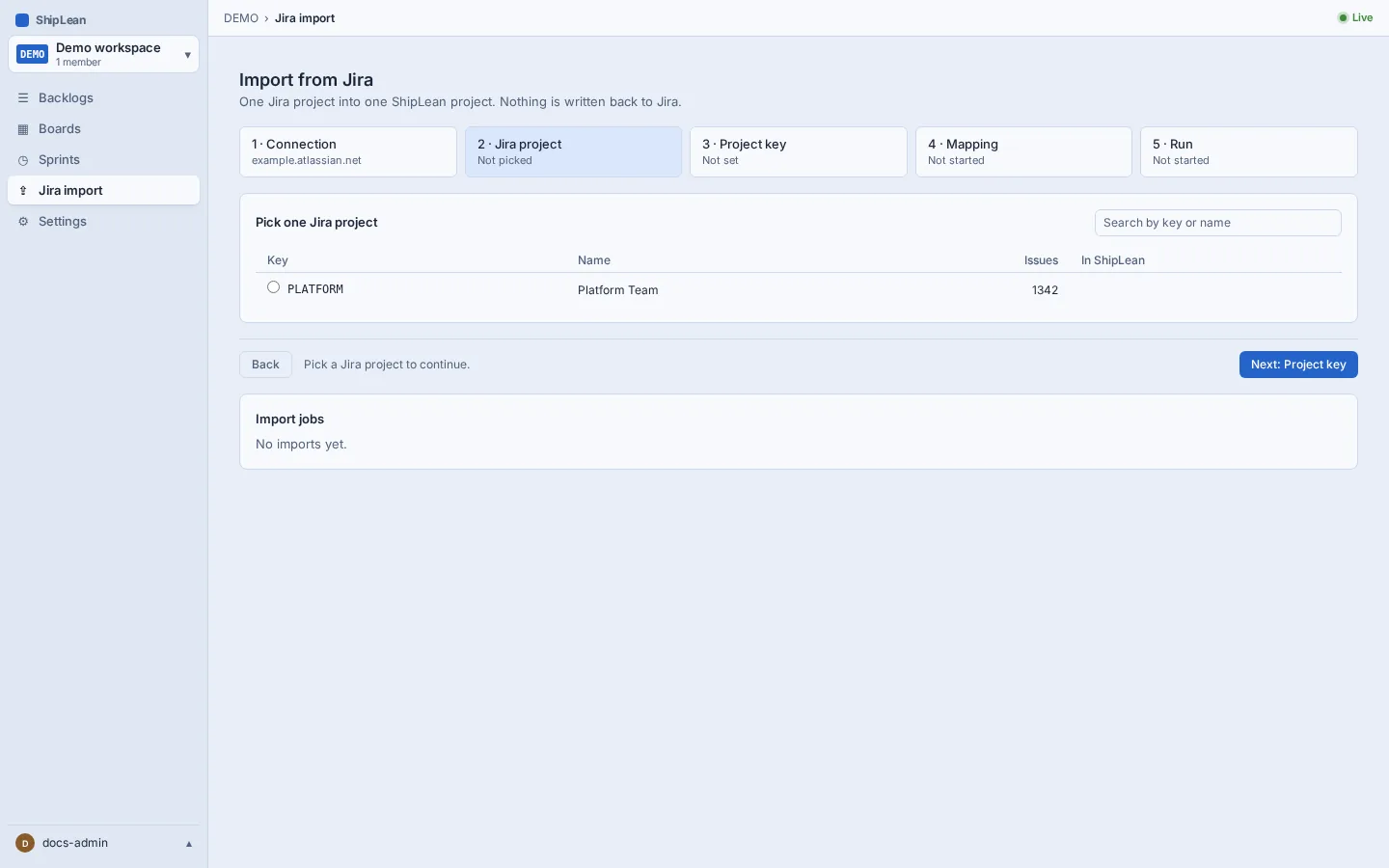
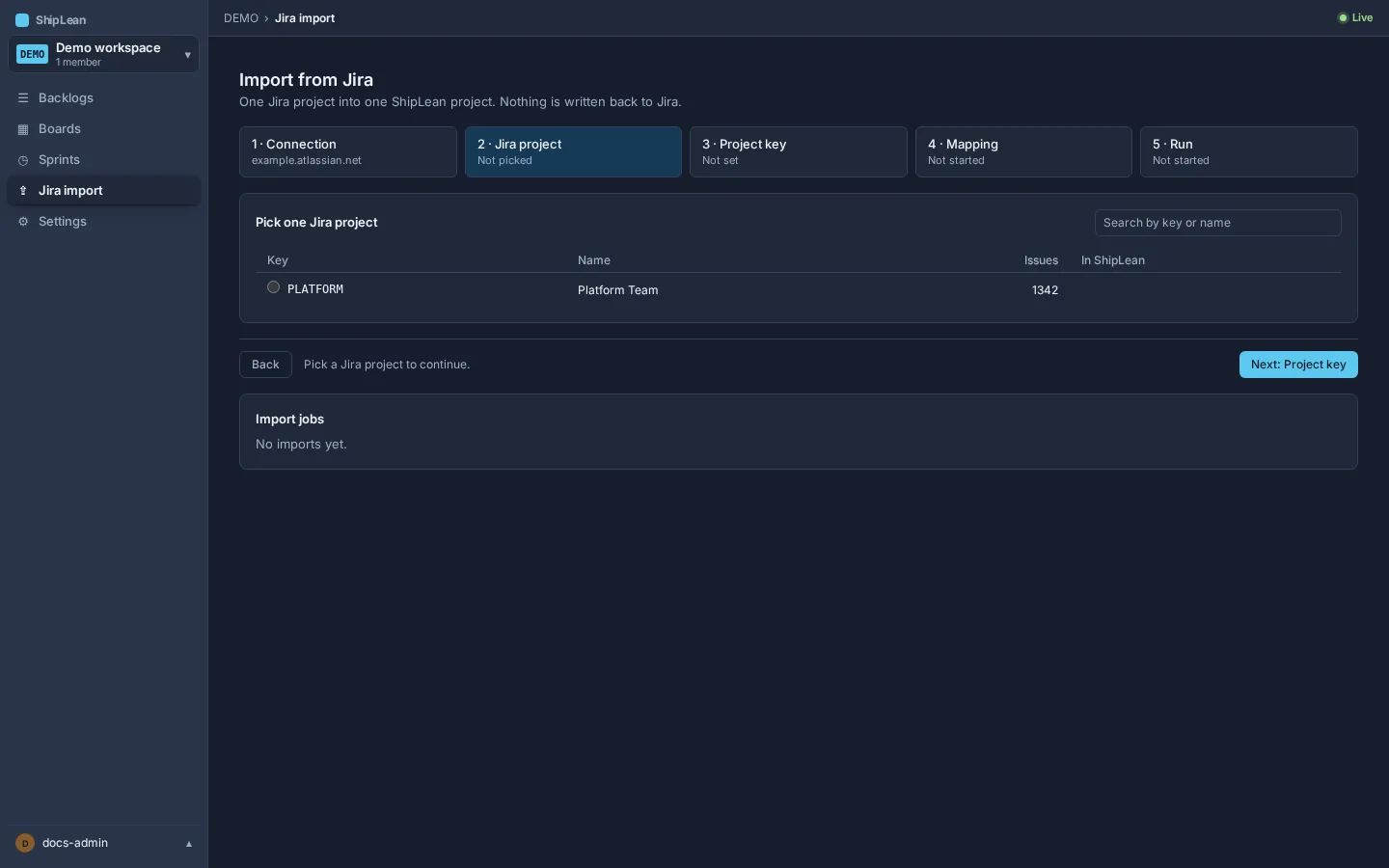
Section titled “2. Choose a Jira project”After the test succeeds, select one project from the list. Search by project key or name.
3. Check the ShipLean target
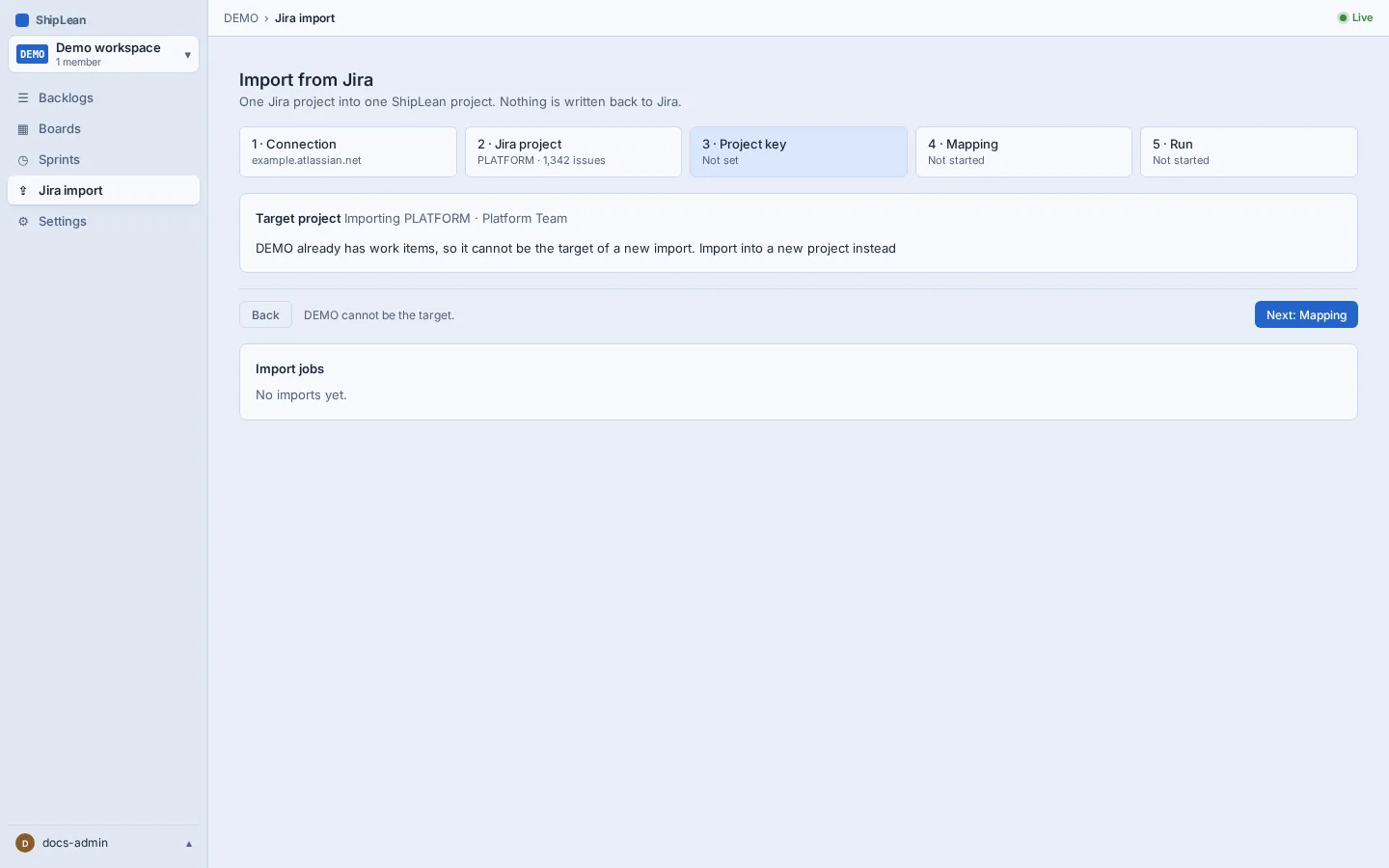
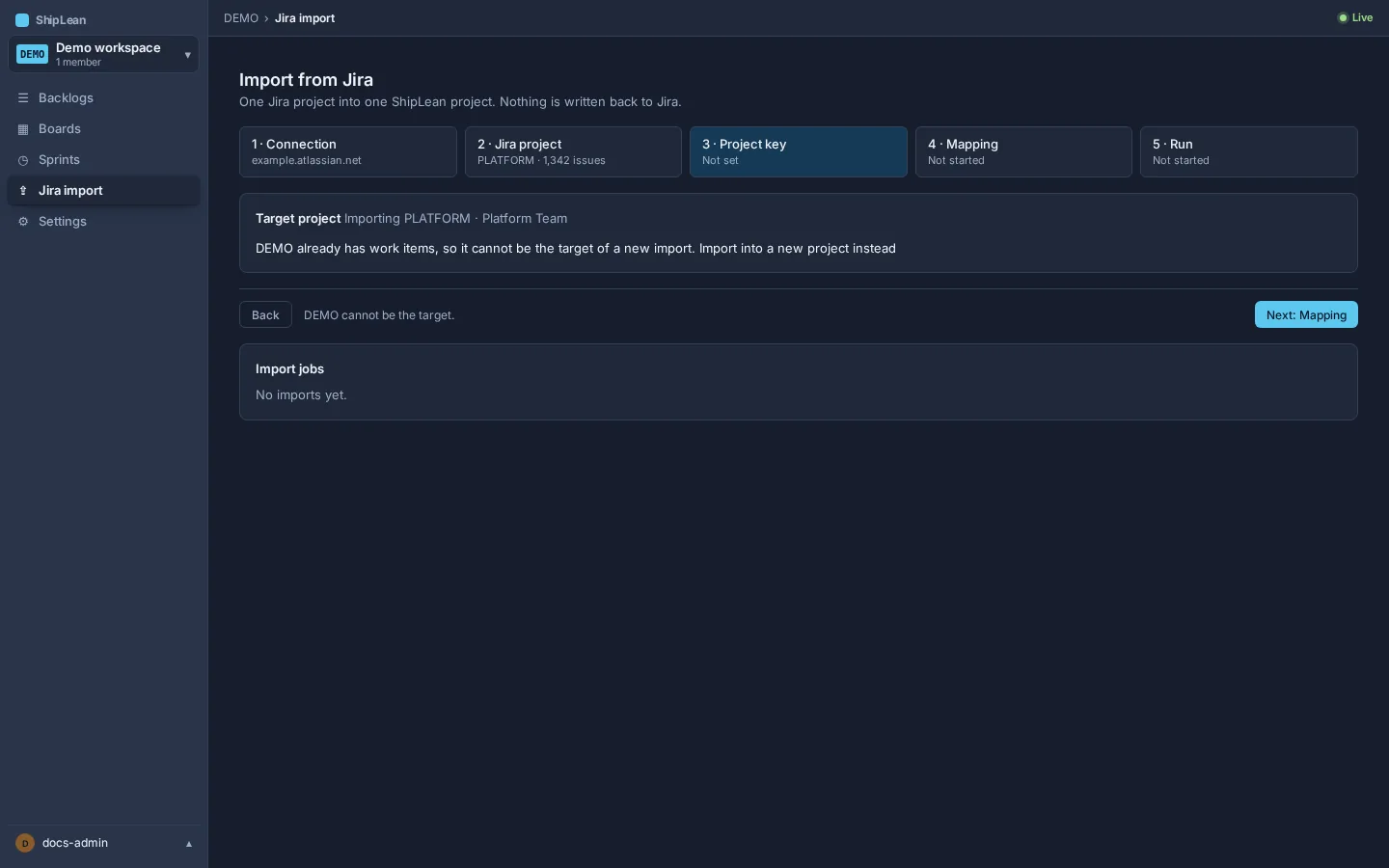
Section titled “3. Check the ShipLean target”Choose the ShipLean project that will receive the work. A first import needs an empty project. If the selected ShipLean project already has work, choose another project. A project previously used for this Jira project is the target for a re-run.
4. Review the mapping
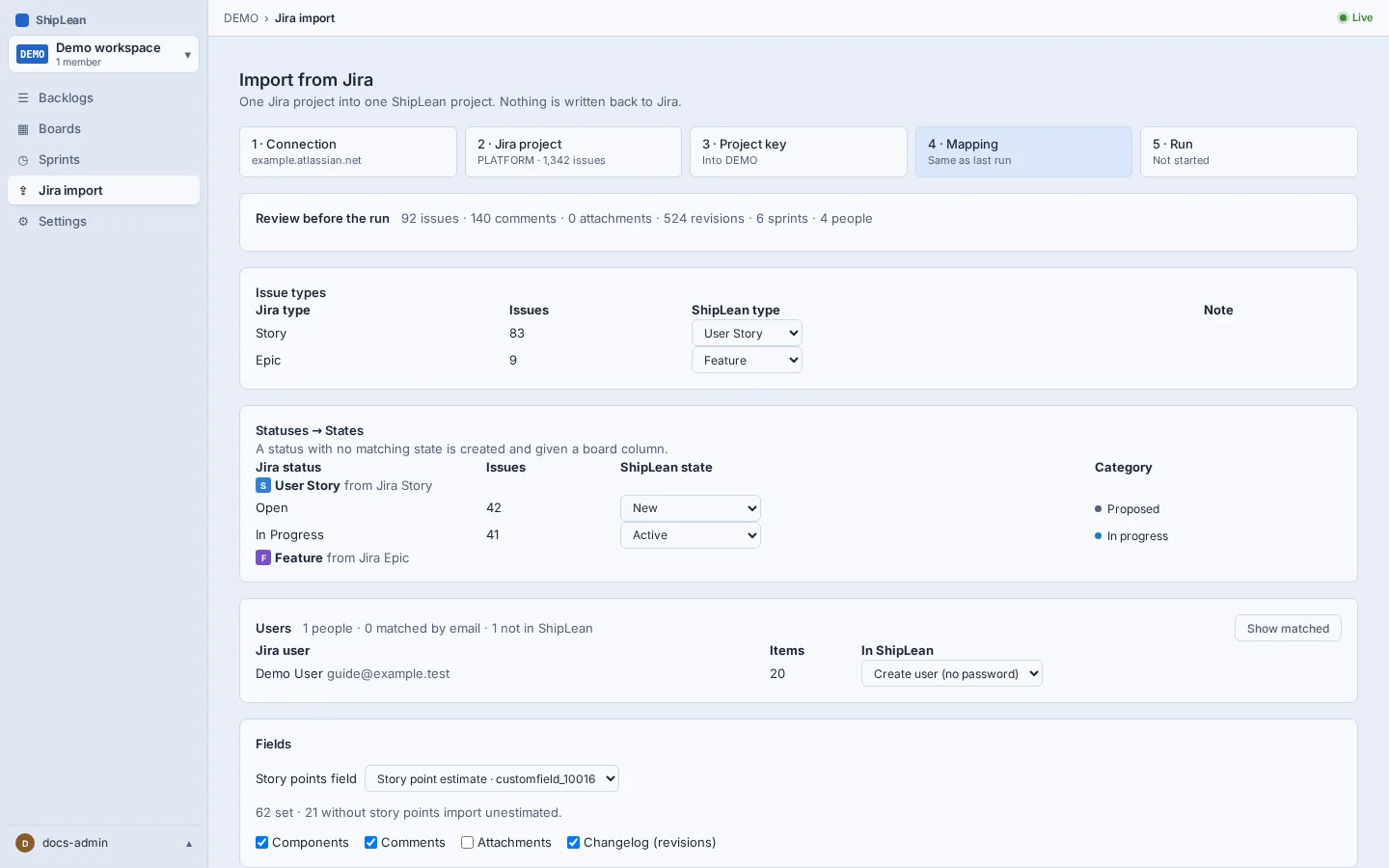
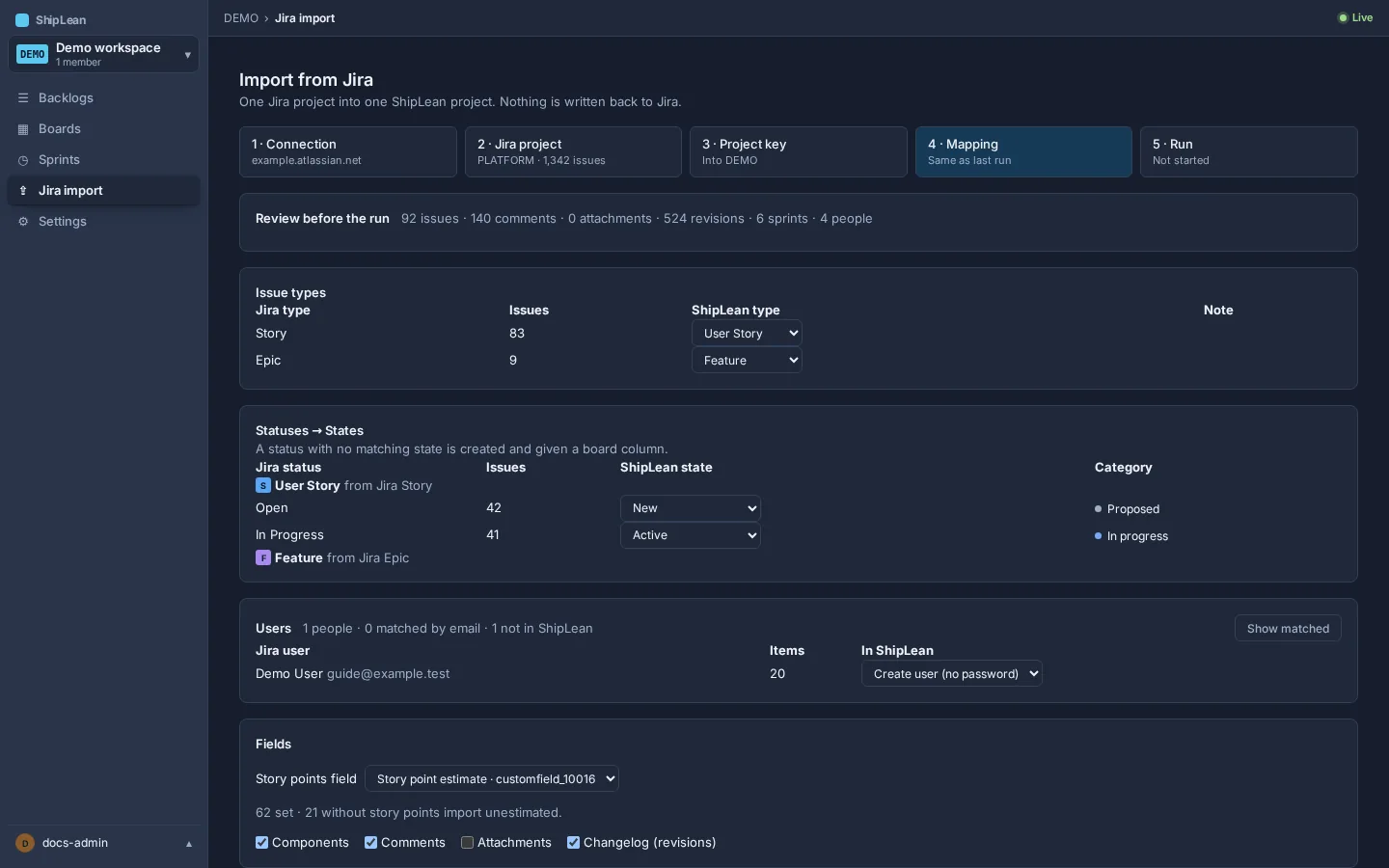
Section titled “4. Review the mapping”Review issue types, statuses, users and optional fields. The mapping is editable. Jira Epics map to ShipLean Features by default, and Jira issue numbers are kept.
| Jira data | ShipLean destination |
|---|---|
| Jira Epic | Feature by default; you can choose another work-item type or skip it. |
| Other issue types | Choose Epic, Feature, Story, Bug, Task, or Do not import for each type. |
| Jira statuses | Map each status to a named ShipLean state. A missing state can be created in the mapping, using the Jira status category. |
| Jira users | Map a person to an existing ShipLean user or create a user for them. |
| Story points and extra fields | Choose the story-points field, then choose whether to include components, comments, attachments and changelog. |
Resolve warnings and check the totals before continuing. Imported work items keep their Jira issue numbers under the ShipLean project key. Jira sprints are imported with the project data.
5. Start the import and check its log
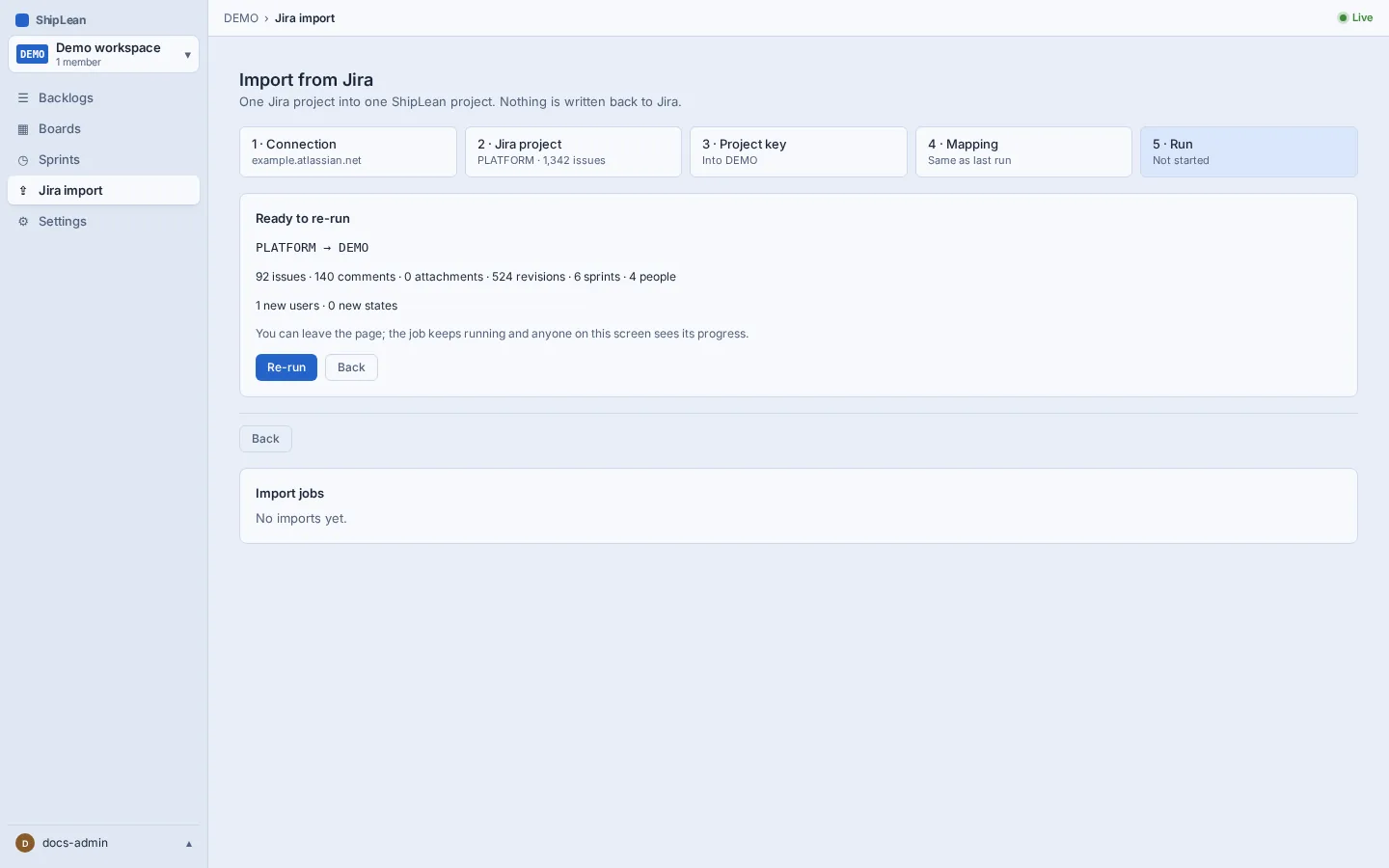
Section titled “5. Start the import and check its log”Review the totals, then choose Start import. You can leave the page while the job runs. Open the job to follow progress and review its log. The log identifies errors; for a failed row, choose whether to retry it or skip it.
Re-run an import
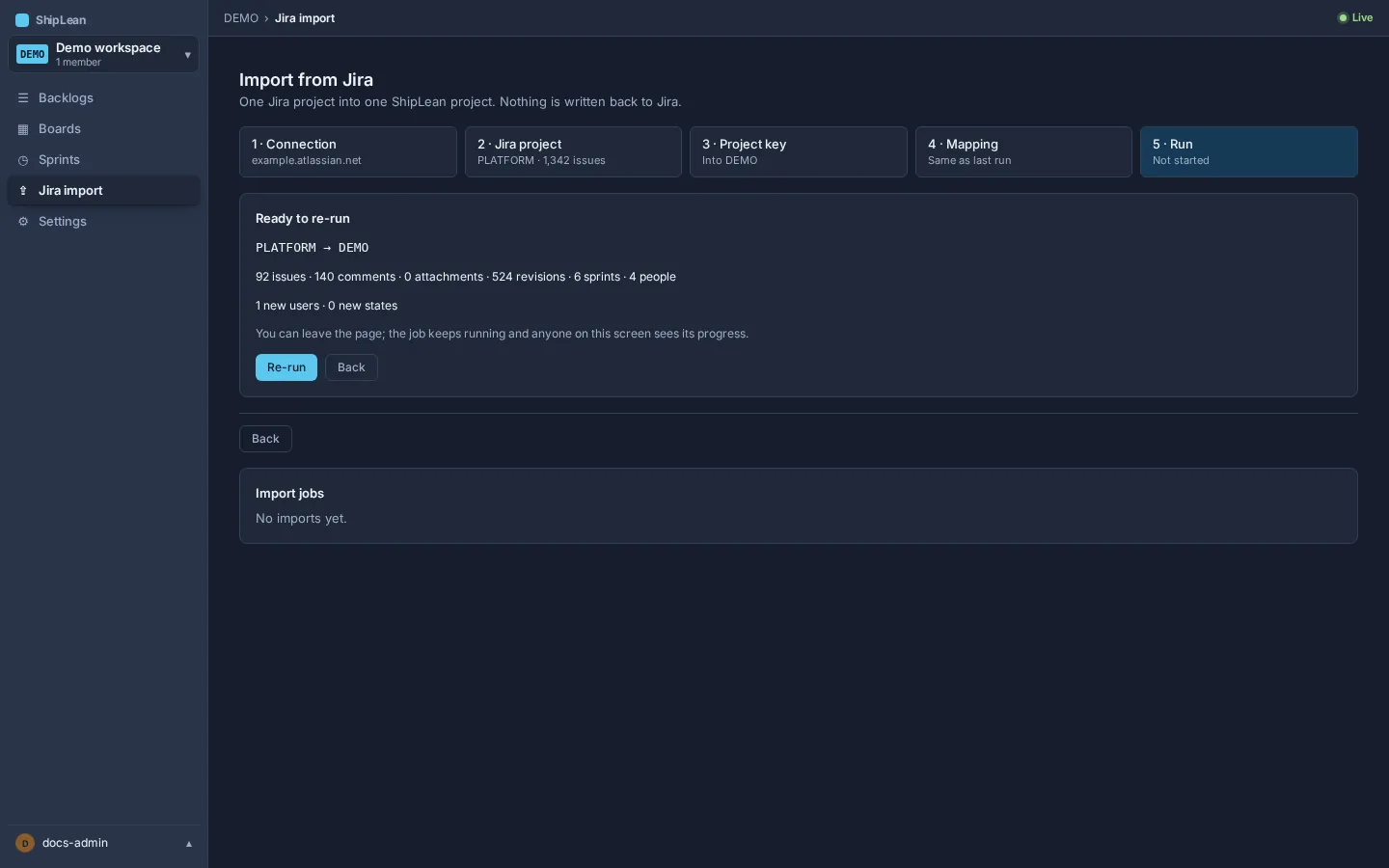
Section titled “Re-run an import”Return to the same ShipLean project and Jira project. Choose the earlier import and re-run it to sync later changes. ShipLean matches previously imported items and updates them. It does not create duplicates. If Jira has new issue types, statuses or users since the previous run, review those mapping rows before starting. The previous mapping is kept unless you change it.
See Jira import for the import page and job details.
Jira on a local network
Section titled “Jira on a local network”The instance admin can set SHIPLEAN_JIRA_ALLOW_LOCAL_ENDPOINTS=true to allow a local Jira address and plain HTTP. Plain HTTP can send the Jira token without encryption. Enable this only when Jira is on your own network. Prefer HTTPS.