

Sign in and your profile
Sign in with your account, then use Your profile to manage your identity, appearance, password, sessions, project memberships, and agent connections.
The profile is at /profile. The sign-in page is /login.
Overview
Section titled “Overview”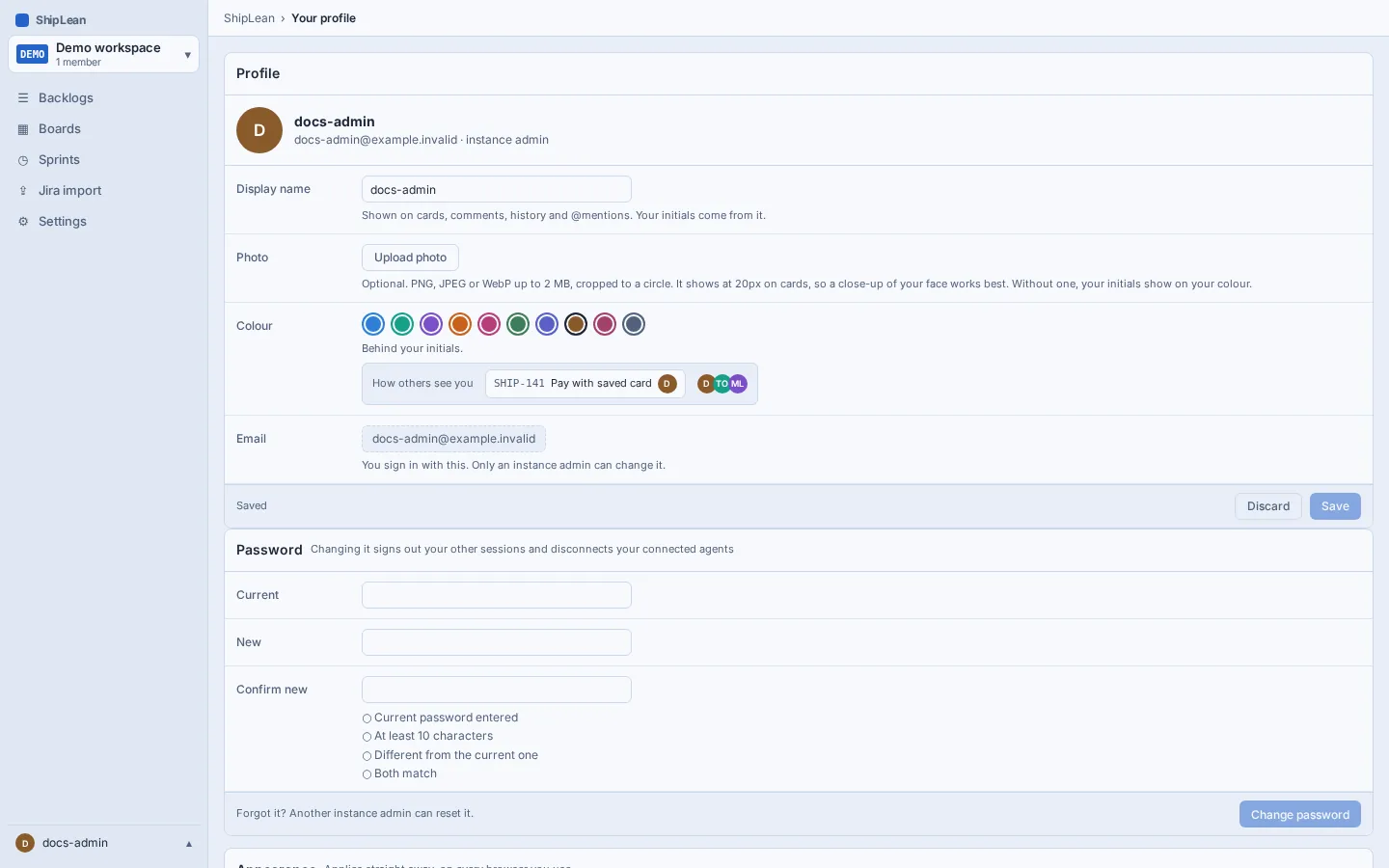
Change your profile details
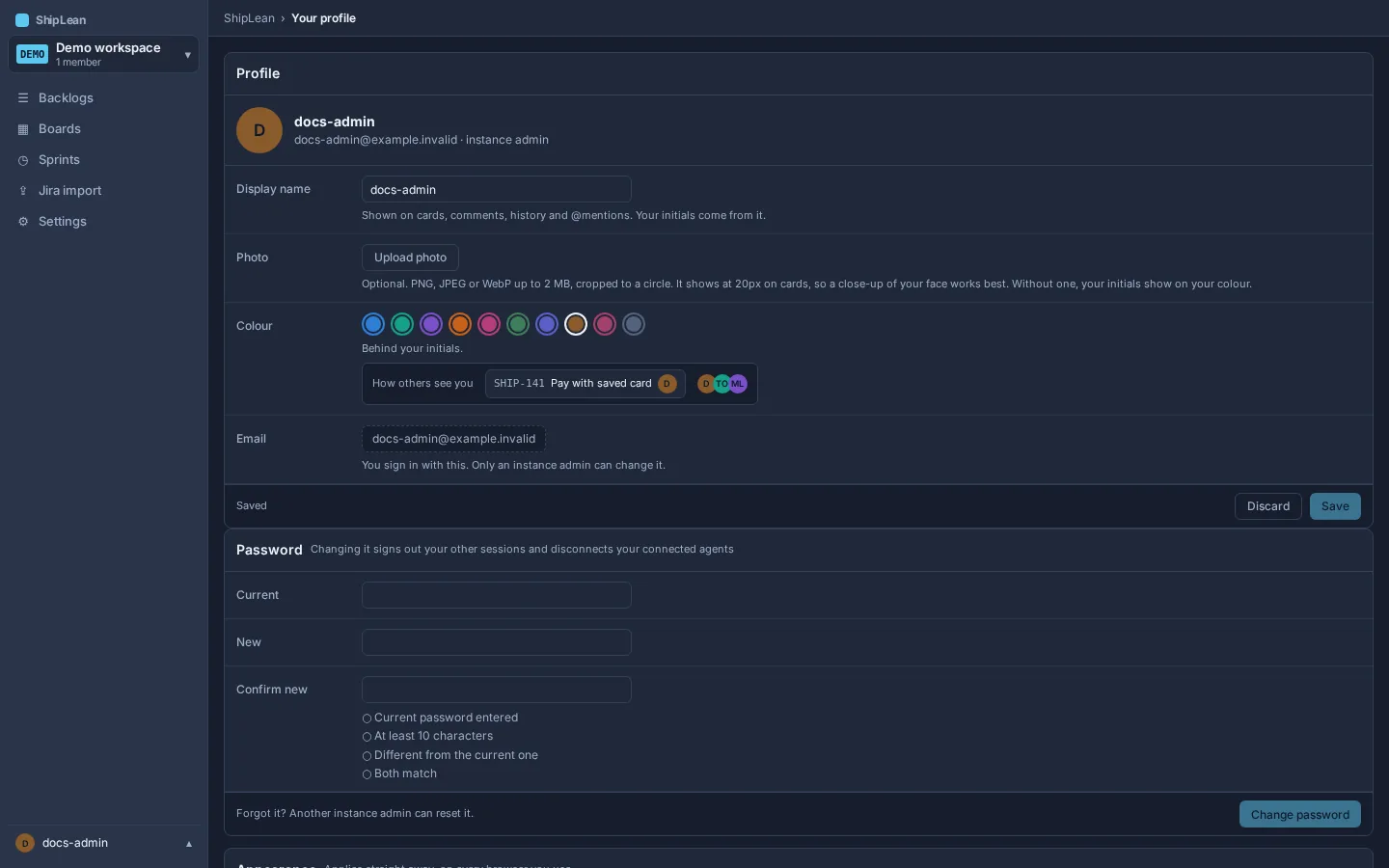
Section titled “Change your profile details”In the identity section, edit your name, choose an avatar colour, or upload or remove a profile photo. Save your changes when the save controls appear. Your email appears on your profile, but you cannot edit it there.
Change your password and appearance
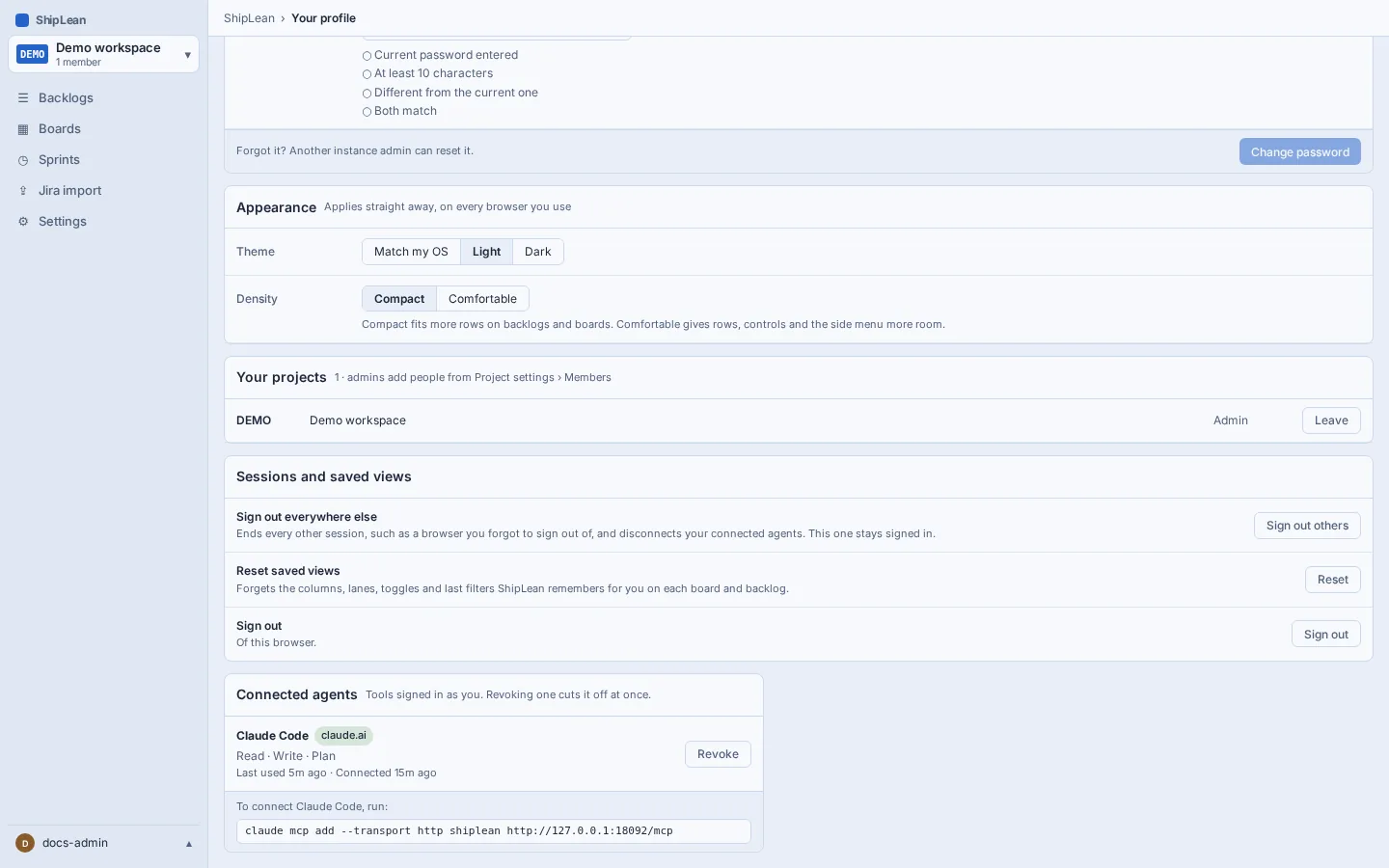
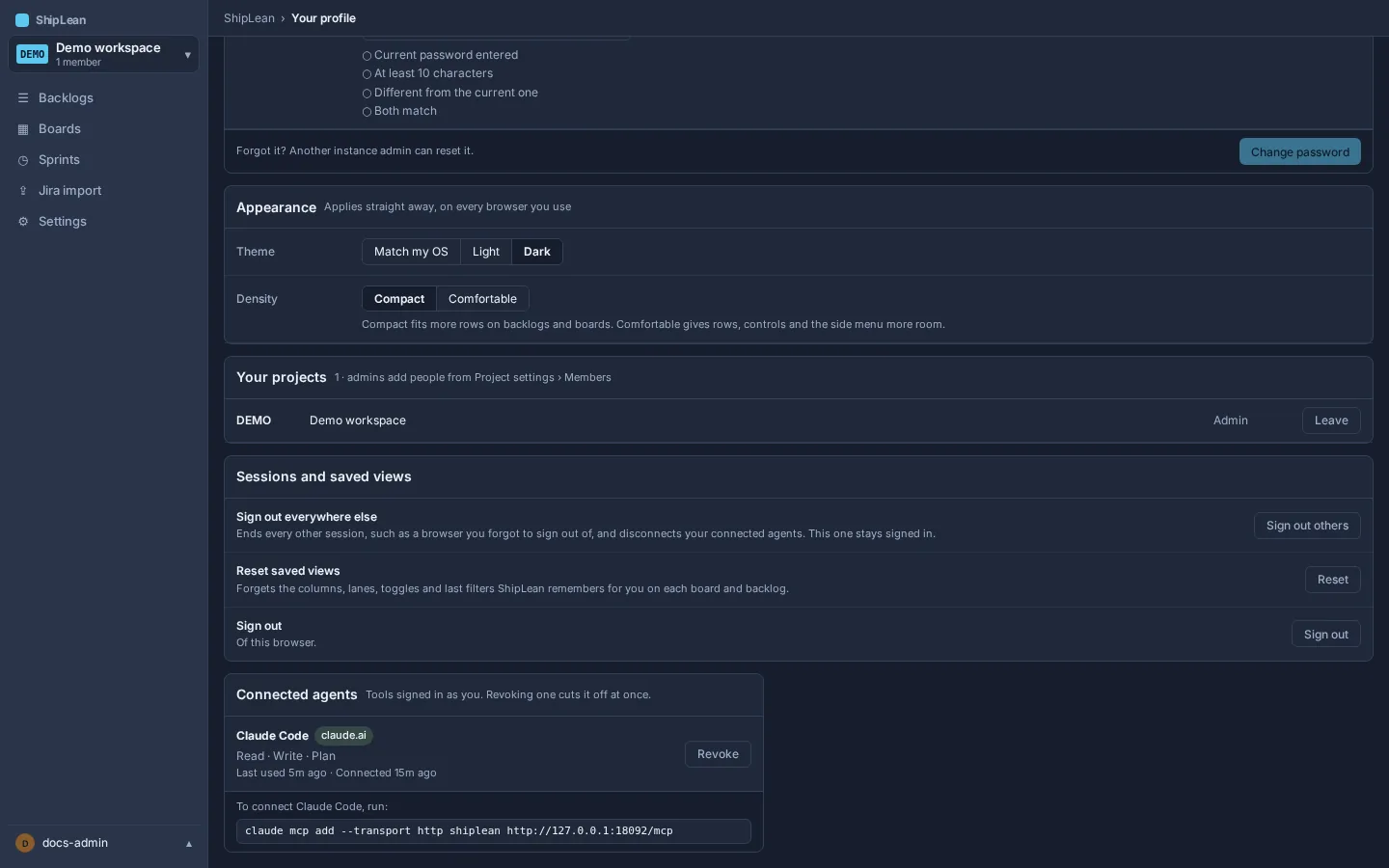
Section titled “Change your password and appearance”Use the account section to change your password and manage signed-in sessions. You can sign out other sessions to end them. In the appearance section, choose a theme and density. ShipLean saves the selection to your account.
Manage connected agents
Section titled “Manage connected agents”The Connected agents section lists active agent connections, showing when each one connected and when it was last used. Select Revoke on a connection to end it. The agent must connect again before it can access ShipLean.
The MCP address shown in the profile is the one to give an agent. It ends with /mcp. If an administrator changes the instance base URL, agents must reconnect using the new address.
Sign in
Section titled “Sign in”Enter your email and password on /login. If an administrator gave you a one-time password, ShipLean asks you to choose a new password before continuing. The session cookie renews as you use ShipLean. It expires after 14 days without activity. You can also sign out other sessions from your profile.
If your organization uses an identity proxy, the proxy handles sign-in. Your administrator configures how you sign in.