

Backlogs
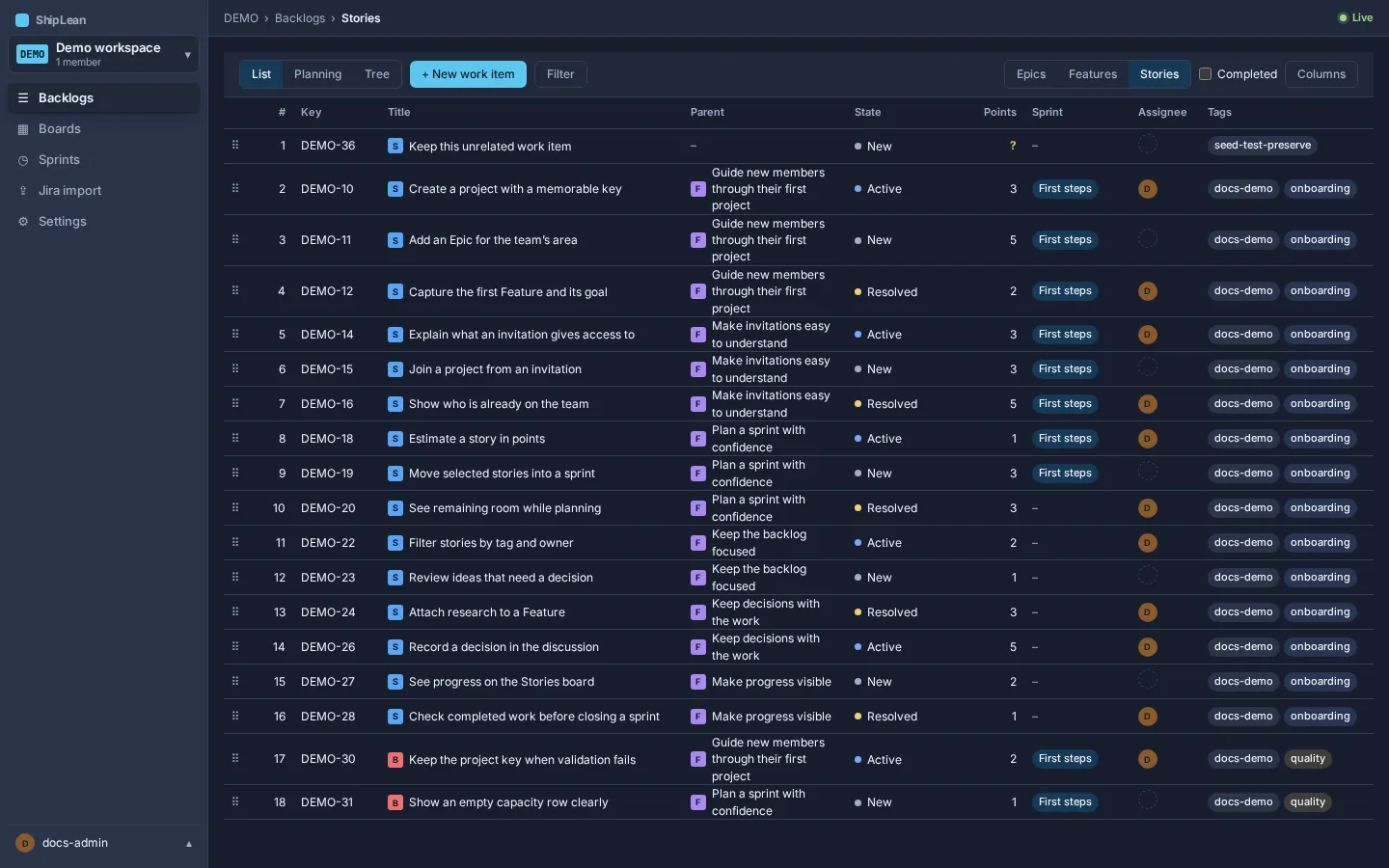
Use a backlog to find, shape and order work in a project. Choose Stories, Features or Epics from the level switch at the right of the toolbar.
Address
Section titled “Address”- Stories:
/p/:key/backlogs/stories?mode=list|planning|tree. The default is List. - Features:
/p/:key/backlogs/features. - Epics:
/p/:key/backlogs/epics.
Only Stories has List, Planning, and Tree modes. Features and Epics each show a ranked list.
Overview
Section titled “Overview”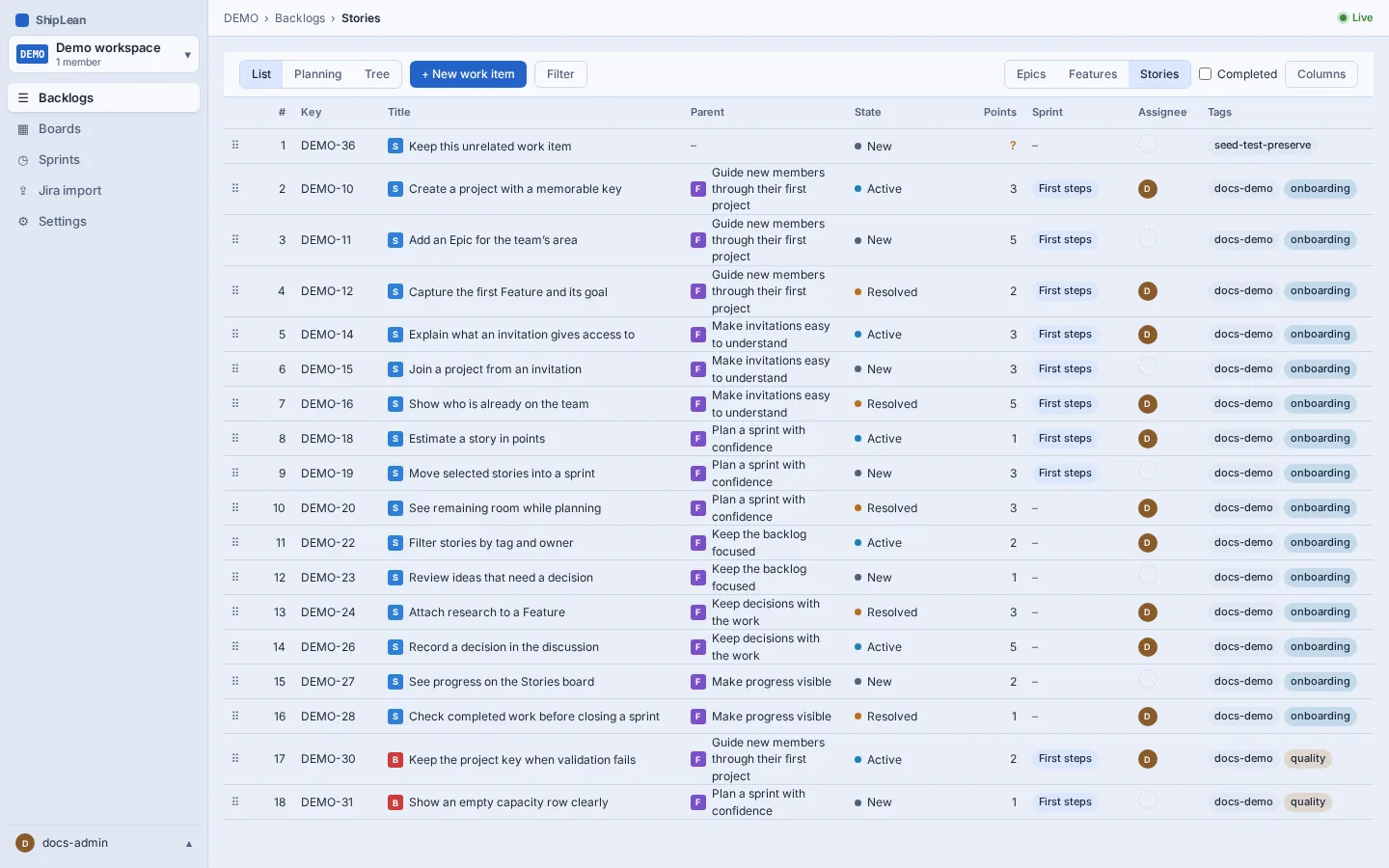
Choose a level or mode
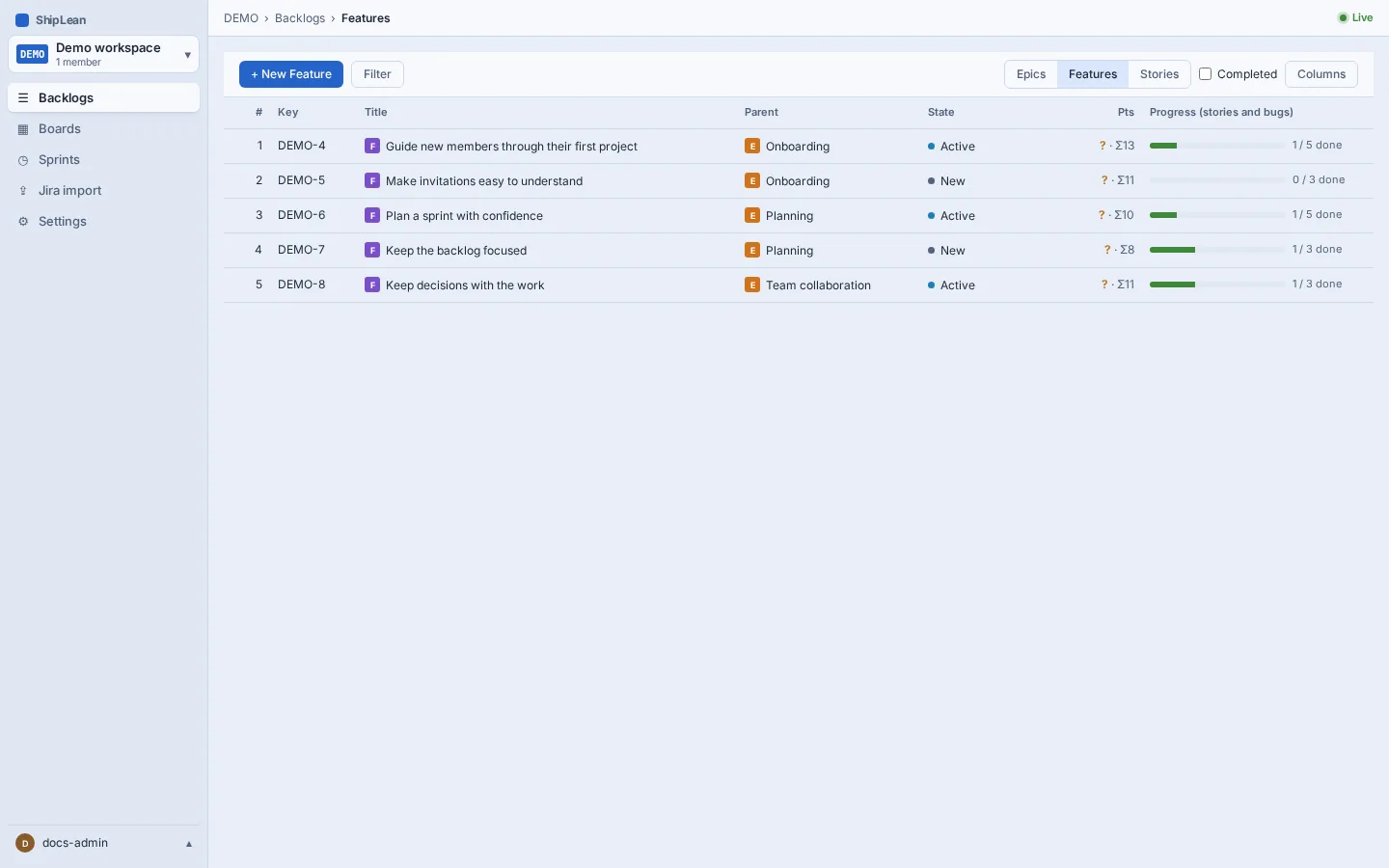
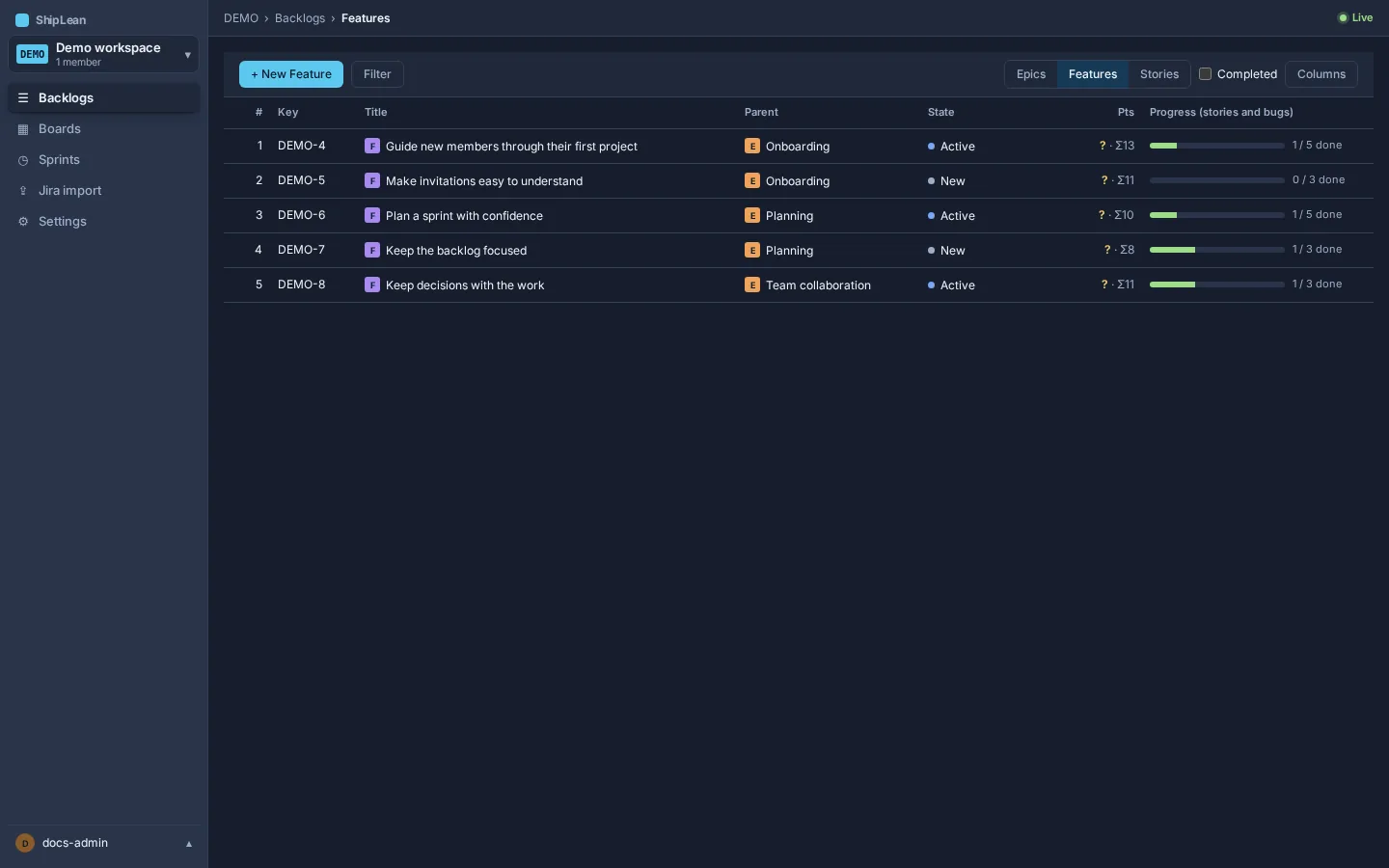
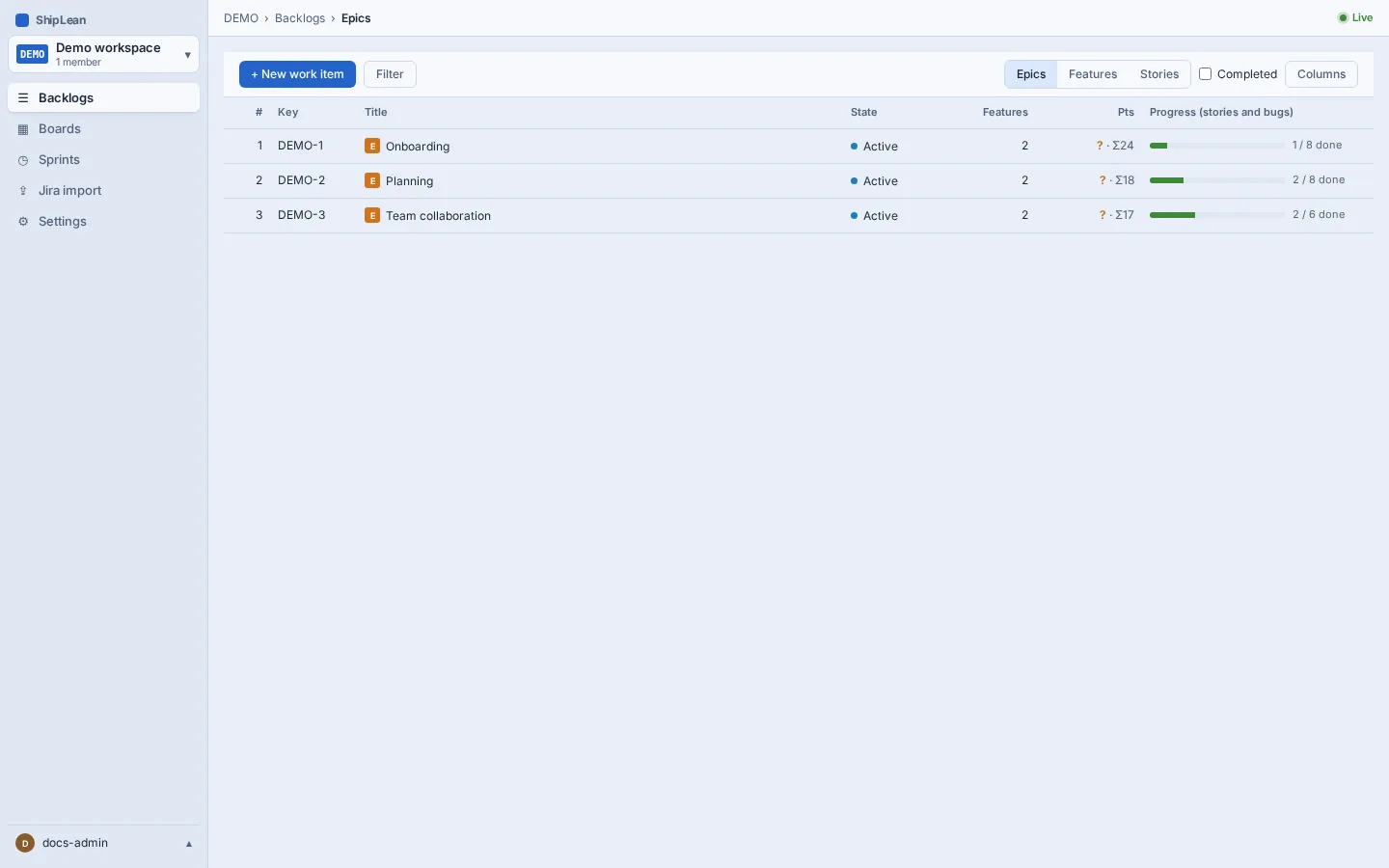
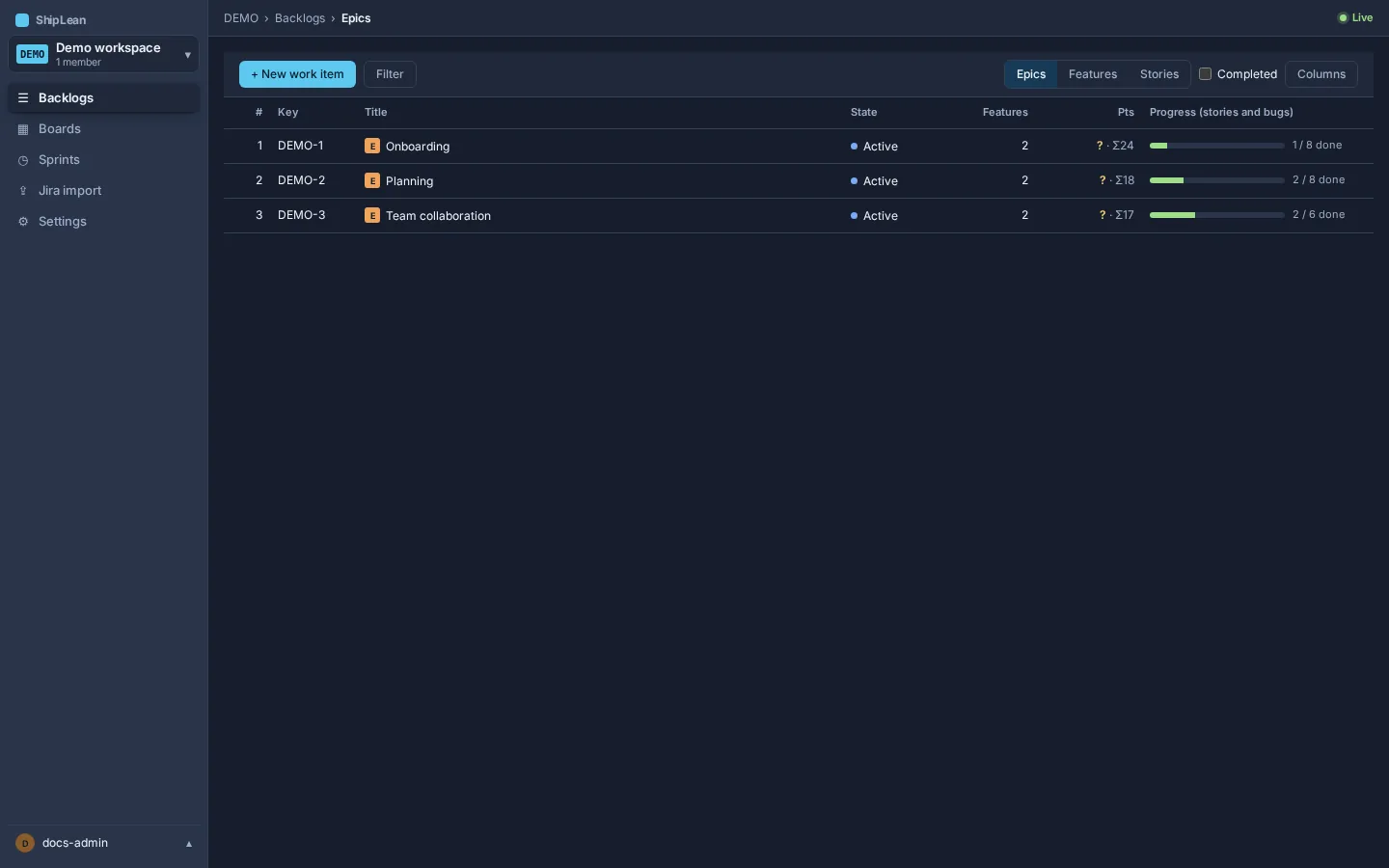
Section titled “Choose a level or mode”Choose Stories, Features or Epics to change which work items the table shows. The Features table includes each Feature’s parent Epic. The Epics table includes its Feature count. Both levels can show story-point sums and progress through their Stories and Bugs.
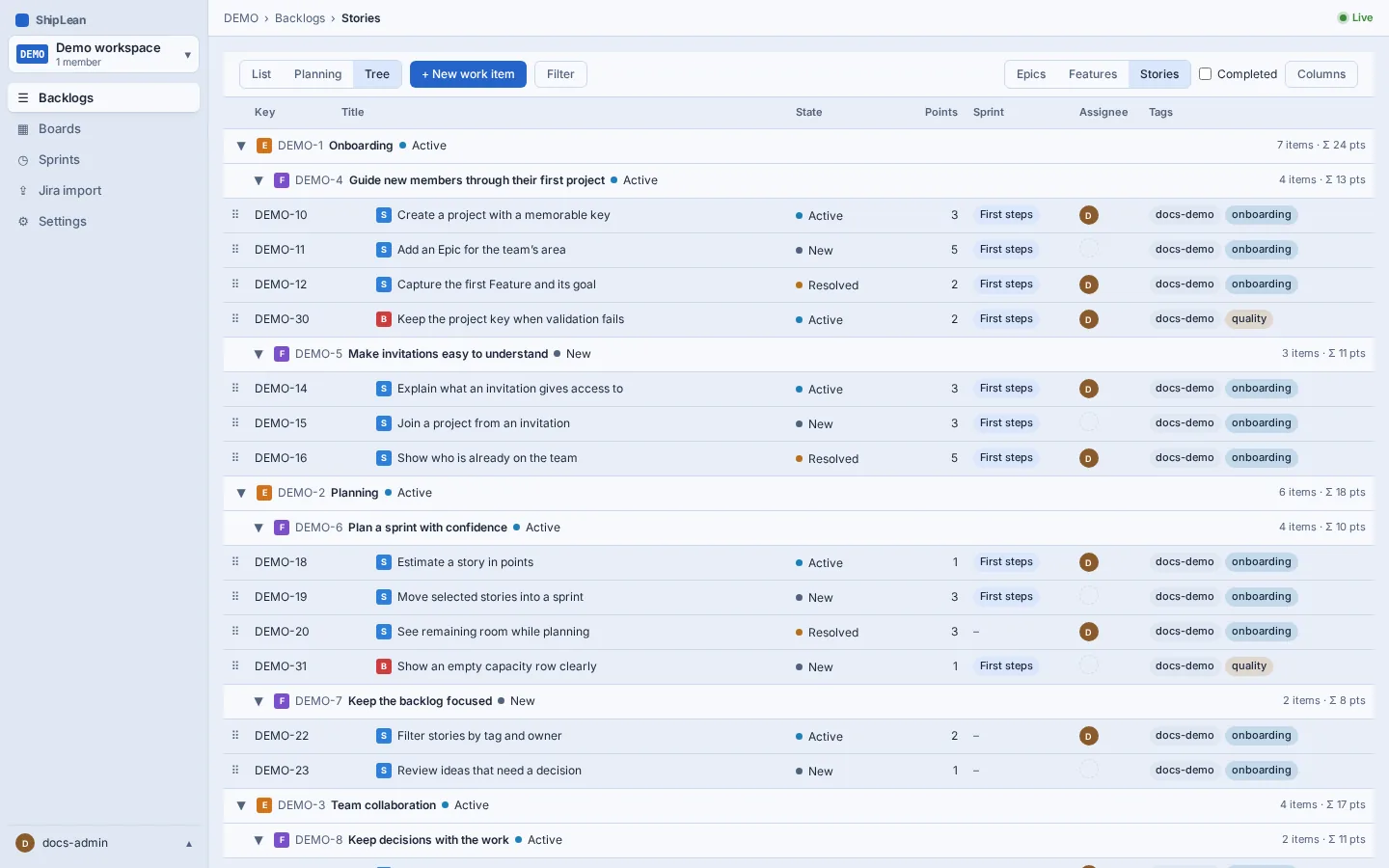
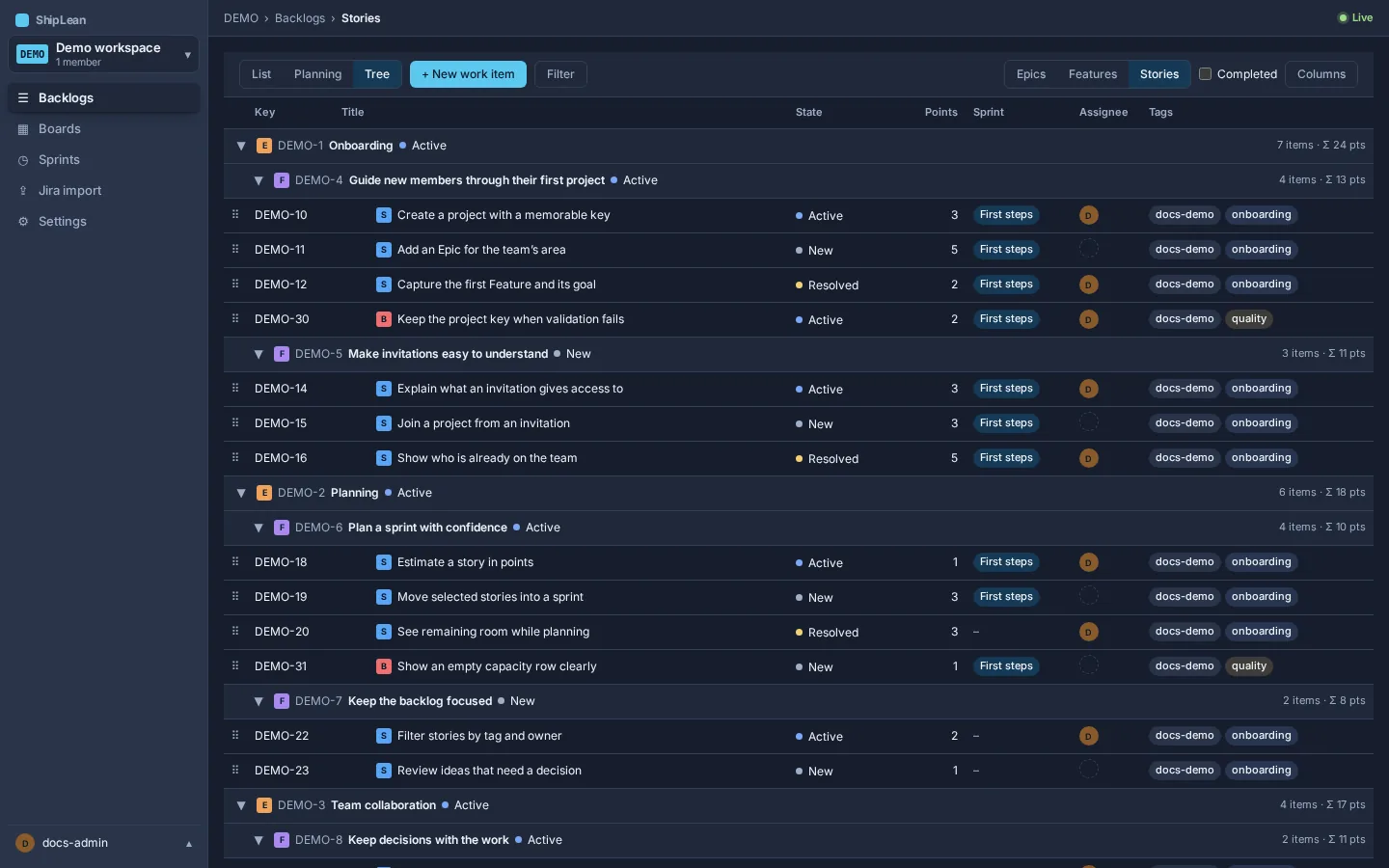
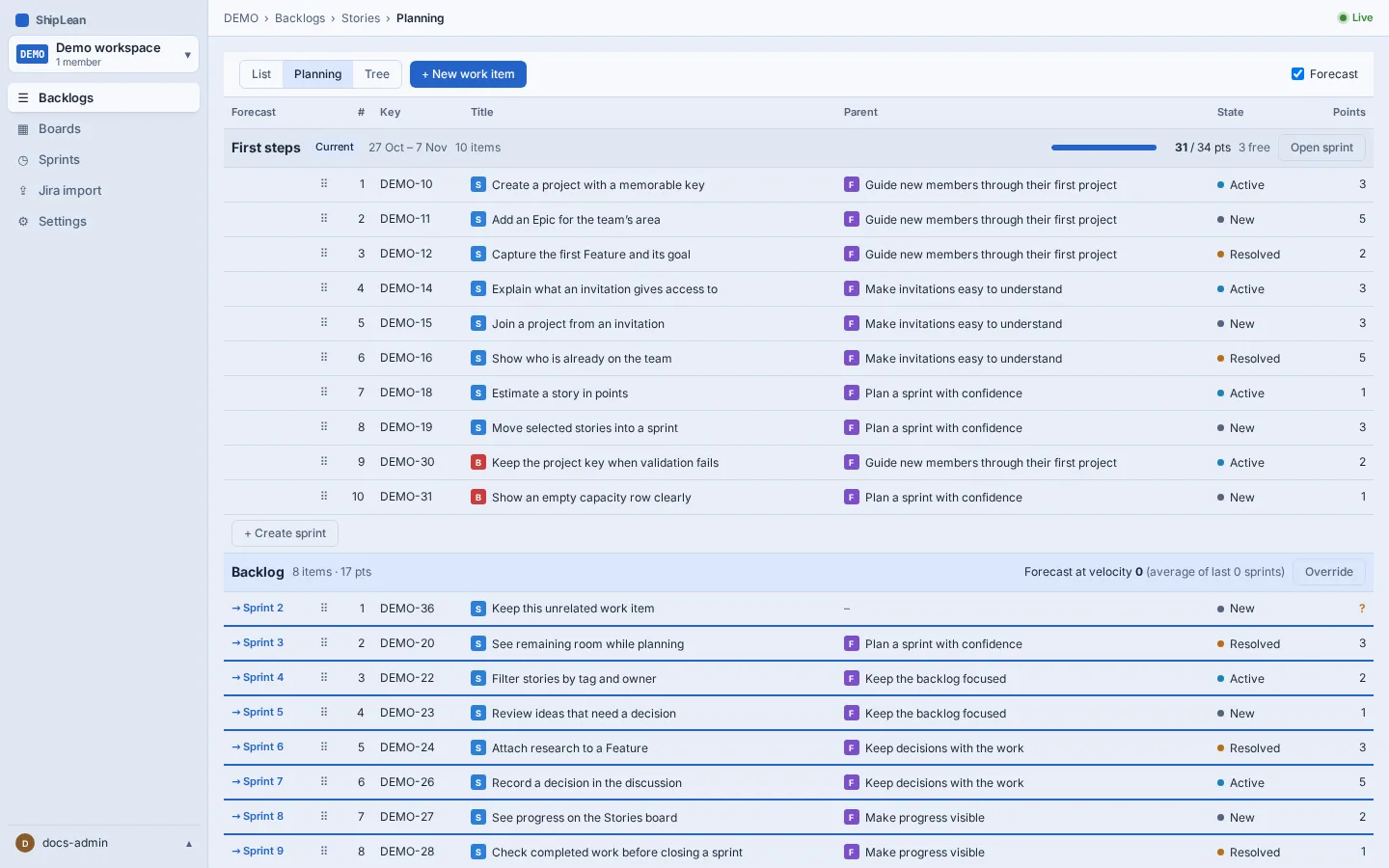
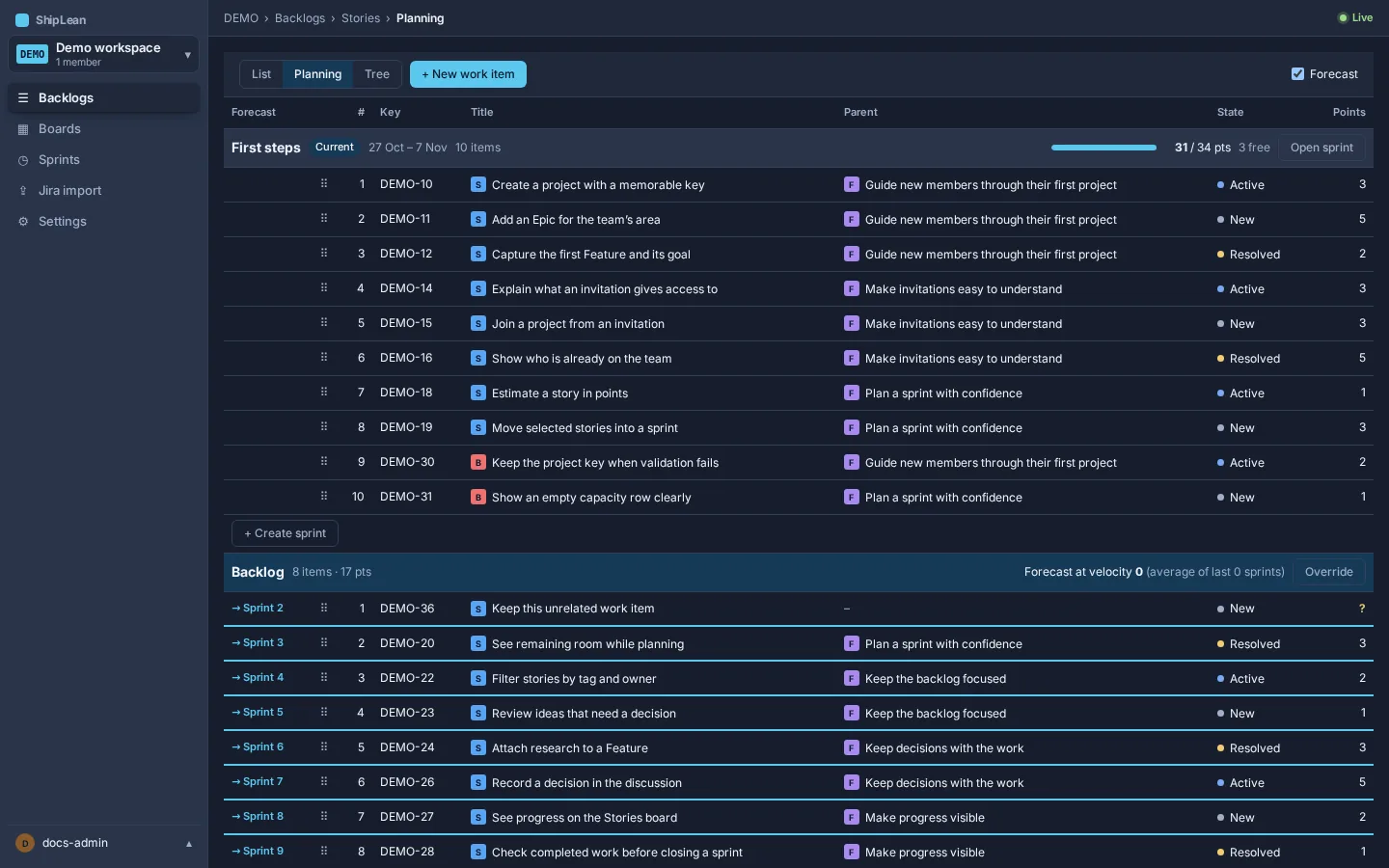
On Stories, choose List for a flat ranked list, Tree to see Stories and Bugs under their Epics and Features, or Planning to place Stories in sprints.
Add work at the top
Section titled “Add work at the top”Choose + New work item on Stories, then choose User Story or Bug, enter a title and press Enter or Add. The new item appears first in the backlog. Press Esc to close the empty row.
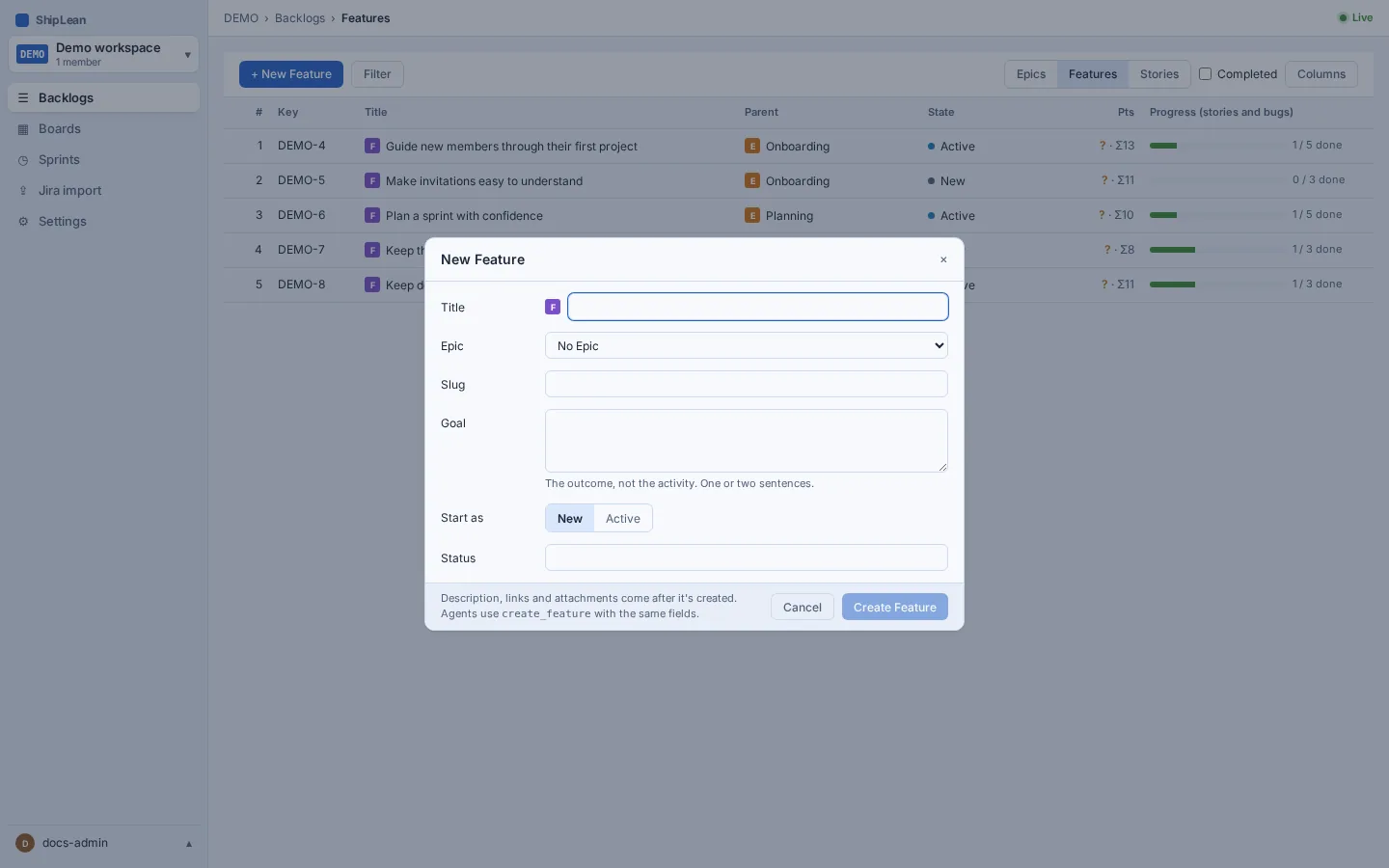
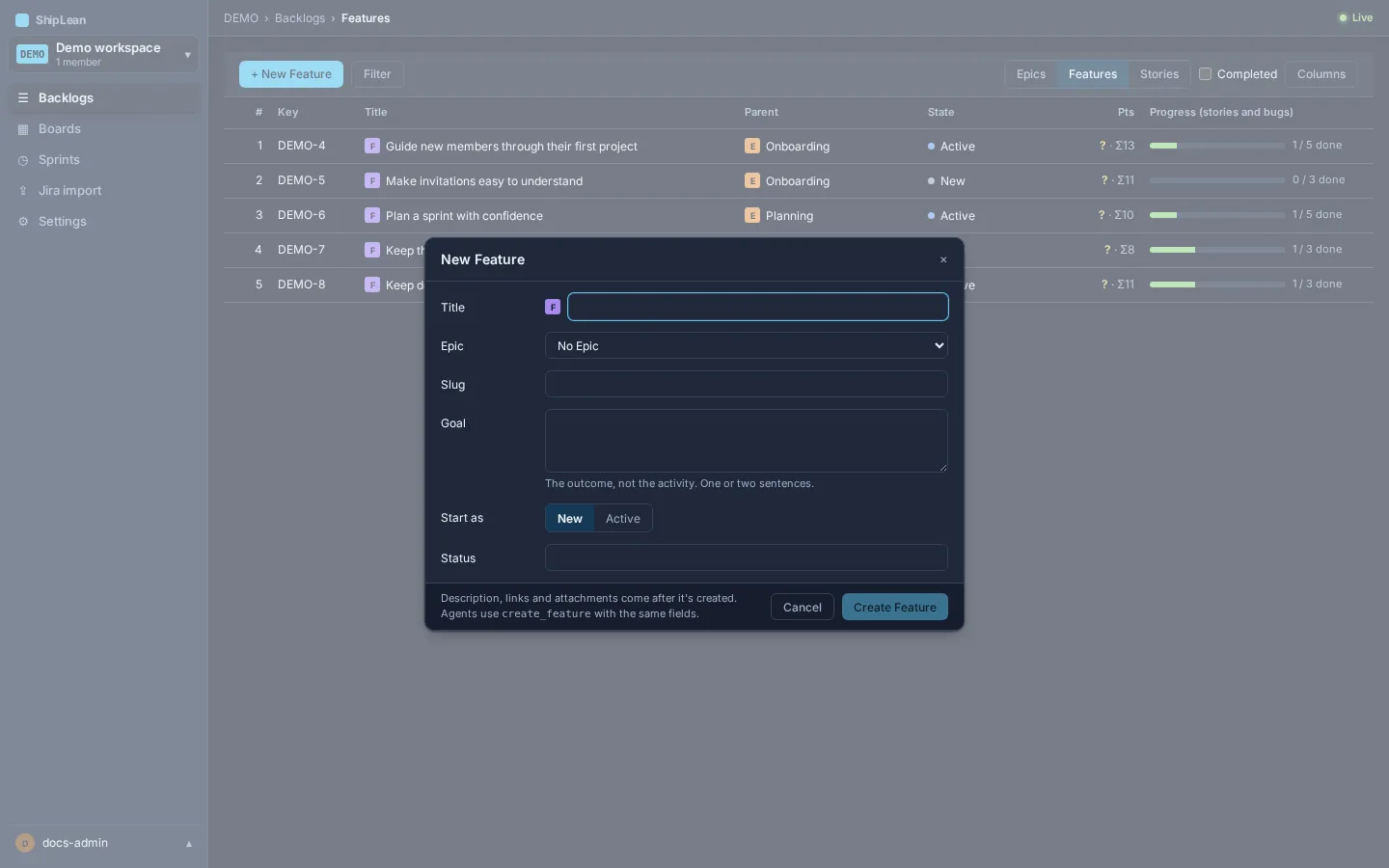
On the Features level, choose + New Feature to open the Feature form. Set its title and, if useful, an Epic, slug, goal, starting state and status line. Choose Create Feature to open the new item. On Epics, + New work item opens an inline row for a title.
Quick search can also start an Epic, Feature, Story, or Bug. Its action opens the matching backlog with the new-item control open and the type already selected. Stories open in List mode. A Feature opens the New Feature form. Epics, Stories, and Bugs open the inline row. A task is created from its parent item.
Rank Stories
Section titled “Rank Stories”In List and Tree modes, drag a row by its handle to change its rank. In Tree mode, drop a Story or Bug on a group to change its parent, or on another item to place it above that item. In Planning mode, drag a row into a sprint section to assign it and set its rank in one move. You can also focus a Planning row and press Alt+Up or Alt+Down to move it one place.
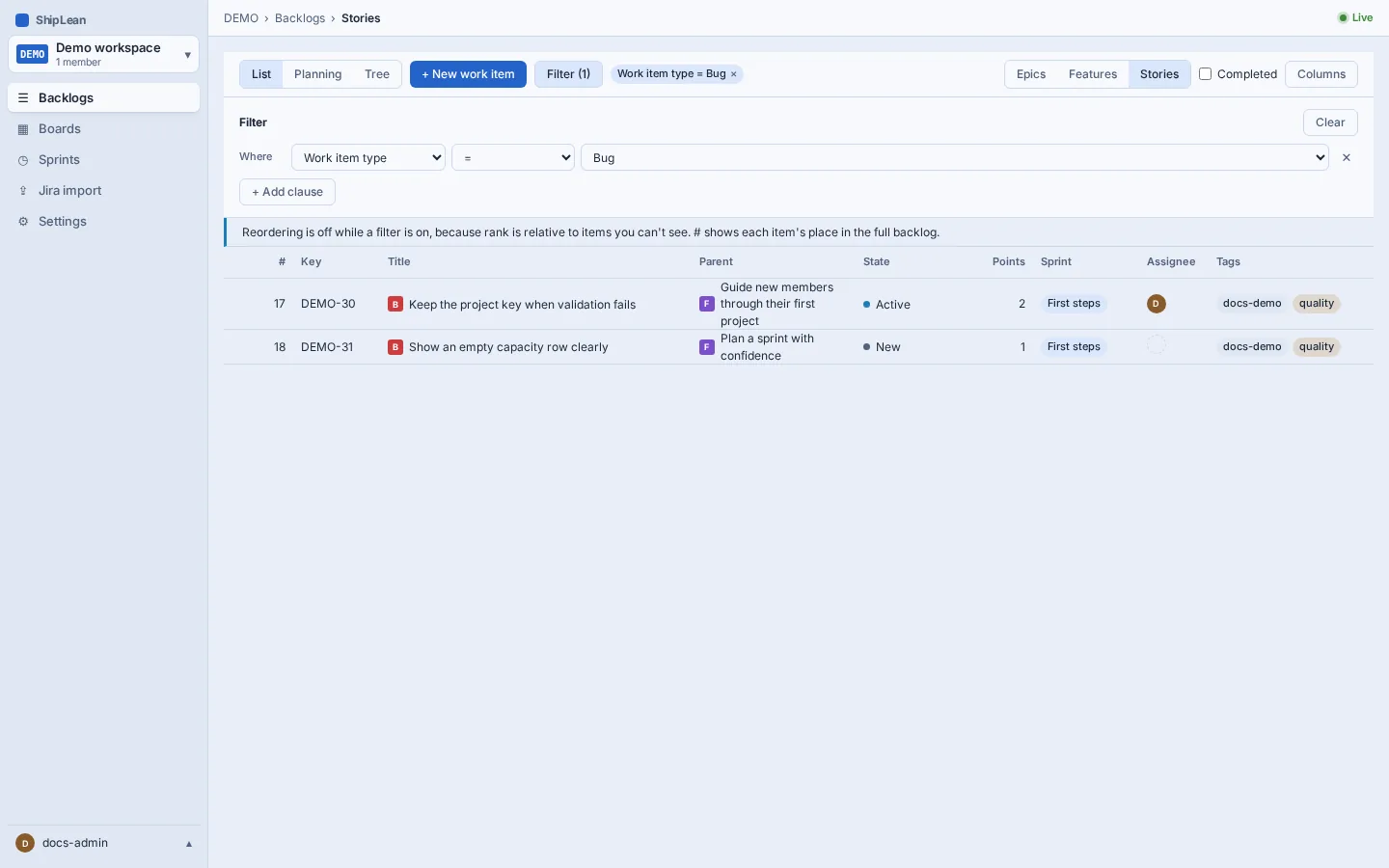
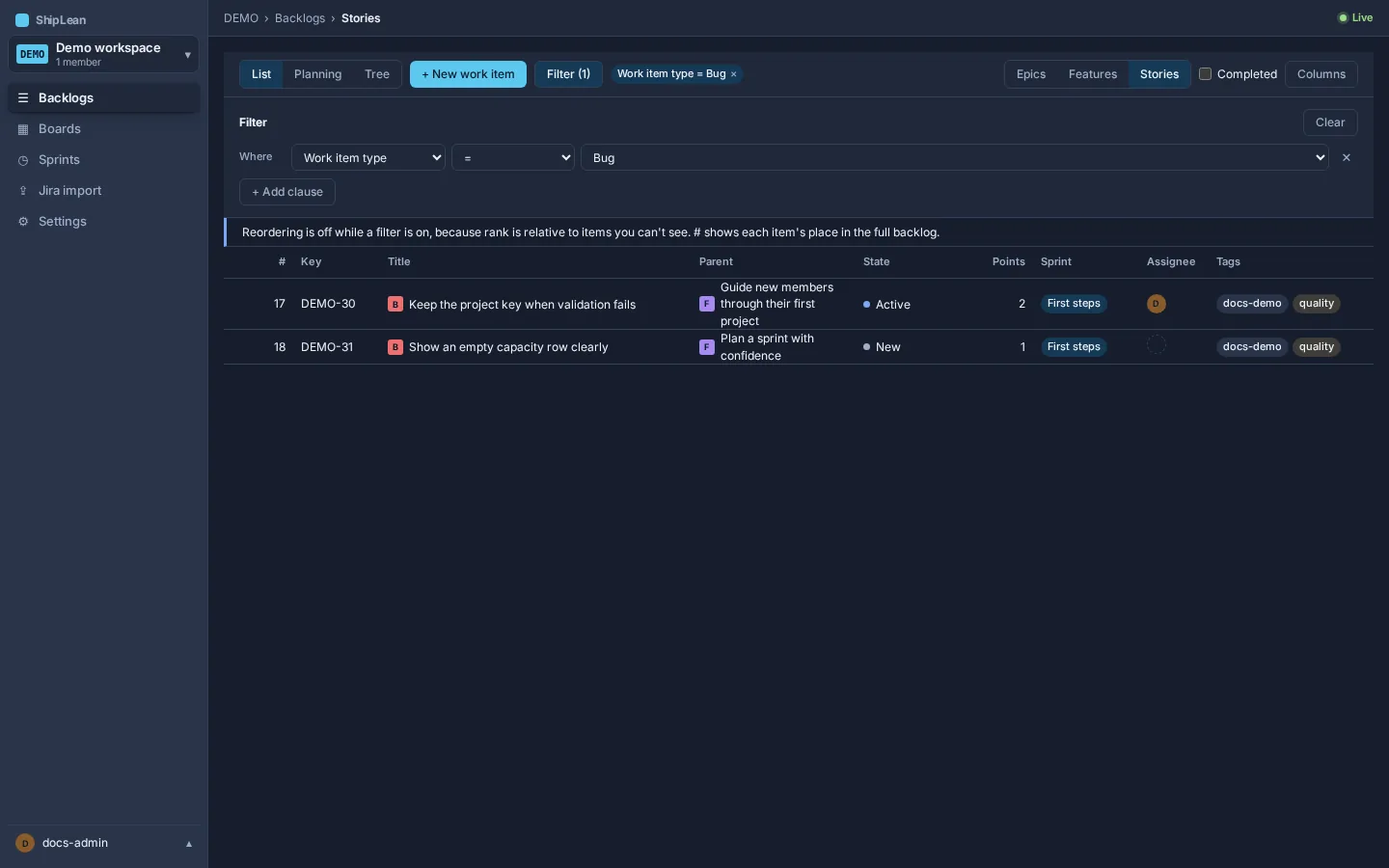
Filtering turns off moving in List and Tree modes, because a filtered position is ambiguous when you cannot see every row. The # column keeps each item’s rank in the full backlog while a filter is active. Features and Epics show their rank, but those lists do not have drag-to-reorder controls.
Filter the backlog
Section titled “Filter the backlog”Choose Filter to open the criteria builder. Add clauses by field, operator and value. Active clauses appear as removable chips beside Filter. Choose Clear in the panel to remove all clauses. The level tables also have a Filter control.
Filtering does not renumber rows. It also disables dragging in Stories List and Tree modes. Clear the filter to move items again. If the server cannot use a filter, the message appears in the panel and the last successful rows stay visible.
Show completed work and choose columns
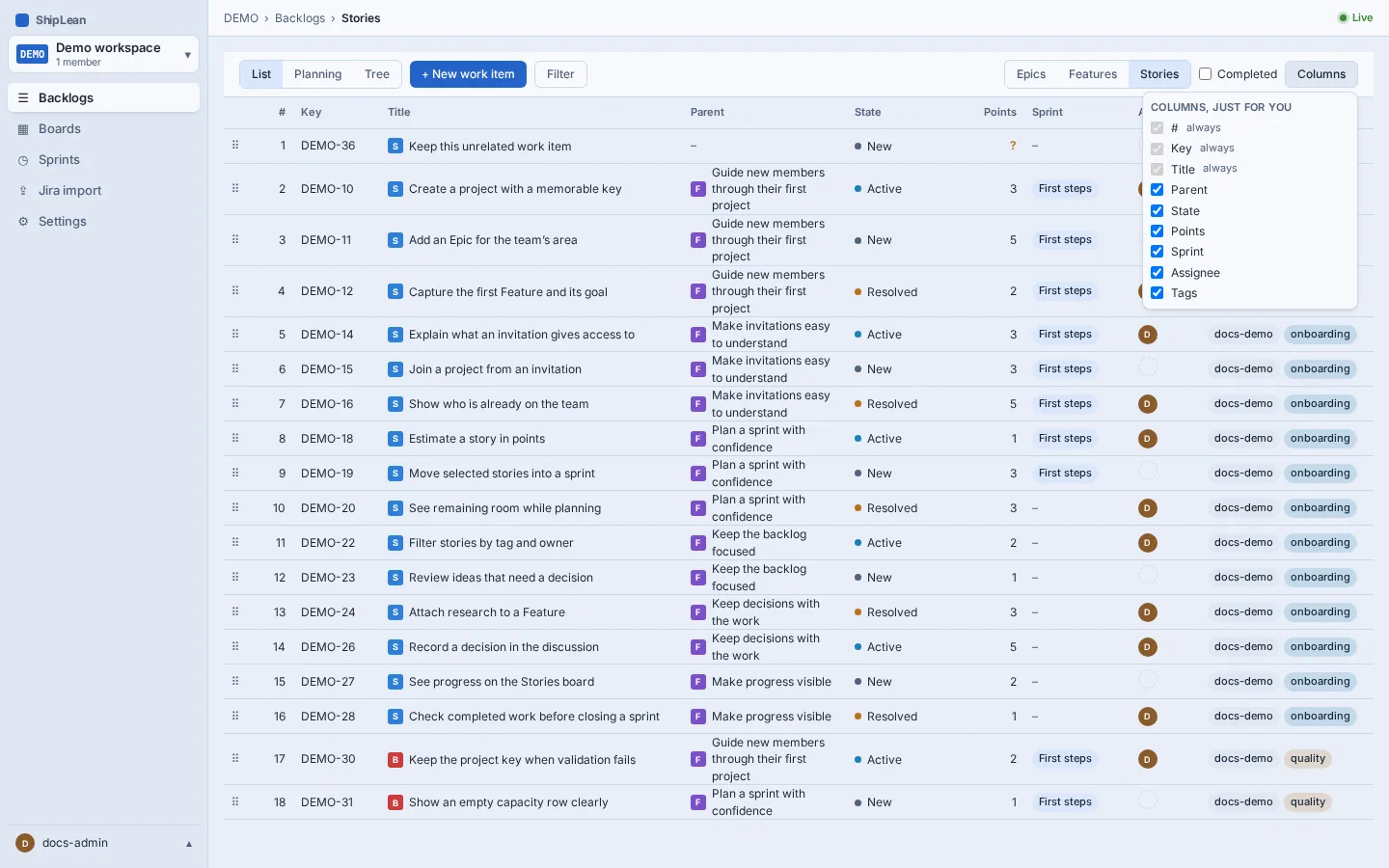
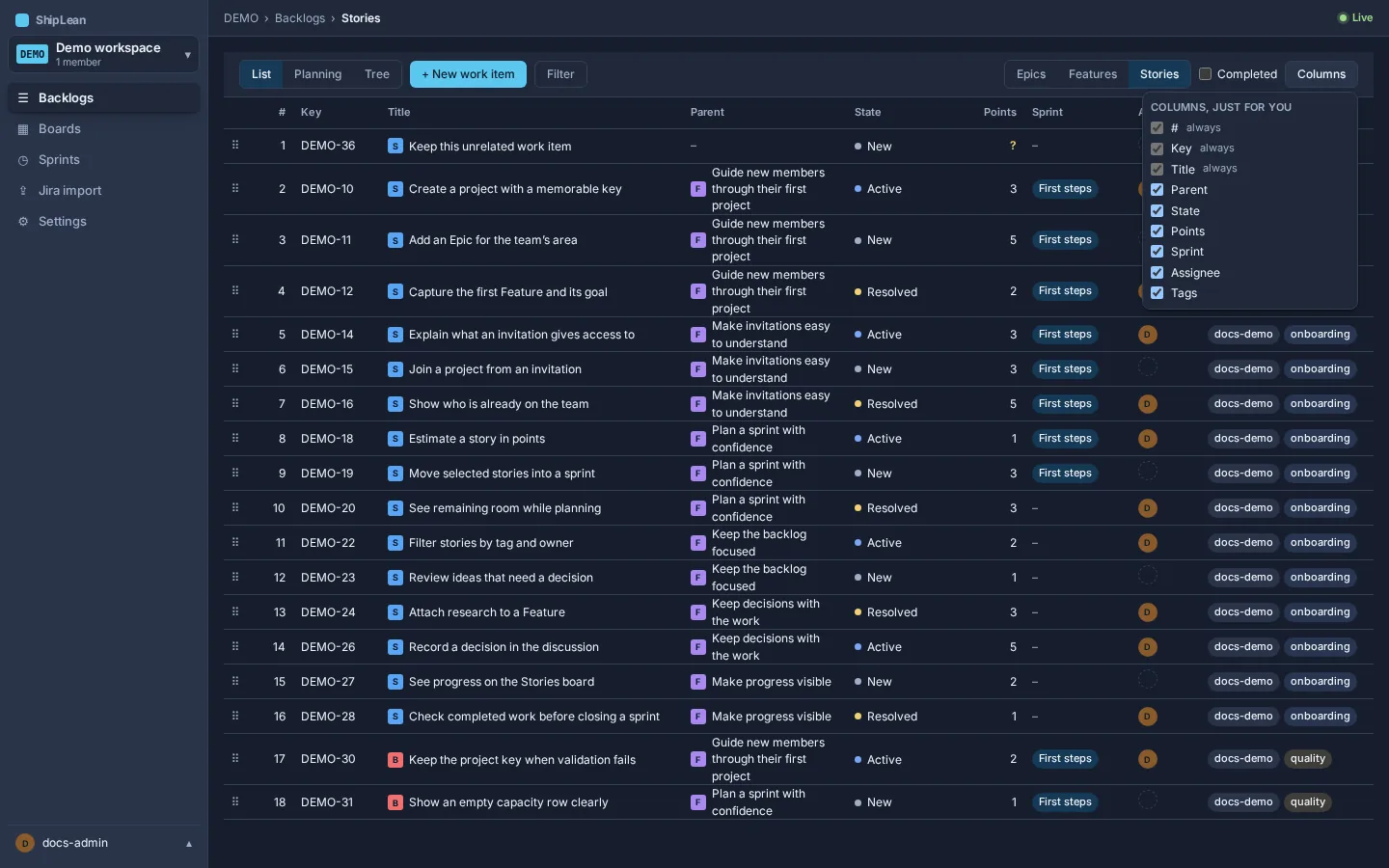
Section titled “Show completed work and choose columns”In List and Tree modes, turn on Completed to include items in a Completed state category. Planning mode has no Completed toggle. On the level tables, the same toggle includes completed Features or Epics.
Choose Columns to show or hide optional columns. Your choice is saved for your account and each backlog level. Rank, Key and Title stay visible. Stories can show Parent, State, Points, Sprint, Assignee and Tags. Features can show Parent, State, Points and progress. Epics can show State, Feature count, Points and progress.
Read roll-ups
Section titled “Read roll-ups”Features and Epics show their own estimate and, when available, the sum of points below them. ShipLean shows a warning when the rolled-up sum is more than a quarter above the item’s own estimate. Progress counts the completed Stories and Bugs beneath the row, including those under nested Features. It shows the completed share and count. The Epic table also shows the number of Features under each Epic.
In Tree mode, collapsed groups show their point and completion roll-ups. In Planning mode, sprint sections show committed points and capacity. The forecast line marks the estimated cutoff at the current velocity. Use Forecast to hide or show that line.
Options and shortcuts
Section titled “Options and shortcuts”- Enter adds an item from an open inline row. Esc closes the row.
- Alt+Up and Alt+Down move the focused row one place in Planning mode.
- In List and Tree modes, a filter disables dragging until you clear it.